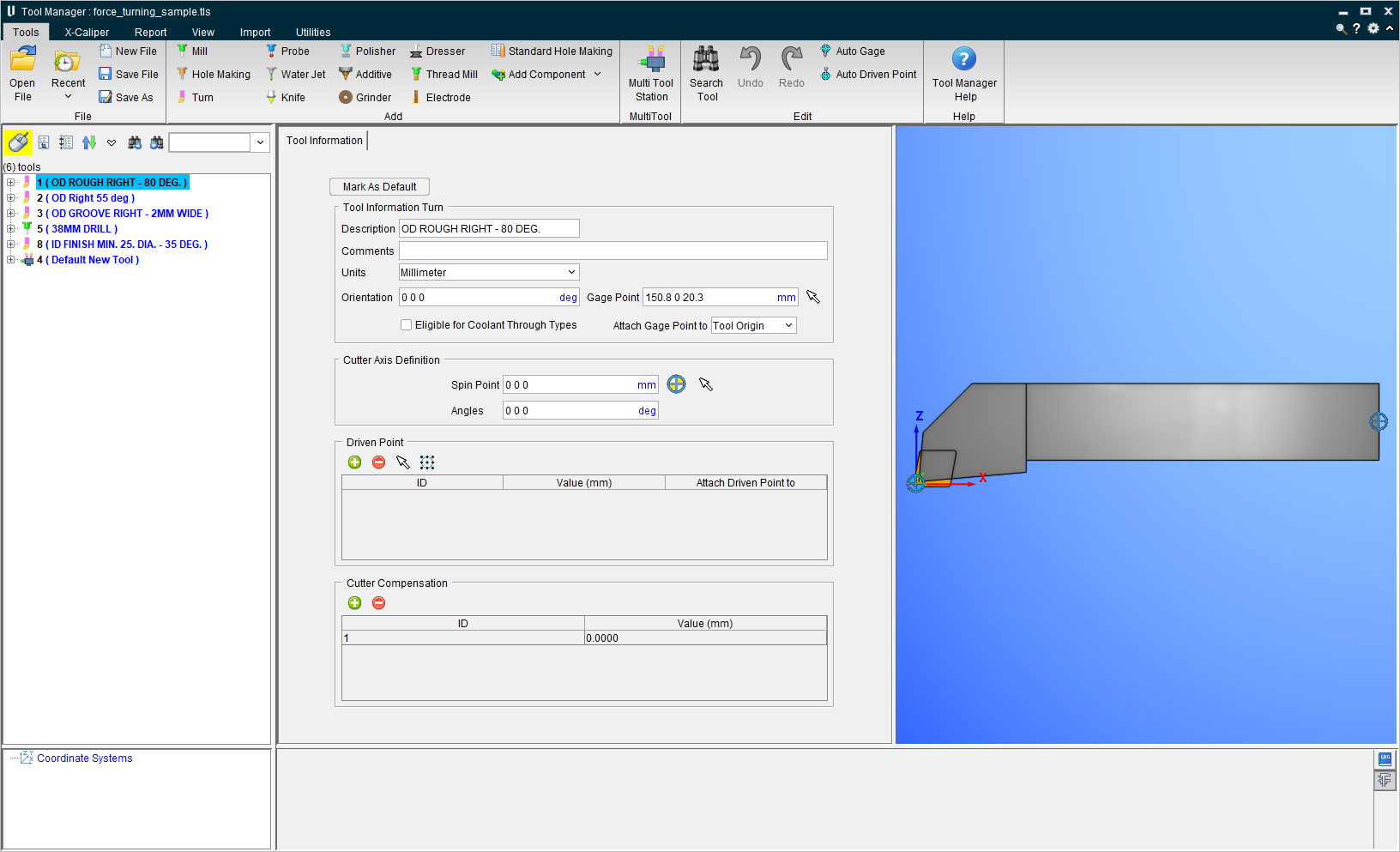
Tool Manager window
The Tool Manager window enables you to create and maintain Tool Library files containing descriptions of cutting tools, or tool assemblies.
Overview of using the Tool Manager window
In general, double click on a tool component to modify, or key in supporting values into the associated data fields. Right click on a tool component to display a shortcut menu whose features enable you to define, and modify, tool components. Tools can be defined interactively inside, or outside, of Vericut by running the Tool Manager "toolman" command file.
The tolerance values used when creating tools in Tool Manager is dependent on whether the Tool Manager internal to Vericut is being used or if stand-alone Tool Manager is being used.
- When the Tool Manager internal to Vericut is used, the Model Tolerance value for the current setup that is specified in the Settings window: Properties tab (Project tab > Settings) is used when creating the Vericut Polygon (.ply) files.
- When stand-alone Tool Manager is used, the tolerance is hard coded to either 0.025 for Metric units, or 0.001 for Inch units, depending on the specified unit type is.
The unit type (Metric or Inch) is defined using the environment variable "CGTECH_DEFAULT_UNITS" which should be set to "MILLIMETER" or "INCH".
The Tool Manager window consists of five distinct areas:
Tool List Area and Coordinate Systems List Area
Tool Parameter Definition Area
Each of these areas is described in detail in their respective sections.
The window header displays the current tool library file. This window can be resized like most other window, via dragging the window header, sides or corners.
💡 Tips:
-
Right-click shortcut menus: Features used to manipulate tools, or tool assemblies, are displayed in a shortcut menu when the right mouse button is clicked in the Tool List Area portion of the Tool Manager window.
Features used to manipulate the tool graphics are displayed in a shortcut menu when the right mouse button is clicked in the Tool Display area of the Tool Manager window.
Features used to manipulate coordinate systems are displayed in a shortcut menu when the right mouse button is clicked in the Coordinate Systems list area of the Tool Manager window. -
You can move objects in the Tool Manager window via dragging them from one parent tool to another, or copy them via holding down the
key and dragging.
See Using the Tool Manager section of Tool Manager Standalone Help for information about Vericut tools and using the Tool Manager to create and maintain tool libraries.
Tool Manager window, Message Area
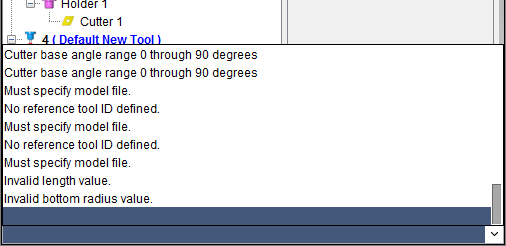
The message area, also known as the "message logger", is located at the bottom of the Tool Manager window, and by default displays the most recent message Vericut has provided. Vericut provides error, warning, and informational messages to assist you while working in the Tool Manager.
To review previous messages, click on the message line-the most recent message is listed last. Click again to close the message logger.