Environment Variables
You can set environment variables to help customize the Vericut user interface, alter Vericut performance, and perform other various actions. This section describes environment variable formats and the available environment variables that can affect the Vericut simulation.
Environment variables are typically set via Vericut command files located in the Vericut "commands" folder, under the folder representing your computer type. For example, the command files for Vericut 9.7 installed on the "C:" drive of a Windows NT computer are located in the C:\CGTech971\winnt\commands folder. Environment variables can also be set in any other system file used to execute Vericut.
Formats
Formats used to set environment variables differ, based on the computer's operating system. Consult the operating system documentation, or refer to the Vericut-installed command files on your computer for specific examples.
| Operating System | Environment Variable Format | Examples of Use |
|---|---|---|
| Windows | set ENV_VAR_NAME=value | set CGTECH_DEFAULT_UNITS=inch set CGTECH_LIBRARY=C:\CGTech50\library |
Available environment variables that can affect the Vericut simulation are listed below in alphabetical order. For simplicity, all examples of use below are in Windows format.
CGTECH_CEILING_IMAGE — Specifies the JPEG file to use as texture for the ceiling in OpenGL machine views.
Example of use:
set CGTECH_CEILING_IMAGE=C:\path\ceiling.jpg
CGTECH_COMPRESS — By default, In Process (IP) files and Vericut Solid (.vct) files are compressed when they are saved. Vericut can read these compressed files directly. CGTECH_COMPRESS enables you to disable writing compressed In Process files and/or Vericut Solid files.
Valid settings are:
-
NO = no compression
-
IP = compress IP files only
-
VCT = compress VCT files only
-
ALL = compress both IP and VCT files (Default)
Example of use:
set CGTECH_COMPRESS=ALL
CGTECH_DEFAULT_UNITS — Sets the default units for Vericut. Specify either INCH or MILLIMETER
Example of use:
set CGTECH_DEFAULT_UNITS =MILLIMETER
CGTECH_DISPLAY — Sets the animation display method for tool motion in the Workpiece view. The display is updated for animation when you start cutting or the refine the display (e.g. press Refine Display  ). Changing the animation display method can affect simulation speed and display quality, but does not affect model accuracy. Results are different, based on the types of parts you cut and specified Cutting Resolution.
Options:
-
REFINE1 — This display method creates the best quality animation image for all-around use, but may take slightly longer to simulate with than REFINE2 (see below).
-
REFINE2 — Alternate display method-fastest when a large amount of model detail is visible. This method is more sensitive to Cutting Resolution than REFINE1, and is typically very good when the cut tolerance is small enough.
-
ULTRA — Another alternate display method-this method can be faster than the others, but has lower display quality when compared to the default method.
Example of use:
set CGTECH_DISPLAY=REFINE2
CGTECH_FLOOR_IMAGE — Specifies the JPEG file to use as texture for the floor in OpenGL machine views.
Example of use:
set CGTECH_FLOOR_IMAGE=C:\path\floor.jpg
CGTECH_FONT_SIZE — Sets the font size for text appearing in the Vericut user interface. Size can be given an absolute point size or incremental value from the default value of "12".
Examples of use:
set CGTECH_FONT_SIZE=14 (sets 14 pt. font)

set CGTECH_FONT_SIZE=+2 (also sets 14 pt. font: default 12 +2= 14)
CGTECH_FSB_ICONS — Environment variable CGTECH_FSB_ICONS is used to permit suppression of attempts to get individual icons for each branch of the file system tree. With "set CGTECH_FSB_ICONS=No" (or Non, Nein, Nyet or anything that starts with an "N") each branch will use a simple folder icon.
Example of use:
set CGTECH_FSB_ICONS=No
This environment variable was added to resolve a situation where Vericut hangs when opening a File Selection Box (FSB) when a Samba drive is mounted on a network.
-
If the Samba drive is mounted in Windows via a UNC path, then Vericut's FSB will always hang while opening. The hang occurs the second time a Vericut FSB is opened. Thus you can successfully browse to set your working directory, but then hang when opening the FSB to get the next file (IP, project, etc.).
-
If the Samba drive is mounted in Windows via a drive letter, then the hang is more sporadic. But it still hangs while the FSB is opening.
It is VERY IMPORTANT to realize that the user does not need to access the Samba drive for the problem to happen. It simply needs to be mounted on his computer.
Use of this environment variable eliminates going thru Samba to get each folder's "desktop.ini" file.
CGTECH_FSB_IGNORE — Environment variable CGTECH_FSB_IGNORE is used to suppress display and access to specific folders. Note that folder names are separated by semi-colons. Spaces in the names are OK, without enclosing anything in quotes.
Example of use:
set CGTECH_FSB_IGNORE=E:;C:\Windows;\\\xserve\fileserver\cgtech
In the above example:
- The first entry, E: is used to hide an entire drive. It could be a mapped drive.
- The second entry, C:\Windows, is used to hide a folder and everything within it.
- The third entry, \\xserve\fileserver\cgtech, is used to hide an unmapped network location, which would otherwise appear in "My Network Places". Note however that a "network place" could be a sub-folder within a mapped drive. In this case we suppress the "network place" but the folder will still appear within the drive's branches.
CGTECH_INSPECTION_TOLERANCES — Specify a fully qualified /path/filename of a "custom" inspection tolerance file" containing default tolerances to be used for Inspection Sequence.
Example of use:
set CGTECH_INSPECTION_TOLERANCES=C:\mydir\inspect_tolfile.txt
CGTECH_LIBRARY — Specifies the folder location of the Vericut Library of machines and controls accessed via choosing the "CGTECH_LIBRARY" shortcut option on file selection windows. Setting this environment variable can be useful for sites that use their own library Vericut machines and controls instead of that supplied on CD with Vericut. The full folder path can be included.
Example of use:
set CGTECH_LIBRARY=C:\mylibrarydir
See also: "Where Vericut looks for files" in the Introduction section
CGTECH_MACHINE_CONFIG — Removes the Configuration icon from the Vericut menu ribbon. Set to FALSE to remove the display.
Example of use:
set CGTECH_MACHINE_CONFIG=FALSE
CGTECH_MATRIX_FORMAT — Enables you to view the Matrix Tables in the Coordinate System window: Matrix tab, the Machine Offsets panel, and the Modeling Window: Position tab: Matrix tab with the I, J, K values along the vertical axis and the X, Y, Z along the horizontal axis rather than the "default" horizontal orientation.
Horizontal Orientation (default):
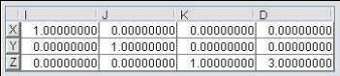
Example of use:
set CGTECH_MATRIX_FORMAT=VERTICAL
Vertical Orientation:
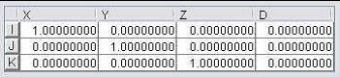
CGTECH_OLD_FSB — Enables you to use the more common Windows File Selection Box (FSB) rather than the "standard" Vericut FSB.
Example of use:
set CGTECH_OLD_FSB=YES
CGTECH_SLM_DEBUG — Enables you to write out "client side" license problem debug information to a file. This must be defined before Vericut is run.
Example of use:
set CGTECH_SLM_DEBUG=FILE:\path\filename
CGTECH_STATUS — Creates a Status file, an ASCII text file that contains whatever data is sent to the Status window during the simulation. The full folder path can be included with the file name.
Example of use:
set CGTECH_STATUS=C:\mydir\statusfile.txt
CGTECH_TPEDITOR — Causes Edit Toolpath to issue a system command using the string content of the variable, with the current tool path file as an argument. Thus you can choose to run an alternate tool path editor, such as any one of the clever NC code editors available today.
When you press Utilities tab > NC Program > 'c:\path\filename.mcd', or Info tab > NC Program >(list item) > right mouse click > Edit, or the Edit NC Program icon  , then Vericut issues the system command:
c:\program files\cooltoolpatheditor\editor.exe c:\path\filename.mcd
This will only work with tool path editors that can take the tool path file name as an argument on the command line that runs the editor. Depending on the editor's command syntax, it may be necessary to point CGTECH_TPEDITOR at a batch or script file that intercepts the tool path file name and re-formats the command as necessary.
Example of use:
set CGTECH_TPEDITOR=c:\program files\cooltoolpatheditor\editor.exe
CGTECH_USERNAME — Specifies the user name to include in the name of the Preferences file that is automatically saved when you exit Vericut. This environment variable is recommended to prevent users that share a machine (or an account) from overwriting the Preferences file.
Example of use:
set CGTECH_USERNAME=bob (Preferences file saved => "cgtech_bob.prefs")
CGTECH_VCPROJECT — Specifies the default Project file for Vericut. The full folder path can be included.
Example of use:
set CGTECH_VCPROJECT=C:\mydir\myprojectfile.VcProject
CGTECH_VCUSR — Specifies the default User file for Vericut. The full folder path can be included.
Example of use:
set CGTECH_VCUSR=C:\mydir\myuserfile.usr
CGTECH_VIEWER — Enables you to select an external editor/viewer.
Example of use:
set CGTECH_VIEWER=C:\path\editor.exe
CGTECH_X_WALL_IMAGE — Specifies the JPEG file to use as texture for the two walls having normals along plus or minus X in OpenGL machine views.
Example of use:
set CGTECH_X_WALL_IMAGE=C:\path\x_wall.jpg
CGTECH_Y_WALL_IMAGE — Specifies the JPEG file to use as texture for the two walls having normals along plus or minus Y in OpenGL machine views.
Example of use:
set CGTECH_Y_WALL_IMAGE=C:\path\y_wall.jpg
Adding custom environment variables for shortcuts
You can add your own environment variables to the beginning section of the Vericut command file and have them appear in the shortcut list of file selection windows. Vericut lists all custom environment variables that begin with "CGTECH_" in the shortcut list, and have at least one file in the folder that is recognized as a Vericut file type, for example a file with any of the following extensions: *.ctl, *.ip, *.job, *.mcd, *.mch, *.olb, *.stl, *.tls, *.tp, *.usr, or *.VcProject
📝 NOTE: The contents of the file are not verified unless loaded by Vericut. Just the existence of a file with an extension that qualifies as one of the valid Vericut file types (see above) is enough to make the shortcut appear in the list.
Example 1 — The following environment variable creates a shortcut to a folder containing Vericut 9.7 sample files.
set CGTECH_971SAMPLES=C:\CGTech971\samples\vericut
Example 2 — The following environment variable creates a shortcut to a folder containing a user's custom Vericut files. The folder contains a file named "dummy.VcProject".
set CGTECH_MYVERICUTFILES=E:\myvericutfiles