Setup Branch
Right-click on a Setup branch in the Project Tree panel to display the following menu:
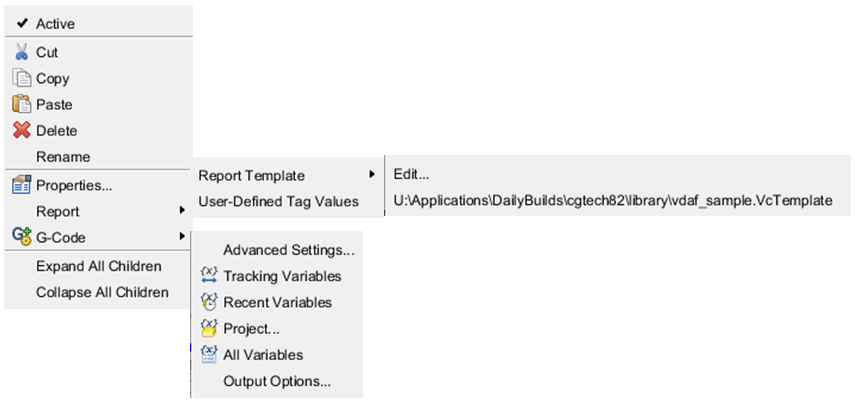
Active — Use to designate whether the setup is "active", or "inactive". (ref. Active/Inactive Setup in the Introduction to the Project Tree section.
-
Cut — Cuts the highlighted setup in the Project Tree and puts it in the paste buffer.
-
Copy — Copies the highlighted setup in the Project Tree to the paste buffer.
-
Paste — Puts the contents of the paste buffer after the highlighted setup in the Project Tree.
-
Delete — Deletes the highlighted setup from the Project Tree.
-
Rename — Use to rename the highlighted setup.
Properties — Opens the Settings window: Properties tab (Project tab > Settings) enabling you to set properties for the verification session, such as: cut mode, resolution and tolerance values that affect form display, accuracy, and motion simulation.
Report >
-
Report Template > Edit — Opens the Report Template window enabling you to define a new, or modify an existing, report template.
-
User-Defined Tag Values — Opens the User-Defined Tag Values window enabling you to assign job specific information to "generic" User-Defined Tags.
G-Code >
-
Advanced Settings — Opens the Settings window: G-Code Advanced tab enabling you to configure settings to support processing G-Code NC program files.
-
Tracking Variables — Opens the Tracking Variables panel enabling you to select variables to be tracked and delete variables from being tracked.
-
Recent Variables — Opens the Recent Variables panel enabling you to create, add, and delete variables that are specific to the project file and are stored in the project file.
-
Project Variables — Opens the Project Variables panel enabling you to create, add, and delete variables that are specific to the project file and are stored in the project file.
-
All Variables — Opens the All Variables panel enabling you to select the types of variables that are displayed and the information that is displayed for the variables.
-
Output Options — Opens the Settings window: G-Code Outputs tab enabling you to configure the settings required to support processing of G-Code NC program files.
Expand all Children — Expands all branches of a Setup branch.
Expand Components — Expands all child branches of the selected (highlighted) component.
Collapse all Children — Collapses all branches of a Setup branch.
If the Project Tree > Configure icon is toggled “on”, the Configure Setup menu displays at the bottom of the Project Tree.