Attach Component Branch
Right click on an Attach Component branch in the Project Tree panel to display one of the following menus. The menu that displays depends on whether the Show Machine Components feature is toggled “on” or “off”.
Show Machine Components toggled “off”
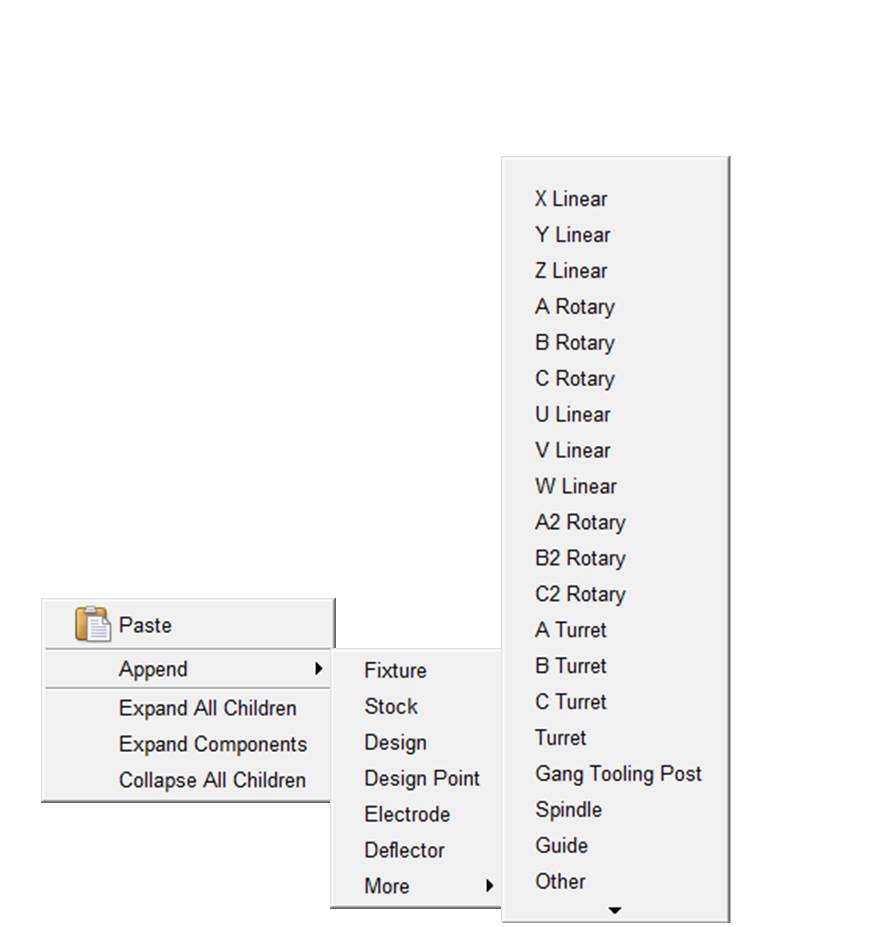
Paste — Use to paste the contents of the paste buffer to the Attach Component.
Append — Use to connect the selected component to the Attach Component (ref. Component Type in the Configuration Component menu, Component tab section for complete list of component types). Hold the cursor over the  at the bottom of the components list to view additional components.
Expand All Children — Expands all branches below the Attach Component.
Expand Components — Expands all child branches of the selected (highlighted) component.
Collapse All Children — Collapses all branches below the Attach Component.
Show Machine Components toggled “on”
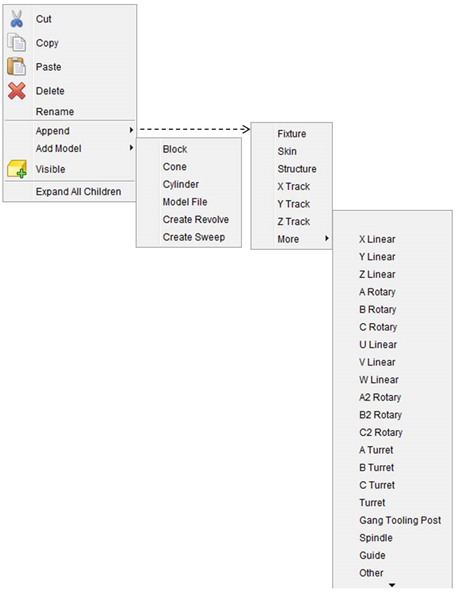
Cut — Cuts the highlighted Attach Component branch from the Project Tree and puts it in the paste buffer.
Copy — Copies the highlighted Attach Component branch to the paste buffer.
Paste — Use to paste the contents of the paste buffer to the Project Tree.
Delete — Deletes the highlighted Attach Component branch from the Project Tree.
Rename — Use to rename the highlighted Attach Component.
Append — Use to connect the selected component to the Attach Component (ref. Component Type in the Configuration Component menu, Component tab section for complete list of component types). Hold the cursor over the at the bottom of the components list to view additional components.
Visible — Use to make the highlighted Attach Component visible, or not visible, in the Vericut graphics area. The Visible icon will indicate the visibility status of the model.  indicates "visible",
  indicates "not visible". Click on Visible to toggle between the two modes. In the Project Tree, any Attach Component in the "not visible" state will be displayed in gray instead if a color.
Expand All Children — Expands all branches below the Attach Component.
If the Configure icon is toggled “on”, the Configure Component menu displays at the bottom of the Project Tree.