Fastener Programming command buttons
The Fastener Programming group command buttons are similar to the Table Manipulation Toolbar in the Fastener Programming panel and contain many of the same functionalities. These command buttons are grayed out until the Fastener Programming panel is launched.
| Normal | After Fastener Programming is launched |
|---|---|
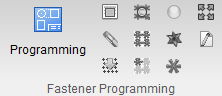 |
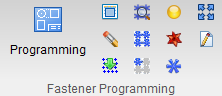 |
The following is a list of command buttons and their functions:
 (Select all locations) – Selects all drilled hole/fastener locations in the Design Location table and highlights all drilled hole/fastener locations in the graphics area.
 (Undo highlighted changes) – Removes highlighting from all drilled hole/fastener locations in the Design Locations table and deselects all drilled hole/fastener locations in the graphics area.
 (Re-project all sequence locations) – When the Design Locations file is specified on the Design Location card, the fastener locations are projected onto the skin. Use this option to re-project all of the fastener locations for the selected sequence.
 (Use mouse to select or un-select locations by box) – Use to draw a box in the graphics area around the drilled hole/fastener locations you want to select or unselect.
 (Show all locations) – Use to make all design locations visible.
 (Show selected locations) – Use to make all selected design locations visible.
 (Set selected locations as local datums) – Use to set the selected locations as local datums.
 (Set selected locations as global datums) – Use to set the selected locations as global datums.
 (Set selected locations as non-datums) – Use to set the selected locations as non-datums.
 (Fit locations to all views) – Use to “fit” the model to the size of the current view in the graphics area.
 (Run post to generate program) – Use to generate an NC Program for Vericut Drilling and Fastening Programming.