AUTO-DIFF (AUTO-DIFF window)
Location:
Analysis tab >  (AUTO-DIFF)
Toolbar short cut: 
The AUTO-DIFF command button opens the AUTO-DIFF panel enabling you to compare design model data against the Vericut simulated cut model. Using AUTO-DIFF, a licensed option, clearly identifies discrepancies between the cut model the intended design model. Errors are identified before actual machine time is wasted machining an incorrect part. You can use AUTO-DIFF interactively, in batch mode, or automatically via "Vericut-COMMAND" records in the tool path file. After using AUTO-DIFF to identify gouges and excess material, use other Vericut functions such as X-Caliper and Zoom (ref. View tab > Orient) to measure and help determine the source of the errors.
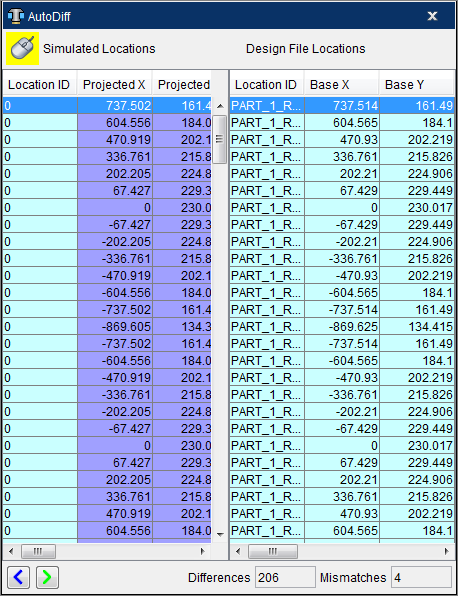
When the Mouse Pick Indicator ( ) is highlighted, selecting a location in the Location table will highlight the row in the table and also highlight the location in the Vericut Drill and Fastener Simulation graphics area. Conversely, selecting a location in the graphics area will highlight the corresponding location in the Locations table.
Click on the dividers between column headers and drag to adjust the width of a column so that all data in the column can be seen.
Use the vertical scroll bar to quickly move to locations that are not currently displayed in the Locations table. Use the horizontal scroll bars to move to columns that are not currently displayed in the Location tables. Using either of the horizontal scroll bars will cause both the Simulated Locations table and the Design File Locations tables to move together, thereby, keeping the corresponding groups of columns displayed in both tables.
Use the  (Previous Difference) button to move back (up) to the previous location in the table that has a difference. Use the
  (Next Difference) button to move forward (down) to the next location in the table that has a difference.
The Total Number of Differences field shows the differences contained in the AUTO-DIFF locations listing. When you close the AUTO-DIFF window, you will be prompted to save the Design Locations File. Choose one of the following options:
-
Yes — Displays the "Save a fastener locations file" file selection window enabling you specify the path/filename for the Design Locations File that you are saving.
-
No — Closes the AUTO-DIFF window without saving the Design Locations File.
-
Cancel — Leaves the AUTO-Diff window open for additional work.