Stack Thickness
Location:
X-Caliper tab >  (Stack Thickness)
The Stack Thickness command button enables you to determine the number of components in the stack, the thickness of each component, and the overall thickness stack at a specified point.
Select Stack Thickness then select the point on the workpiece view that you wish to collect information from. A measurement arrow appears indicating the direction that the measurements will be taken from. Once the point is selected, the measurement arrow becomes a measurement line with (+) indicating the starting point, (o) indicating the middle point, and ( ) indicating the exit point.
Click anywhere on the Skin component to indicate where you want Vericut Drill and Fastener Simulation to determine the Stack Thickness at the selected point.
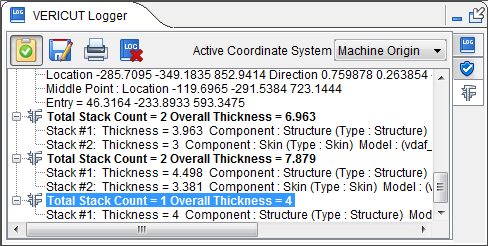
Results are displayed in the Vericut Logger. Data output includes the Total Stack Count at the selected point, the Component, Model, and Thickness for each component at the selected point, and the Overall Thickness at the selected point. Location and Direction fields are also updated in the X-Caliper Settings group as shown below: