Using F1 Help
F1 opens the section of Help that pertains to the window that you are currently working in. Click in the window to give it “focus” then press F1. Vericut will display the relevant Help section related to the window. If the window has tabs, Vericut will display the Help page related to the current tab.
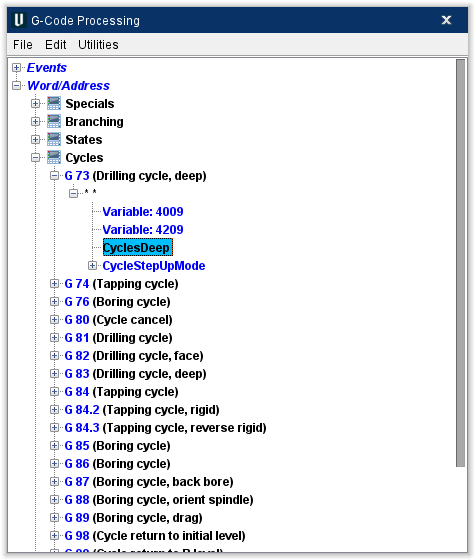
In the G-Code Processing window, highlighting a macro in the table as shown below and the pressing F1 will open the Vericut Macros documentation page that contains information about the macro. In the example below, to the page containing information on the CyclesDeep macro will display.
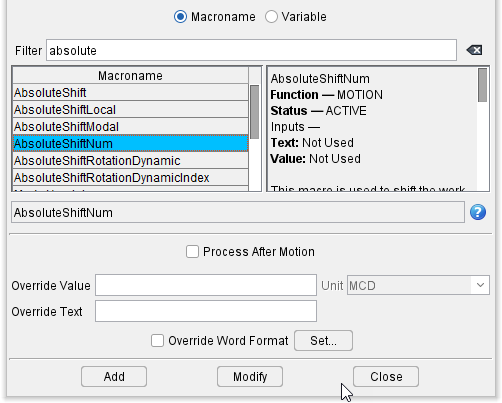
In the Add/Modify Word/Address window, selecting a macro from the Macroname list, displays the macro highlighted in the field below the Macroname list as shown in the picture below. Pressing F1 will open the Vericut Macros documentation page that contains information about the macro. In the example below, to the page containing information on the AbsoluteShiftNum macro will display.
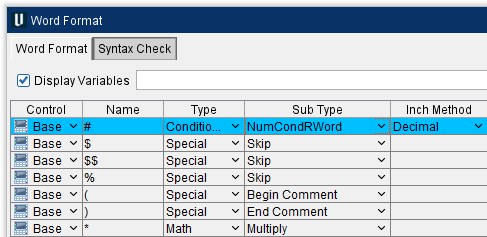
In the Word/Format window, double-click on a Conditional Sub Type so it becomes highlighted, then press F1 will display the page containing information on the highlighted Conditional. In the example below, the page containing information about conditional NumCondRWord will display.
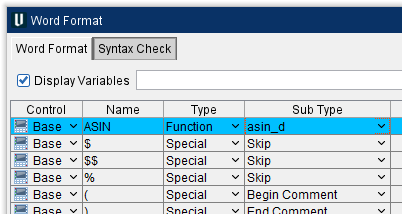
Similarly, double-clicking on a Function Sub Type in the Word/Format window so it becomes highlighted, then pressing F1 will display the page containing information on the highlighted Function. In the example below, the page containing information about function asin_d will display.