Animation Controls
The Animation Controls features, located in the Vericut main window, enable you to control and visually monitor certain events related to the simulation. The Animation Controls consist of the following four features.

Animation Speed Slider — Enables you to control the speed of the simulation.
Status Lights — Enables you to visually monitor certain events associated with the simulation (status of travel limit checking, collisions, probing, subroutines, cutter compensation, cycles, motion, Optimization, and when Vericut is processing).
Simulation (VCR) Controls — Enables you to start, single step, stop, rewind, and reset the Vericut simulation.
Each of these Animation Controls features is described in detail in the following sections.
Animation Controls is also one of the "dockable" features enabling you to be able to re-position it if you choose. See "Dockable Panels" for more information.
💡 Tip: Use the key F1 for Help on the Animation Controls features. When undocked click anywhere in the Animation Controls features bar to give it focus, then F1. When docked, you can also get to the Help if you click on the Animation Slider to give the Animation Controls bar focus, then F1.
Animation Speed Slider
The Animation Speed Slider, located on the left end of the Animation Controls features, controls the speed at which Vericut animates material removal in Workpiece views or controls the speed at which Vericut Composite Simulation animates composite material application in form views.
📝 NOTE: Animation Speed Slider cannot be below 100% while Optimization is active.
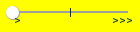
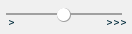
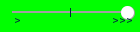
The Animation Speed Slider will be displayed in one of three ways:
| Animation Speed Slider left of center position | Animation Speed Slider at the center position | Animation Speed Slider right of center position |
|---|---|---|
 |
 |
 |
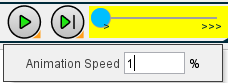
The slide bar at the center position represents an Animation Speed of 100%. Moving the slide bar to the left of the center position slows animation by adding intermediate tool display positions between motion start and end points. The slide bar at the full left position represents an Animation Speed of 1%.
Slider to the left of the center position slows animation by adding intermediate tool display positions between motion start and end points as represented in Animation Speed percentages. The slide bar at the full left position represents an Animation Speed of 1%. Use Min. Motion Dist. and Max. Motion Dist. in Project Tree > Configure Setup menu: Motion tab to define the range for the Animation Speed Slider.
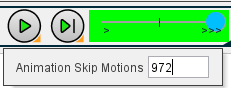
Slider to the right of center enables you to specify Animation Skip Motion value to group cuts together for even faster animation display. The Skip Motion value represents the number of animated tool motions to skip before updating the display. You can also specify the Skip Motion value in the Project Tree, on the Configure Setup menu: Motion tab.
| Percentage | Skip Motions |
|---|---|
 |
 |
Status Lights
The "Status Lights", located between the Animation Speed Slider and the Progress Bar in the Animation Controls features, provide constant visible feedback over when Vericut is processing certain events, busy performing a task, or optimizing an NC program file.
The Status Lights displayed will depend on whether you have a review file created in Vericut Simulation, Vericut Composite Simulation, or Vericut Drill and Fastener Simulation is loaded. The difference is shown in the pictures below.

Ready — Indicates Vericut Status.
-
Red — indicates that Vericut is "Busy" processing.
-
Yellow — indicates that Vericut is "Paused" in the middle of a block or cycle.
-
Green — indicates that Vericut is "Ready" for user commands.
Optimize — Indicates Optimization status.
-
Green — indicates Optimization is "On".
-
Yellow — indicates Optimization is in "Learn Mode".
-
Dark Green — indicates that Optimization is "Off".
Collision — indicates the status of collision checking.
-
Red — indicates that a collision occurred on the current block.
-
Yellow — indicates that a collision has occurred during the current session.
-
Green — indicates that Collision Detection is toggled "On".
-
Dark Green — indicates that Collision Detection is toggled "Off".
Limit — indicates the status of travel limit checking.
-
Red — indicates that a travel limit has been exceeded on the current block.
-
Yellow — indicates that a travel limit has been exceeded during the current session.
-
Green — indicates when Overtravel Detection On is toggled "On".
-
Dark Green — indicates that Overtravel Detection On is toggled "Off".
Simulation (VCR) controls

The simulation controls, also known as VCR buttons, located on the right end of the Animation Controls features, control interactive tool path simulation. Once Vericut is configured, you will use these controls to start and stop the simulation, as well as begin with a new, uncut workpiece. To see what is associated with a Simulation control icon, simply position the cursor over the icon and a tip appears.
Simulation controls:
| Icon | Name | Function |
|---|---|---|
 |
Reset Model | Display a new Vericut model and rewind the NC program file. The Reset Confirmation will display. |
 |
Rewind NC Program | Rewind the NC program file to the beginning (leave the model as is). |
 |
Play / Start-Stop Options | Left click — start or re-start NC program processing. Tips: 1. Left click on the Play icon while simulating to stop the simulation just like using the Pause icon. 2. Once you have clicked on the Play icon with the left mouse button, you can pause and start the simulation by using the spacebar. The spacebar will repeat the last mouse click. Right click — displays the Start/Stop Options window that enables you to specify conditions that control the starting, and stopping, of NC program processing. |
 (or press Escape key \<Esc>) |
Pause | Stop processing immediately. If processing stops in the middle of a block or cycle, the yellow “Pause” status light will be displayed. If processing stops at the end of a block, the green “Ready” status light will be displayed. This option is only available when the simulation is active. The Play icon will become the Pause icon. |
 |
Step / Subroutine Options | Left click — If the yellow “Pause” status light is displayed, Step will process to the end of the current block. If the green “Ready” status light is displayed, Step will process one NC program record ("single block") Tips: 1. Once you have clicked on the Step icon with the left mouse button, you can step forward one block in simulation by using the spacebar. You can step forward as many times as you like by repeating to press the spacebar. 2. Once you have clicked on the Step icon with the left mouse button, you can use the space bar for a continuous Step operation. Vericut will continue stepping, one NC block at a time, as long as you continue to hold the spacebar down. You do not need to hit the spacebar repeatedly. Right click — display the Subroutine Options buttons that enable you to specify how you want to handle NC subroutines during processing. These features are described in detail below. |