Home tab
The Home tab contains the main features users are expected to need while running Vericut Reviewer including buttons to access files, create reports, gather info, analyze machining, and access Help information. All features will be summarized on this page but each hyperlinked feature can be clicked on to see a more detailed description for more information.
File group
- Open File — This button opens a file selection window titled Open Vericut Review File enabling you to specify the Review file that you want to work with.
- Recent Files — This button provides a list of recently opened Review files. Select the desired file from the pull-down list. The list contents are stored in the Vericut Reviewer Preferences file.
- Report — This button enables you to view a PDF report file if one was embedded in the Review file at the time of creation. The PDF Report file must be created in your primary Vericut software (e.g. Vericut, Vericut Drilling and Fastening, Vericut Composites Simulation, etc.) before you create the Review file. Vericut Reviewer cannot create Report files on its own.
Utilities group
- Preferences — This button opens the Preferences window enabling you to specify the Review file that you want displayed when you start the next Vericut session, the number of "recent files" that you want Vericut Reviewer to remember, and the PDF reader/web browser that you want Reviewer to use for online Help among other options.
Info group
-
NC Program — This button opens the NC Program Review panel which enables you to quickly and easily view, replay and edit a previously processed NC program (toolpath).
-
Status — This button opens the Status panel that provides status information about the simulation, and what would be occurring on the NC machine.
-
Vericut Log — This button opens the Vericut Logger also known as the “message logger” or “logger” which displays all error, warning, and information messages as well as displaying X-Caliper measurement information.
- Enable HUD — Enable HUD toggles the Heads Up Display (HUD) on and off. A Status HUD must have already been set in the file that was saved for review, otherwise this feature will not work. A saved NC Program HUD will not display in Vericut Reviewer. When Enable HUD is active, the command button will be highlighted in blue to indicate that the HUD is enabled and the information will appear where it was positioned to appear in the original program.
Analysis group
-
MDI — This button opens the MDI window which enables you to manually enter and process blocks of G-Code data.
-
Tools — This button opens the Tools window enabling you to view tools and their usage in Vericut Reviewer.
-
Simulated Report — This button is used to open the Simulated Location Report panel, a table containing all simulated location data. This features is only available when Reviewer is processing VDAF files.
-
Fastener Summary — This button is used to open the Simulated Location Summary panel, which consists of two tables of information associated with the simulation. This features is only available when Vericut Reviewer is processing VDAF files.
Help group
- On Vericut Reviewer — This button opens the Vericut Reviewer Help which you are currently reading.
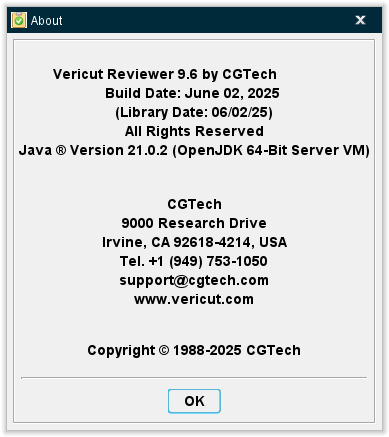
- About Vericut Reviewer — This button opens the About window showing version and customer related information.