Vericut Reviewer Main Window
The Vericut Reviewer main window is composed of three distinct areas, each with different user interaction. The window header displays the current NC program file. This window can be moved and resized like most other windows, via dragging the window header, sides or corners. In addition, the size of the NC Program Listing, Error Listing, and Graphics areas can be changed within the main window by dragging the adjoining sides of each area.
Vericut Reviewer enables you to quickly and easily associate the NC program record, the motion resulting from it, and any errors that may be associated with it. The three areas of the window are linked together so that if you select a NC program record in the listing, the tool moves to the corresponding location in the graphics area. If you select a location in the graphics area, the corresponding NC program record is highlighted in the NC program listing. If you select an error in the error listing, the NC program record that caused the error becomes highlighted in the NC program listing and the tool moves to the position where the error occurred in the graphics area.
Menu Ribbon — The Menu Ribbon, located across the top of the Vericut Reviewer main window, provides easy access to Vericut Reviewer functions. Each menu in the menu ribbon contains groups of related functions.
Tool Bar — Tool Bar, located immediately above the Menu Ribbon, contains icons that provide quick and easy access to the most commonly-used functions/features.
NC Program Listing — The NC Program Listing window displays a listing of the NC program records. You can also set Start and End markers to define the range of NC program records that you want to review. For more information about this portion of the NC Program Review main window, see the NC Program Listing window section below.
Error Listing — The Error Listing area displays a list of the errors that Vericut found while processing the NC program. For more information about this portion of the NC Program Review main window, see the Error Listing Area section below.
Graphics Area — The Graphics area displays a visual representation of the motion associated with the records in the NC Program Listing. Here you can control how the tool is displayed, the method and direction of the replayed NC program as well as the speed of the replay. For more information about this portion of the NC Program Review main window, see the Graphics Area section below.
💡 Tip: Press the "F1" key while cursor in any Vericut Reviewer window to receive help on that window.
Menu Ribbon
The menu ribbon, located across the top of the Vericut Reviewer window, provides easy access to Vericut Reviewer functions. Each tab in the menu ribbon contains groups of related functions. Left-click on any tab name to expose the list of command buttons available in that tab. If an arrow appears below a command button, click the arrow to expose a pulldown menu of additional functions. Click on the function in the menu you want to use.
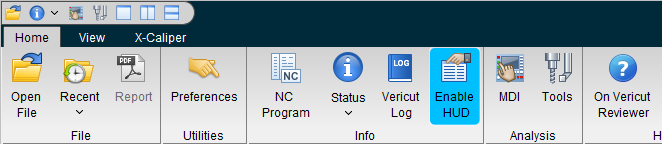
Vericut Reviewer menu ribbon descriptions
The menu ribbons which provide access to all Vericut Reviewer functions are listed below, followed by a brief description of what the menu functions do. In Vericut Reviewer Help, in the Vericut Reviewer Menus & Features section, click on the desired menu and select the feature for more information about each feature.
Home — Features in this tab enable you to open Vericut Review Files (.vcreview), specify a working directory, open the NC Program, and manage tools.
View — Features in this tab enable you to set up the number of views, orientation (angle and distance) for each view, and store or select commonly used views, set up other Vericut display characteristics, and manage display preferences.
X-Caliper — Features in this tab enable you to measure and record information for the reviewed materials.
See the respective tab sections of Vericut Reviewer Help for information on each tab and the features that they contain.
Customize Ribbon
Customizing the Menu ribbon
Location:
 (Ribbon) > Customize Ribbon window: Ribbon tab
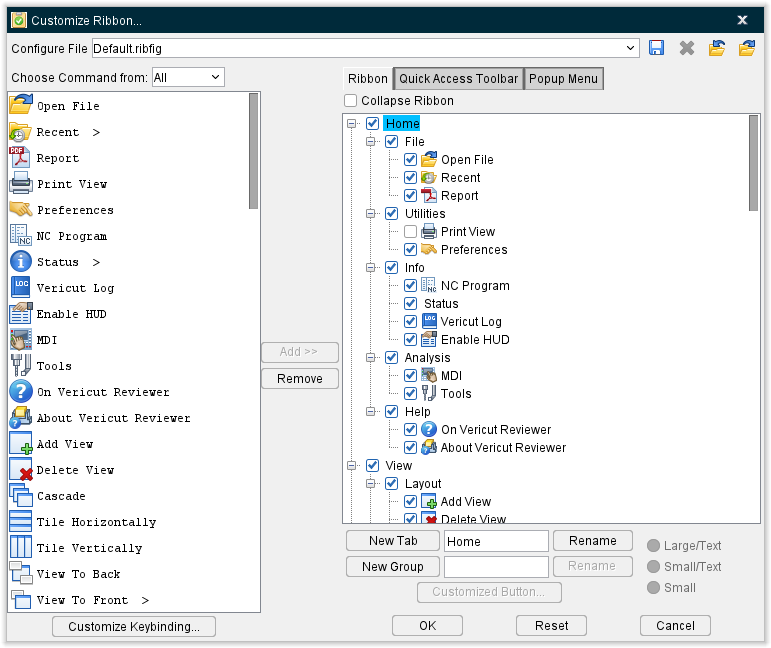
The Ribbon option opens the Customize Ribbon window enabling you to control when the Menu ribbon is displayed and the icons that it contains. Ribbon command buttons provide quick and easy access to the most commonly used Vericut functions/features. The Menu ribbon can be closed, opened, or customized at any time. You choose which command buttons are displayed in the Menu ribbon and in what order.
💡 Tip: Use the F1 key for Help on the View Toolbar window.
 (Minimize Ribbon) — When toggled off (not checked), selecting OK displays all of the icons in the command buttons in the Menu ribbon in the Vericut main window as shown in the picture below. By default, all command buttons are visible and displayed in the Menu Ribbon.
 (Save Ribbon Configure File) — The Save Ribbon Configure File option allows you to select different prefigured configurations for the Toolbar.
 (Delete Selected Ribbon File) — Enables you to remove the selected Configure File completely. The Default Configure File cannot be deleted
 (Import Ribbon Configure File) — Enables you to select a saved Ribbon File configuration to be imported directly into the Configure File.
 (Export Ribbon Configure File) — Enables you to save a selected Ribbon File configuration outside of Vericut.
Choose Command from — Enables you to select which tabs or function related features the Available Command Buttons are displayed from. Available Command Buttons appear in the left hand column. Options:
-
All — Displays all available command buttons that can be added to the Menu ribbon.
-
Home — Displays all Home tab command buttons that can be added to the Menu ribbon.
-
View — Displays all View tab command buttons that can be added to the Menu ribbon.
-
X-Caliper — Displays all X-Caliper tab command buttons that can be added to the Menu ribbon.
-
Available Command Buttons — The Available Command Buttons list contains all icons that are not currently displayed in the toolbar. By default, all icons are visible and displayed in the Menu ribbon.
Use the following arrow buttons to move icons from one list to the other.
 Use this arrow button to move one, or more, highlighted icons in the Available Command Buttons list to the Visible Command Buttons list.
 Use this arrow button to move one, or more, highlighted icons in the Visible Command Buttons list to the Available Command Buttons list.
Customize Keybinding — opens the Customize Keybinding window enabling you to set keyboard shortcuts for key features.
Visible Command Buttons — The Visible Icons list is used to specify which icons are to be displayed in the Menu ribbon. Command buttons are added to the Menu ribbon in the order that they appear in the Visible Command Buttons list. The Visible Command Buttons list is displayed in the right hand column. Use the add and remove buttons to move icons to the Visible Command Buttons list.
💡 Tip: You can "drag" and "drop" one, or more, icons from one position in the Visible Command Buttons list to another position in the Visible Command Buttons list. Left-click on a single icon in the Visible Command Buttons list so that it becomes highlighted, and then while keeping the mouse button depressed, drag the icon to the desired position in the Visible Command Buttons list and release the mouse button. The position of the cursor, when you release the mouse button, will determine where the icon is "dropped".
You can also use the above the "drag" and "drop" procedure to move icons from one position to another in the Available Command Buttons list.
Use one of the procedures described below to select, and highlight, multiple icons to be "dragged" and "dropped" from one position in the list to another.
OK — Click OK, to accept your changes and close the Customize Ribbon window.
Reset — Click Reset to revert the Vericut ribbon back to the default settings.
Cancel — Close the Customize Ribbon window without accepting changes.
Both the Available Icons list and the Visible Icons list enable you to select one, or more, icons at the same time. To select multiple icons in these lists, try these techniques:
Select multiple icons in sequence — Click the first icon/name in the sequence so that it becomes highlighted, then press and hold the
Select additional individual icons — Click the first icon/name so that it becomes highlighted, then press and hold the
With either method, selecting an icon/name a second time, while holding down the
Quick Access Toolbar
Vericut's Quick Access Toolbar provides quick and easy access to the most commonly-used functions/features.

To see what is associated with a Toolbar icon, simply position the cursor over the icon and a tip appears.
To hide the Toolbar:
Right click on the Toolbar and select Hide Quick Access Toolbar from the menu that displays.
OR
Select  (Ribbon) to display the Customize Ribbon window.
Select Quick Access Toolbar then select Hide Quick Access Toolbar then click OK.
You can also customize the Toolbar to suit your needs. See Customizing the Quick Access Toolbar section of Vericut Help, for information on individual icons and customizing the Toolbar.
💡 Tip: Use the F1 key for Help on the Toolbar. When the toolbar is undocked, click anywhere in the Toolbar to give it focus, then press the F1 key. When docked, you can also get to the Help if you click on one of the "mode" icons (Translucent, Dynamic Rotation, Pan, etc.) to give the Toolbar focus, then F1.
Customizing the Quick Access Toolbar
Location:
(Ribbon) > Customize Ribbon window: Quick Access Toolbar tab
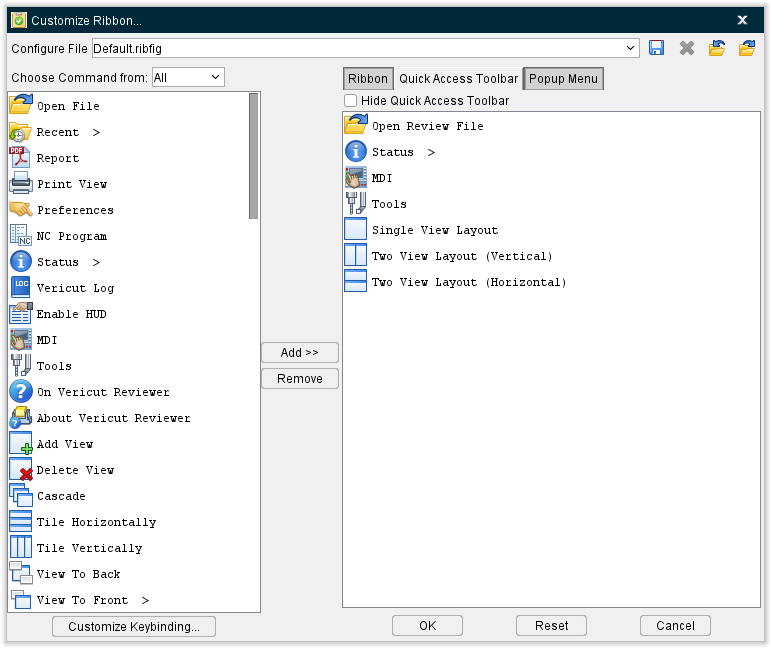
The Ribbon option opens the Customize Ribbon window enabling you to control when the Toolbar is displayed and the icons that it contains. Toolbar icons provide quick and easy access to the most commonly used Vericut functions/features. The Toolbar can be closed, opened, or customized at any time. You choose which icons are displayed in the Toolbar and in what order.
💡 Tip: Use the F1 key for Help on the View Toolbar window.
 (Hide Quick Access Toolbar) — When toggled off (not checked), selecting OK displays all of the icons in the Visible Icons list in the Toolbar in the Vericut main window as shown in the picture below. By default, all icons are visible and displayed in the Toolbar.

 (Save Ribbon Configure File) — The Save Ribbon Configure File option allows you to select different prefigured configurations for the Toolbar.
 (Delete Selected Ribbon File) — Enables you to remove the selected Configure File completely. The Default Configure File cannot be deleted
 (Import Ribbon Configure File) — Enables you to select a saved Ribbon File configuration to be imported directly into the Configure File.
 (Export Ribbon Configure File) — Enables you to save a selected Ribbon File configuration outside of Vericut.
The remaining features on this window are the same as described above in the Customize Ribbon section.
Popup Menu
Vericut Reviewer's Popup Menu provides quick and easy access to the most commonly-used functions/features when you right-mouse click within the graphics window. The popup menu displays as a radial menu to the upper left of where your mouse right-clicked.
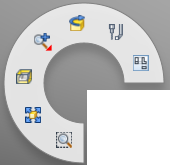
The features on this radial are highly customizable and the following section details how to select which features you wish to appear on the radial.
Customizing the Popup Menu
Location:
 (Ribbon) > Customize Ribbon window: Popup Menu tab
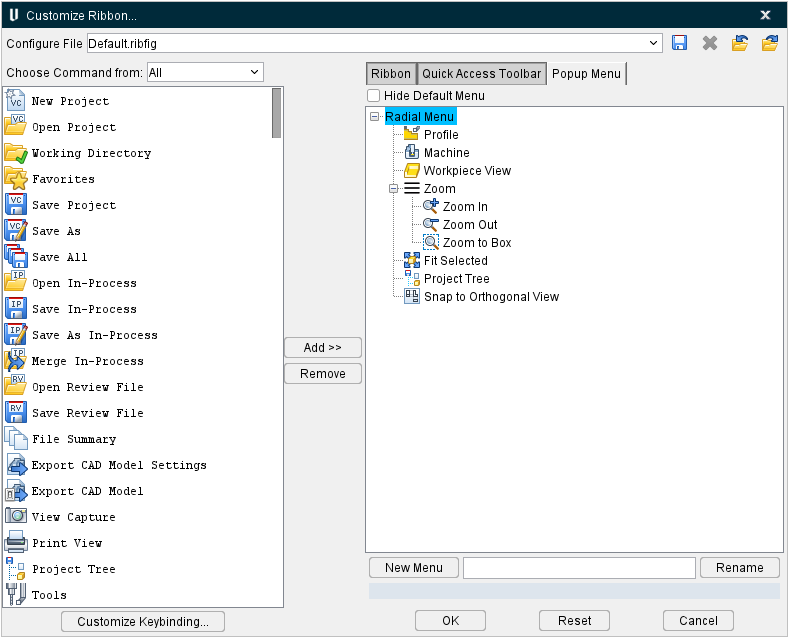
The Ribbon option opens the Customize Ribbon window enabling you to control when the Popup Menu is displayed and the icons that it contains. Popup Menu icons provide quick and easy access to the most commonly used Vericut functions/features.
 Save Ribbon Configure File — The Save Ribbon Configure File option allows you to select different prefigured configurations for the Menu ribbon.
 (Delete Selected Ribbon File) — Enables you to remove the selected Configure File completely. The Default Configure File cannot be deleted.
 Import Ribbon File — Enables you to select a saved Ribbon File configuration to be imported directly into the Configure File.
 Export Ribbon File — Enables you to save a selected Ribbon File configuration outside of Vericut.
The remaining features on this window are the same as described above in the Customize Ribbon section.
Customize Keybinding
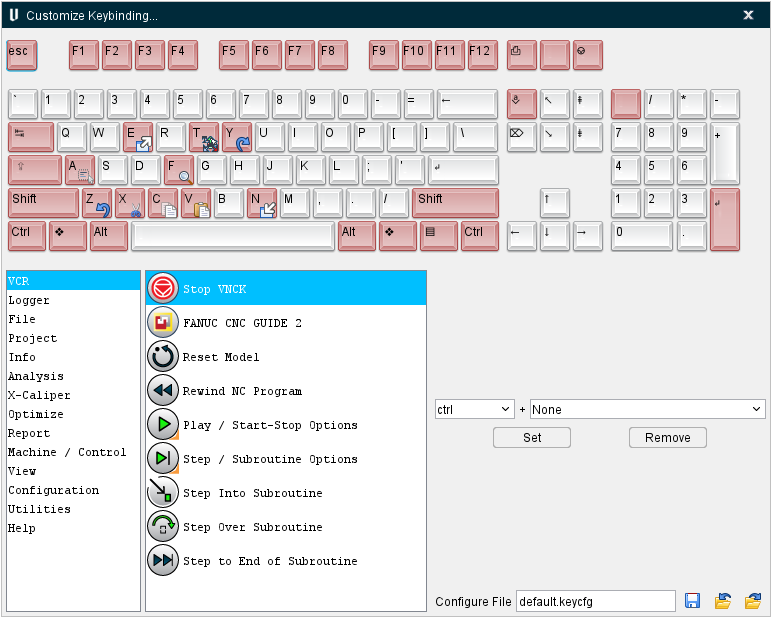
The Customize Keybinding window enables you to quickly set and remove keyboard shortcuts for key Vericut functions so that these functions can be accessed quickly in the future. The top of the window displays a visual representation of the keyboard along with image of which function have been bound to which keys.
To set up a key shortcut, select a major function group from the left hand column (options for this column include the Simulation Controls, the Logger, and every major tab) and then select the desired related function from the right hand column. Use the pulldown menus to select the key combination that will be used to access this feature (example: File > New Project could be set to
Configure File — use this field to name the configuration file.
Save Keybind Configure File — use to save the configuration file.
Import Keybind Configure File — use to import a previously saved configuration file through a file selection window.
Export Keybind Configure File — use to export the current configuration file.
NC Program Listing Area
The NC Program Review window, or NC Program Listing area, contains a listing of the NC program records and features enabling you to define display characteristics, and ranges of NC program records for replay of the NC program.
The NC Program Review window is one of the dockable panels enabling you to dock it inside the Vericut main window if you choose. See Dockable Panels, also in the in the Getting Started section of Vericut Reviewer Help for additional information.
📝 NOTE: When the NC Program Listing window is docked, make sure that you click in the window so that it becomes the "active" window before using F1 to get help specific to the window. Otherwise F1 will go to the first page of Vericut Reviewer Help.
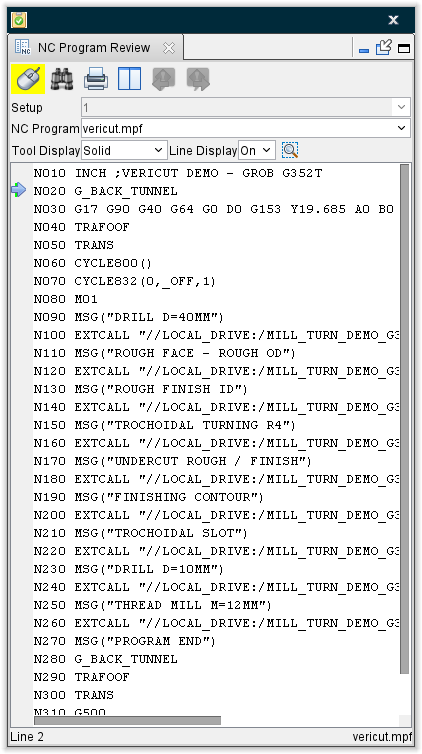
 (Close) — Located at the end of the tab, this icon enables you to close the NC Program Listing panel.
Icon Bar

The items in the Icon Bar enable you to search for specific items in the NC program listing, print the NC program listing, or close the NC Program Listing window. Moving the cursor over the icon will display name of the option.
 (Down to enable mouse tracking and picks, up to disable.) — Use this icon to designate that the NC Program Listing window is the window that picks in the Vericut graphics area are to be applied to. When toggled “on”, the icon is highlighted yellow.
 Search — Opens the search subpanel in the NC Program Review.
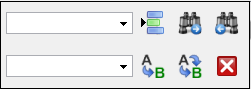
-
Line Number or Search Text — Use this text field to enter a line number, or a string of text, to search for.
-
 Got Line Number — Moves the cursor in the file listing to the line number specified in the Line Number or Search Text field.
 -
 Search Forward — Searches forward in the file listing for the text string specified in the Line Number or Search Text field.
 -
 Search Backward — Searches backward in the file listing for the text string specified in the Line Number or Search Text field.
 -
Replacement Text — Use this text field to enter a "replacement text" string.
-
 Replace One — Replace one occurrence of text string in the Line Number or Search Text field (or the highlighted text in the file listing) with the text string in the Replacement Text field.
 -
 Replace All — Replace all occurrences of the text string in the Line Number or Search Text field with the text string in the Replacement Text field.
 -
 Close — Closes the window.
 Print — Prints the NC program listing.
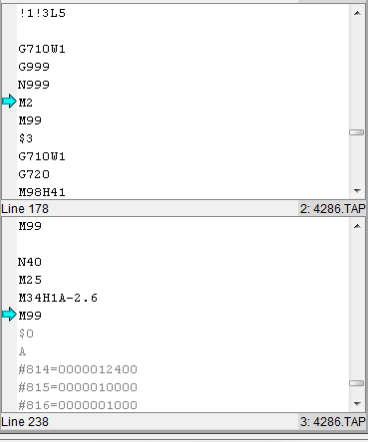
 (Tile Horizontally) — When running 'sync' jobs that run multiple NC programs simultaneously, this feature enables you to tell Vericut that you want to view the NC program listings tiled horizontally as shown in the picture below. This icon can be toggled to become Tile Vertically.
 (Tile Vertically) — When running 'sync' jobs that run multiple NC programs simultaneously, this feature enables you to tell Vericut that you want to view the NC program listings tiled vertically as shown in the picture below. This icon can be toggled to become Tile Horizontally.
 Go to Previous Error — Navigates the NC Program to the most recent error.
 Go to Next Error — Navigates the NC Program to the next upcoming error.
(Close) — Closes the NC Program Listing panel and returns to standard Vericut mode. This icon is only displayed when the NC Program Listing panel is docked.
Other Features

Setup — enables you to specify the Setup that you want to review. Choose the desired setup from the pull-down list. All of the setups contained in the current project file will be displayed in the pull-down list.
NC Program — enables you to specify the NC program in the Setup selected above that you want to review. Choose the desired NC program from the pull-down list. All of NC programs contained in the selected Setup will be displayed in the pull-down list.
Tool Display — enables you to specify how the tool is to be displayed in the graphics area while in NC Program Review. Choose Off (do not display tool), Solid, or Translucent from the pull-down list.
Line Display — enables you to specify whether or not to display the lines representing the tool's path in the graphics area while in NC Program Review. Choose Off (do not display), or On (display) from the pull-down list.
 (Use mouse to select display box) — Clicking on this feature highlights the icon in yellow and enables you to drag a zoom box around a cut stock section you wish to inspect. The zoom box finds the interactions with review trace or cut stock and sets start/end range accordingly. If you put your zoom box outside of cut stock, nothing will happen. Then play to the end of the file and use this feature on cut stock, appropriate start and stop ranges will then be generated in the NC Program area for replaying the highlighted section.
NC Program Listing Area
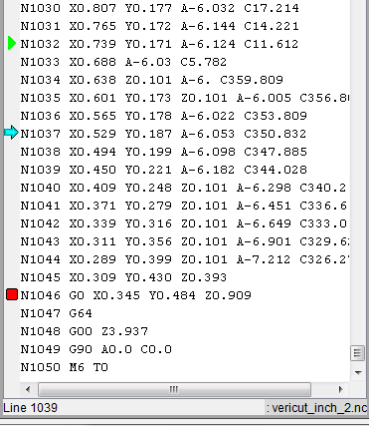
The line number of the "current" NC program record and "current" NC program is displayed at the bottom of the NC Program Listing area.
Single NC program
Multiple NC programs (SYNC jobs)
NC Program Editing
The NC program listing area allows you to edit the NC program with a full function text editor.
You can use the keyboard to add, change, or delete portions of the NC program listing. You can also use the Cut, Copy, and Paste functions found under Edit in the main menu.
You can easily see the modifications that you have made to the NC program listing. Added, changed, and pasted text is displayed in blue and underlined. Cut and deleted text is displayed in red with a "strike through" font. Once you save the modified NC program, the red and deleted text is removed and the blue added, changed, and pasted text is returned to the original font.
Start/Current/End Markers
The Start/Current/End markers can be found along the left side of the NC Program Listing area. The Start marker is represented by the green triangle  , the Current marker is represented by the aquamarine arrow
  , and the End marker is represented by the red square
  . You can easily identify each marker by moving the cursor over it.
The Start and End markers are used to define the range of NC program records that will be replayed when using Play to End. The Current marker moves to the NC program record that is currently being replayed.
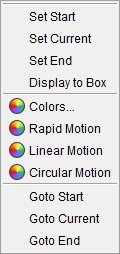
Set these markers by either selecting an NC program record in the NC program listing or the location in the graphics area where you want the marker placed. Then select the appropriate option (Set Start, Set Current, Set End) from the menu displayed by the Settings menu in the NC Program Review panel.
You can also set these markers by right-clicking an NC program record in the NC program listing or the location in the graphics area where you want the marker placed. Then select the appropriate option (Set Start, Set Current, Set End) from the menu that displays.
You can also click on the appropriate marker in the NC program listing and drag it to the desired NC program record.
↘️ Shortcut: Click the right mouse button in the NC Program Listing Area to display a menu with the following features:
NC Program Colors window
The NC Program Colors window is accessed from the NC Program Listing Area by right-clicking and selecting the  (Colors) icon from the menu that displays.
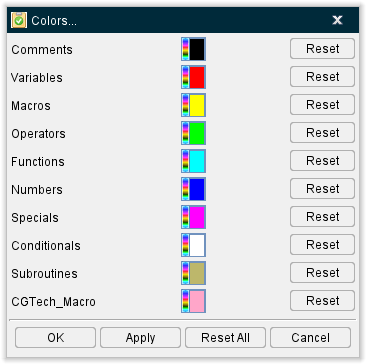
The NC Program Colors window enables you to specify colors for specific features (comments, variable, macros, etc.) in the NC Program listing in the NC Program (Info) window. Vericut uses the definitions in the Word Format table, for the current control file, to determine what words go into each of the NC program feature categories. The following are the Word Format settings that Vericut uses.
-
Comments: Anything that falls between "Begin Comment" and "End Comment"
-
Variables: Type "Special", Sub Type "Variable Name" or "Variable Tag"
-
Macros: Type "Macro" or Type "Conditional" with "Word" related Subtype
-
Operators: Type "Math" or Type "Condition" with a math related Subtype, or Type "Special" with SubType "Separator", or Type "Special" with SubType "Begin/End Type II"
-
Function: Type "Function", or Type "Type II"
-
Specials: Type "Special" with SubType = "Skip", "End of block", "Begin/End Data", "Console Message", "Ignore", "Sin84D_*", and "Num VAR Define"
-
Conditionals: Type "Conditional"
-
Subroutines: Type "Subroutines"
-
CGTech_Macro: Type "CGTech_Macro"
 (Color Palette) — The Color Palette icon next to each NC program feature, enables you to specify a color for that particular NC program feature.
The right side of the Color Palette icon shows the current color of the NC program feature. To change the color for the NC program feature, click on the (Color Palette) icon to display the color palette window shown below.
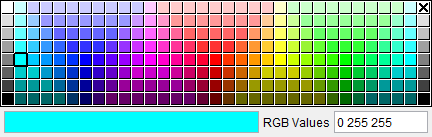
Click on a color in the color palette window, to specify the color for the NC program feature. The color palette window will close and the right side of the  (Color Palette) icon in the NC Programs Color window will update to reflect the selected color.
To close the color palette window without changing the color, click on the  in the upper right corner of the color palette window.
When you have finished with color selection, use the OK button, described below, to apply the colors to the NC program listing in the NC Program (Info) window.
Reset — Use the Reset button next to each NC program feature to return the color for the particular feature back to its default color.
OK — Applies the color settings to the to the NC program text displayed in the NC Program Listing area and closes the NC Program Colors window.
Apply — Applies the color settings to the to the NC program text displayed in the NC Program (Info) window and leaves the NC Program Colors window.
Reset All — Use the Reset All button to return the color for all NC program features back to its default color.
Cancel — Ignores your color setting changes and closes the NC Program Colors window.
Error Listing Area
The Error Listing area replaces the Vericut Logger while in NC Program Review. It contains a list of the errors that were found while processing the NC program in Vericut.

Selecting an error in the Error Listing causes the line in the NC Program Listing Area associated with the error to become highlighted. At the same, the tool display in the Graphics Area moves to the position where the error occurred. This enables you to quickly and easily associate the error with the position in the NC program and in the toolpath display.
You can control the number of messages displayed in the Logger at any one time by clicking on the divider between the Logger and the Graphics Area and either dragging up to increase the number message lines displayed , or down to reduce the number message lines displayed.
You can always use the scroll bar to view messages that are not currently visible in the Logger window.
The Message Area/Logger is also one of the "dockable" features enabling you to be able to re-position it if you choose. See Dockable Panels for more information.
💡 Tip: Click with the right mouse button in the Error Listing Area to display the following menu.

Its features enable you to specify whether to display only Errors, only Warnings, or both Errors and Warnings in the Error Listing Area. When toggled "on" (checked) the feature will be displayed. When toggled "off", the feature will not be displayed. Click on the feature in the menu to toggle on/off.