Using Search
The Help Library provides two ways to search for information: Global Search (aka Help Library Search) and Page Search (aka Find in Page).
Global Search looks through all pages in the entire Help Library. Use this when you are not sure where the information is located.
Page Search looks for a word or phrase only within the page you currently have open.
Global Search (Help Library Search)
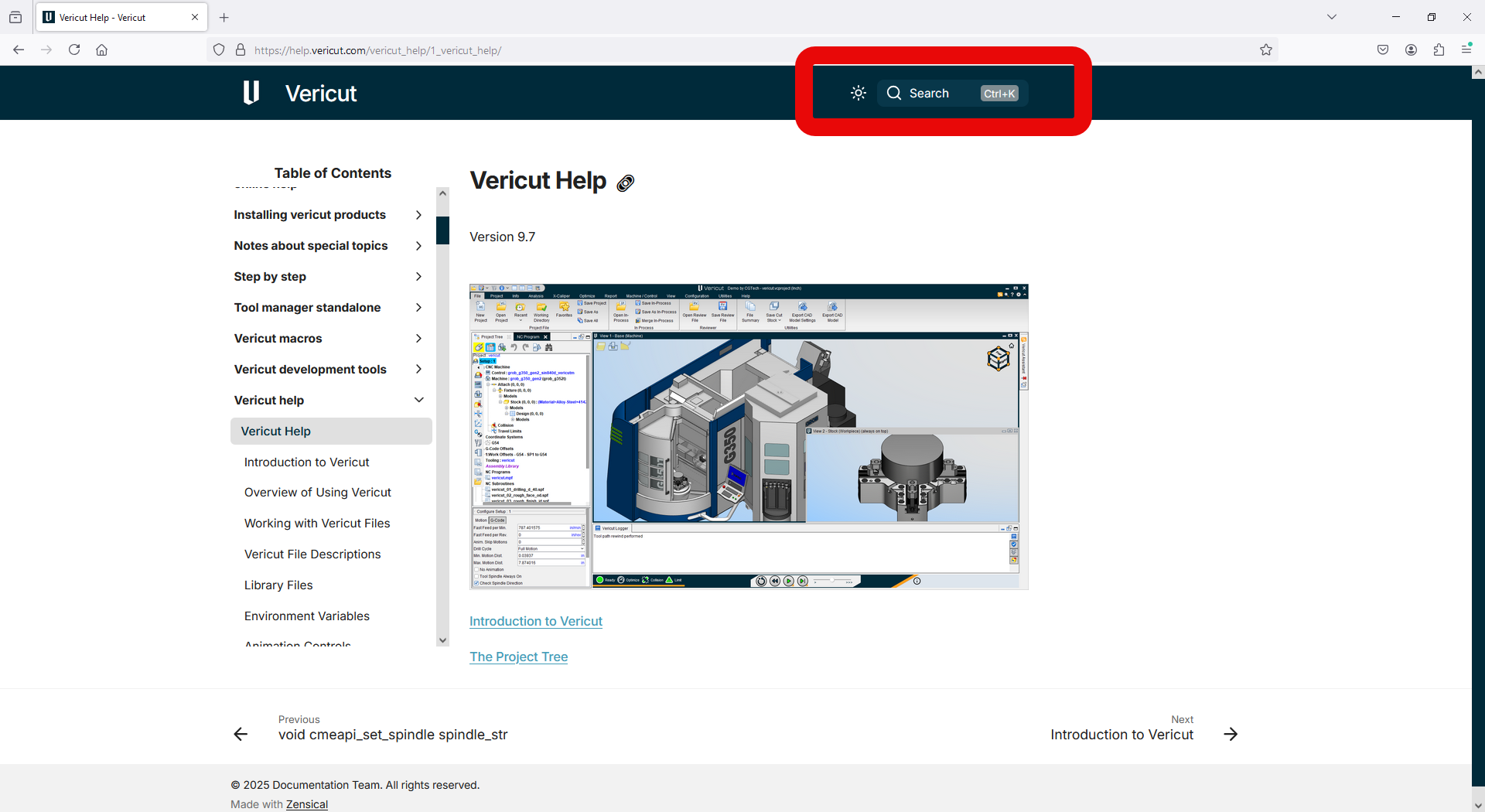
To search the Vericut Help Library, click the search bar in the upper middle of the screen, shown below.
💡 Tip: Press Ctrl + K from anywhere in the Help Library to instantly open the search bar.
A larger search window will appear in the center of the screen.
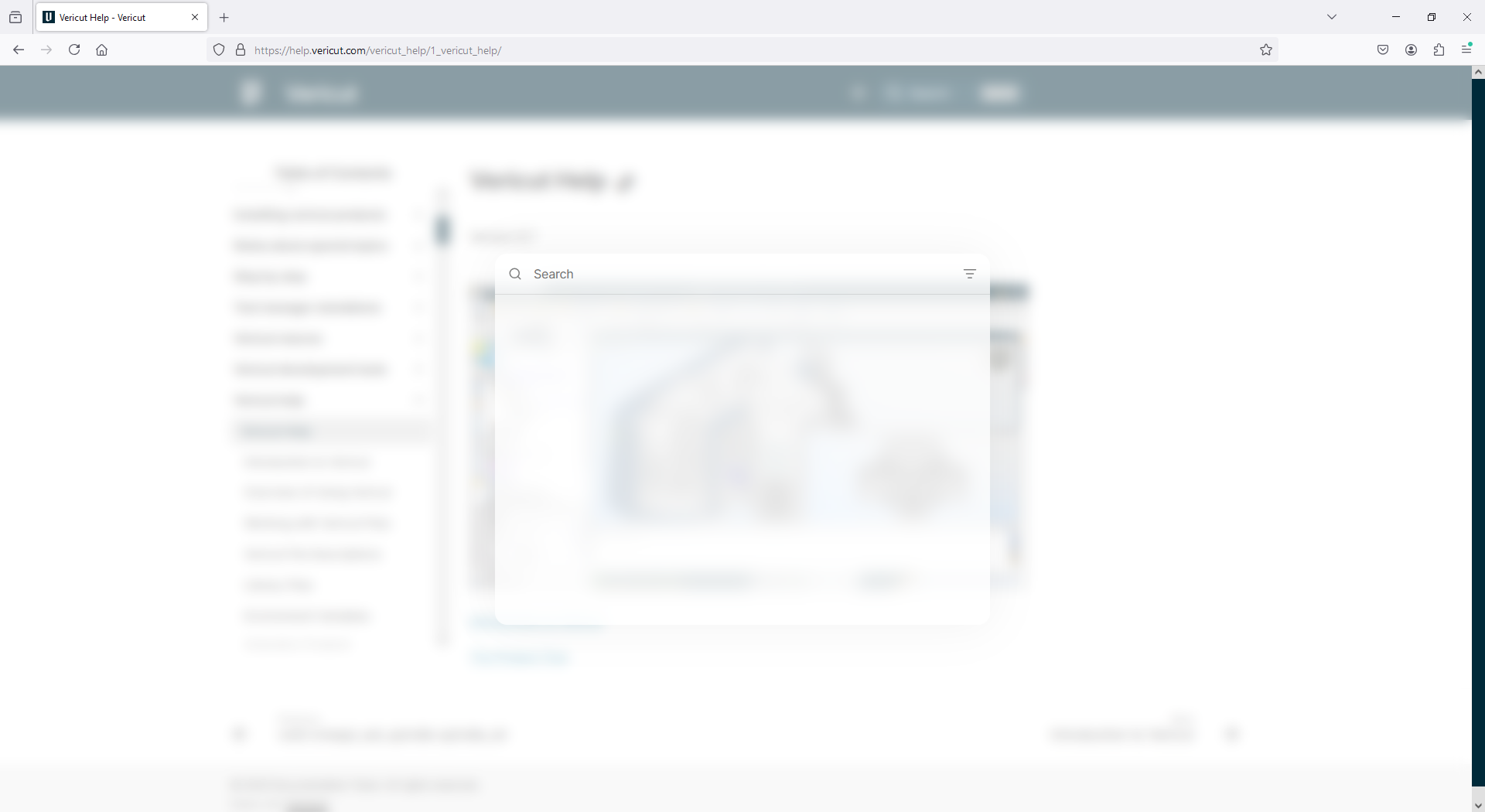
Type the word or phrase you want to search for. The search results update automatically as you type.
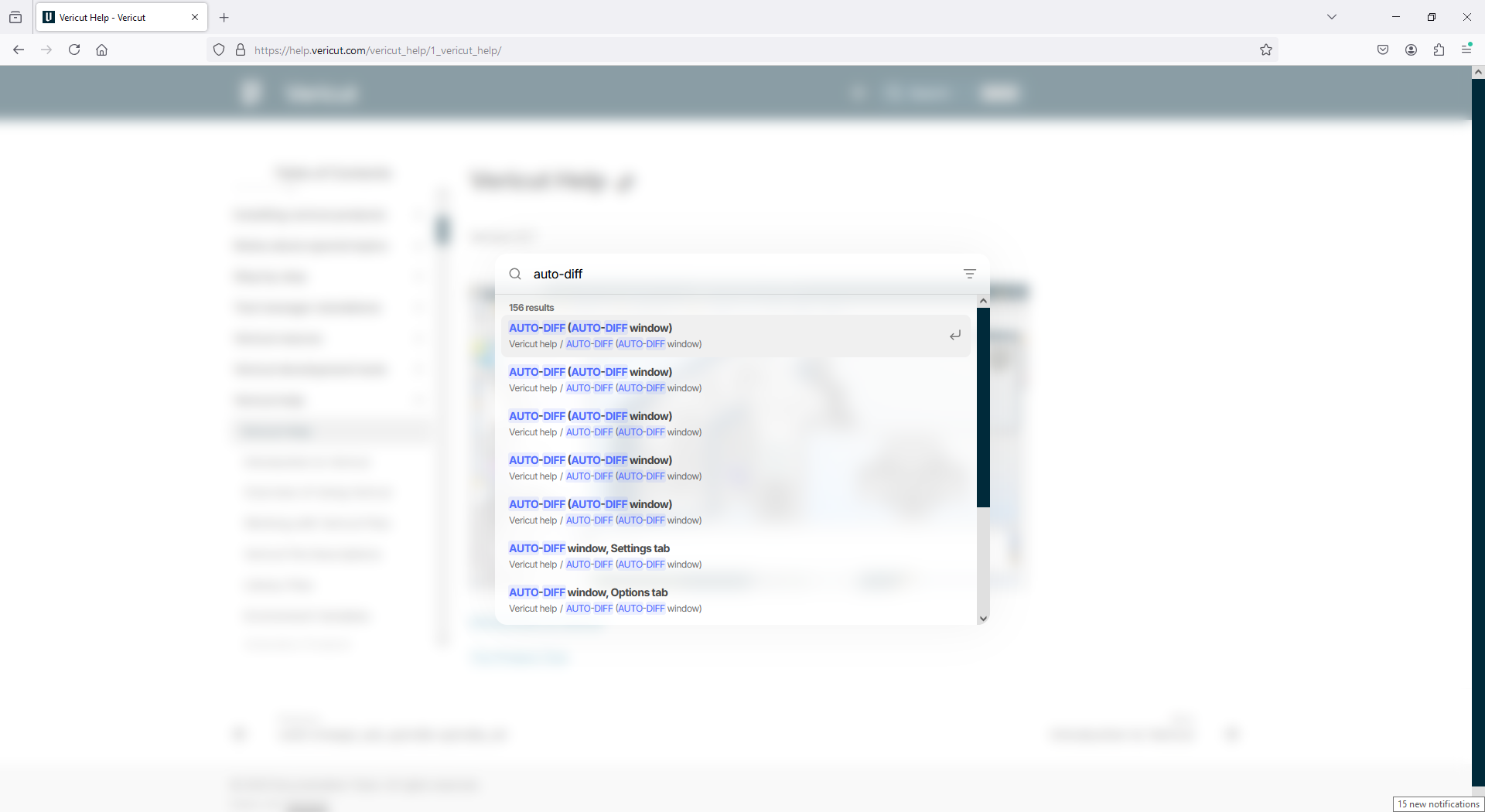
If you enter an exact phrase, such as "AUTO-DIFF", results are displayed so that pages containing the exact phrase appear first. Pages with the highest number of exact or partial word matches may also appear higher in the results.
Click any result to open the corresponding page. When you open a result:
- The exact phrase is highlighted in orange
- Partial word matches are highlighted in yellow
- If a possible spelling correction is detected, the suggested word appears with a blue wavy underline
- The page automatically scrolls to the section containing the best match
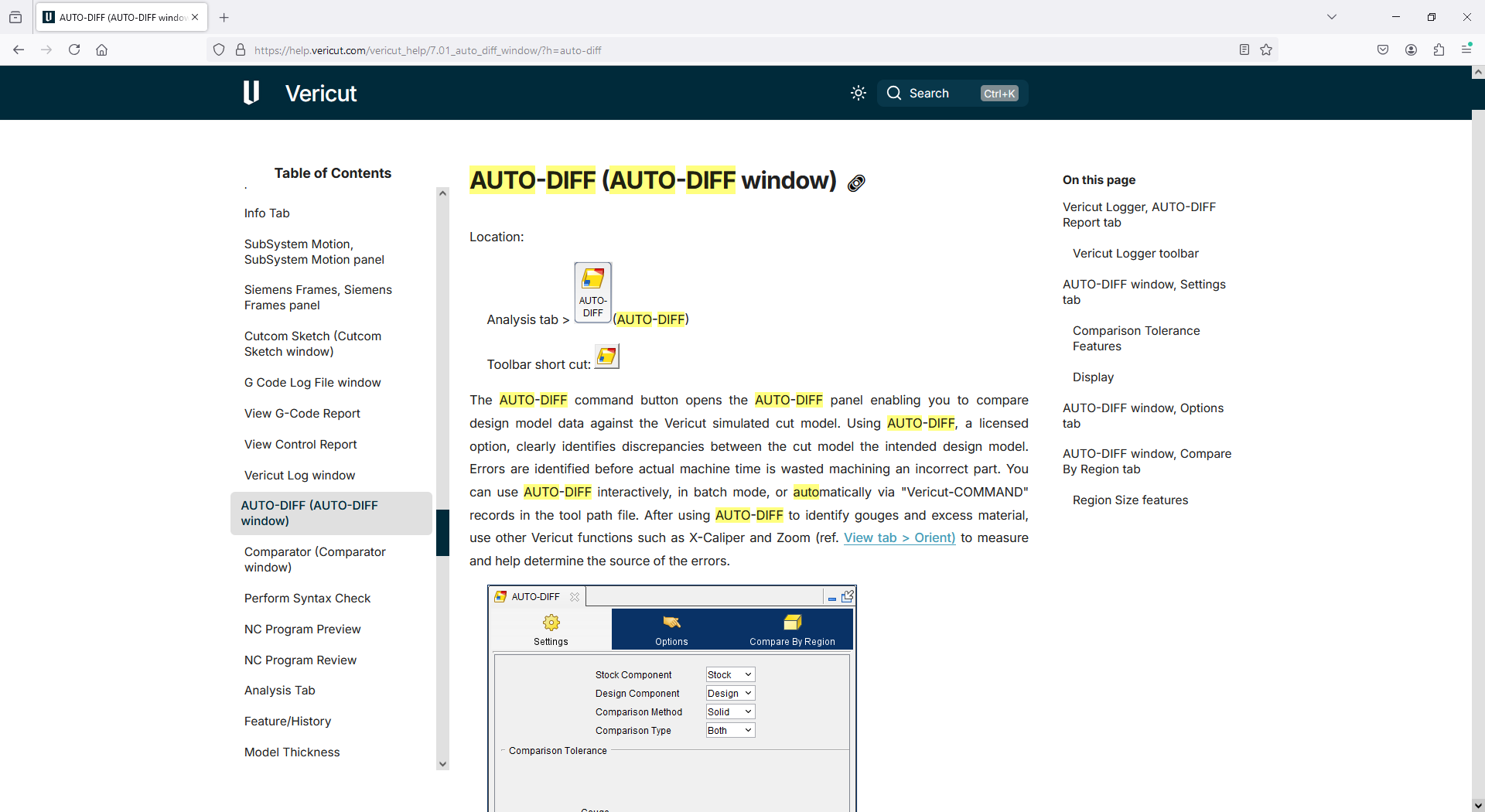
📝 NOTE: The system automatically highlights matching terms and scrolls to the most relevant section of the page so you can quickly locate the information you need.
Page Search (Find in Page)
To find a word or phrase within a page:
- Press Ctrl + F in your browser.
- Type the word you want to find.
- The browser highlights matches on the current page only.
📝 NOTE: Use Page Search when you already know you are on the correct page but want to quickly locate a specific word or phrase.