Vericut Logger
The Vericut Logger, also known as the “message logger” or “logger”, is located below the graphics area, and is the central location for all error, warning, and information messages as well as displaying X-Caliper measurement information and AUTO-DIFF reports which contain information related to errors detected by AUTO-DIFF.
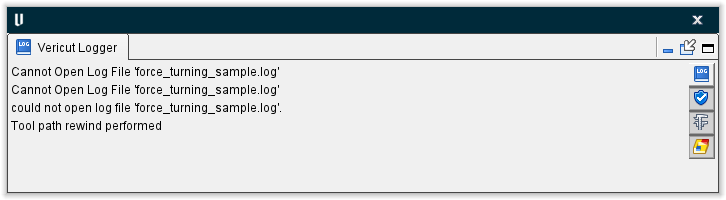
The Vericut Logger is one of the "dockable" features enabling you to be able to re-position it if you choose. See "Personalizing the Vericut Main Window" section of Vericut Help, for more information.
The Vericut Logger panel consists of four tabs, accessed using the four icons located on the right side of the Vericut Logger panel. Each of these tabs is described in detail below.
 Vericut Logger — Vericut Logger tab displays the most recent messages that Vericut has provided. Vericut provides error, warning, and informational messages to assist you during a simulation session.
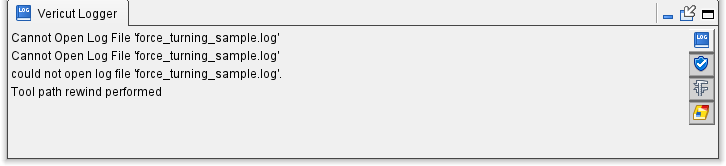
You can easily determine the type of message by the following:
Error messages are preceded by "Error:". In general, error messages indicate that a problem has occurred that will definitely affect the desired result. If the Use Color feature described in the right mouse button menu section below is active, error messages are displayed in red text as shown in the picture above.
Warning messages are preceded by "Warning:". In general, warning messages indicate that a potential problem situation exists but Vericut is unable determine whether the situation is critical in your particular environment. If the Use Color feature described in the right mouse button menu section below is active, warning messages are displayed in blue text as shown in the picture above.
📝 NOTE: What is considered an "error" and what is considered a "warning" is often interpret differently from shop to shop, as well as from machine to machine. It is best to evaluate both "errors" and "warnings" in the context of your machining environment regardless of the label used.
Information messages have no preceding label and provide information about various conditions, or states, related to Vericut processing. Information messages are always displayed in black text.
You can control the number of messages displayed in the Logger at any one time by clicking on the divider between the Logger and the Graphics Area and either dragging up to increase the number message lines displayed , or down to reduce the number message lines displayed.
You can always use the scroll bar to view messages that are not currently visible in the Logger window.
💡 Tips:
-
If the NC Program panel (Info tab > NC Program) is open, clicking on an error in the Vericut Logger will highlight the NC program record that caused the error.
-
If the NC Program panel is not open, double clicking on an error in the Vericut Logger will open the NC Program window with the NC program record that caused the error highlighted.
- Use the F1 key for Help on the Vericut Logger. Whether the Logger is docked, or undocked, simply click in the message area to give it focus, and then press F1.
↘️ Shortcut: Right-click in the Vericut Logger to display a menu with the following features:
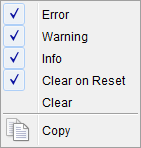
When these features are set before the simulation, only the selected type of information will be written to the Logger. These features can also be used after the simulation to add or remove information displayed in the Vericut Logger.
-
Error — When toggled "On" (checked), error messages will be written out to the Vericut Logger.
-
Warning — When toggled "On" (checked), warning messages will be written out to the Vericut Logger.
-
Info — When toggled "On" (checked), informational messages will be written out to the Vericut Logger.
-
Clear on Reset — When toggled "On" (checked), the contents of the Logger will be cleared whenever you do a Reset.
-
Clear — Selecting this feature will immediately clear the information from the Vericut Logger and Analyze Messages tabs. Using this feature only clears information from the Vericut Logger and Analyze Message tabs, not from the Vericut Log file.
-
Use Color — When toggled "On" (checked), this feature causes the Vericut Logger to use color to distinguish between different types of messages. Error messages are displayed in red text, Warning messages are displayed in blue text and Information messages are displayed in black text.
-
Copy — Use this feature to copy the highlighted message(s) so that they can be pasted into another document.
Pick a number of individual messages for copying by holding the \<Ctrl> key down while picking messages.
Pick a range of consecutive messages by selecting the first message in the range, and then hold the \<Shift> key down while selecting the last message in the desired range. All of the messages between two messages that you selected will become highlighted.
 Analyze Messages — The Analyze Messages tab displays all messages in sorted tree structure. This message area is NOT continually updated while Vericut is processing. The information on this tab gets updated each time that the
  “busy” status light in the Animation Controls s turned off.
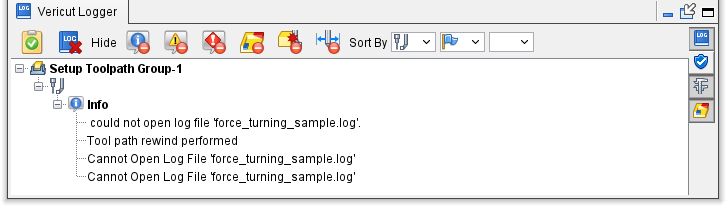
Analyze Messages Toolbar
The features in the Analyze Messages Toolbar enable you to turn on NC Program Review, clear the messages from the Vericut Logger and Analyze Messages tabs, filter out message types that you do not want displayed and sort the messages.

Each of the Analyze Messages Toolbar features is described below.
 NC Program Review — Use this icon to put Vericut in NC Program Review mode.
 Clear — Use this icon to immediately clear the information from the Vericut Logger and Analyze Messages tabs. Using this feature only clears information from the Vericut Logger and Analyze Message tabs, not from the Vericut Log file.
Hide features — The Hide features enable you to hide certain types of messages from the Analyze Messages tree structure.
-
 Hide All Information Messages — Click on the (Hide All Information Messages) to NOT display Information messages in the Analyze Messages tree structure. The icon becomes highlighted
  when active. Click on the highlighted icon to redisplay Information messages in the Analyze Messages tree structure.
 -
 Hide All Warning Messages — Click on the (Hide All Warning Messages) icon to NOT display Warning messages in the Analyze Messages tree structure. The icon becomes highlighted
  when active. Click on the highlighted icon to redisplay Warning messages in the Analyze Messages tree structure.
 -
 Hide All Error Messages — Click on the Hide All Error Messages to NOT display Error messages in the Analyze Messages tree structure. The icon becomes highlighted
  when active. Click on the highlighted icon to redisplay Error messages in the Analyze Messages tree structure.
 -
 Hide All Gouge Errors — Click on the (Hide All Gouge Errors) icon to NOT display Gouge Error messages in the Analyze Messages tree structure. The icon becomes highlighted
  when active. Click on the highlighted icon to redisplay Gouge Error messages in the Analyze Messages tree structure.
 -
 Hide All Collision Errors — Click on the (Hide All Collision Errors) icon to NOT display Collision Error messages in the Analyze Messages tree structure. The icon becomes highlighted
  when active. Click on the highlighted icon to redisplay Gouge Error messages in the Analyze Messages tree structure.
 -
 Hide All Travel Limit Errors — Click on the (Hide All Travel Limit Errors) icon to NOT display Travel Limit Error messages in the Analyze Messages tree structure. The icon becomes highlighted
  when active. Click on the highlighted icon to redisplay Travel Limit Error messages in the Analyze Messages tree structure.
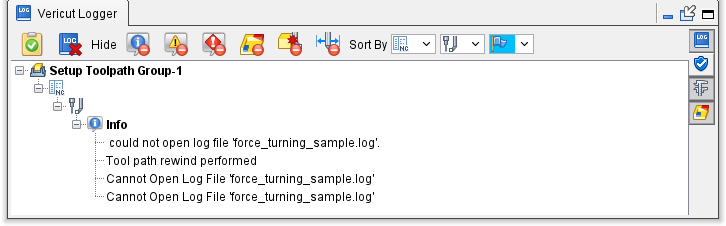
Sort By features — The Sort By features provide you with the ability sort messages by multiple criteria. Currently, three sorting types are available:  Sort by Message Type,
  Sort by Tool, and
  Sort by NC Program. Select the desired sort type from the pull-down list.
Message sorting is done by the defined sorting criteria starting from the left and moving to the right in the Sort By section of the Analyze Messages Toolbar.
For example, if you have, Sort by NC Program as the first sort criteria, Sort by Tool the as second sort criteria, and Sort by Message Type as the third sort criteria, the messages are sorted by NC program, then by tool and then by message type as shown in the picture below.
 X-Caliper Measurement — The X-Caliper Measurement tab displays the results from X-Caliper operations. Measurements are described relative to the active coordinate system.
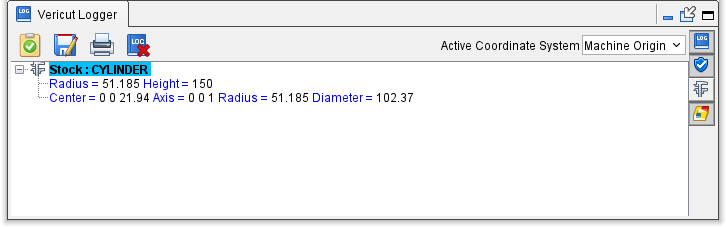
X-Caliper Measurement Toolbar
The features in the X-Caliper Measurement Toolbar enable you to turn on NC Program Review, clear the X-Caliper results from the X-Caliper Measurement tab, print the X-Caliper results, save the X-Caliper results to a file and specify the active coordinate system.

Each of the X-Caliper Measurement Toolbar features is described below.
-
NC Program Review — Use this icon to put Vericut in NC Program Review mode.
-
 Save As File — Saves the results from the X-Caliper Measurement tab to a file. Use the file selection window that displays to specify the /path/filename for the file to be created.
 -
 Print View — Displays a Page Setup window enabling you to format the page, specify the printer, and print.
 -
Clear — Use this icon to immediately clear the X-Caliper results from the X-Caliper Measurement tab.
-
Active Coordinate System — X-Caliper measurements are output relative to the active coordinate system. Use this feature to specify the active coordinate system. Select the desired coordinate system from the pull-down list.
See the X-Caliper tab section of Vericut Help for additional information on X-Caliper.
 AUTO-DIFF Report — The AUTO-DIFF Report tab displays the results from doing an AUTO-Diff Compare.
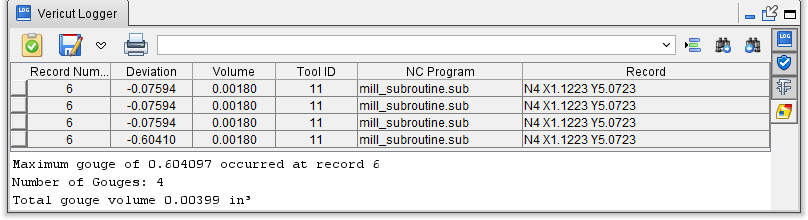
AUTO-DIFF Report Toolbar
The features in the AUTO-DIFF Report Toolbar enable you to turn on NC Program Review, clear the X-Caliper results from the X-Caliper Measurement tab, print the X-Caliper results, save the X-Caliper results to a file and specify the active coordinate system.

-
NC Program Review — Use this icon to put Vericut in NC Program Review mode.
-
Save As File — Saves the results to a file. Use the file selection window that displays to specify the /path/filename for the file to be created.
-
Print View — Displays a Page Setup window enabling you to format the page, specify the printer, and print.
-
Line Number or Search Text — Use this text field to enter a line number or a string of text to search for.
-
 Go To Line Number — Searches the AUTO-DIFF Report table for the specified record number. Enter the desired Record number in the text field.
 -
 Search Forward — Searches forward through the AUTO-DIFF Report table for the specified text string. Enter the desired text string in the text field.
 -
 Search Backward — Searches backward through the AUTO-DIFF Report table for the specified text string. Enter the desired text string in the text field.
Each record in the AUTO-DIFF Report table provides the following information:
-
The record number in the NC program listing responsible for the error
-
The amount of the deviation from the design model.
- The ID of the tool being used at the time of the error.
- The name if the NC program being used.
- The NC record that was being processed at the time the error occurred.
Selecting an error record in the table highlights the location of the error on the model displayed in the Vericut graphics area. Select any column heading in the table to sort the report by the entries in that column.
See the AUTO-DIFF section of Vericut Help for additional information on AUTO-DIFF.