Merge In-Process
Location:
File tab >  (Merge In-Process)
The Merge In-Process command button displays the Merge In-Process window enabling you to select the In-Process (IP) file (ref. In-Process File section of Vericut Help) to be merged.
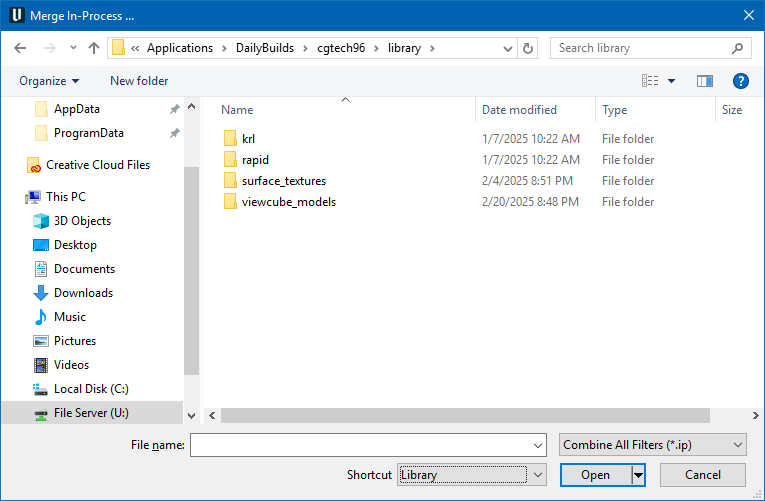
Most features on this window are standard file selection window features that enable you to navigate through directories, filter files, and type, or select, /path/filenames. A description of features specific to Vericut can be found in the Introduction to Vericut File Selection Windows section of Vericut Help.
Use the Merge feature to load an In-Process (IP) file without removing the current project from Vericut session. This feature enables you to create multi-setup project files, one setup at a time without the need to reprocess previous setups. This is especially useful for setups that take a long time to process.
IP files can be successfully "merged" as long as they contain fewer processed setups than the number of setups in the project file that they are being merged into. If the IP file has an equal number, or greater number of setups than the number of setups in the project file that they are being merged into, then the Merge operation is equivalent to File tab > Open In-Process.
When a "merge" operation is successful, the current Vericut project data remains unchanged, but the setups in the IP file, replace an equal number of setups in the project file. Any setups in the project file, as shown in the Project Tree, below the setups merged from the IP file remain unchanged.
📝 NOTE: There are no checks, or validation, to determine whether or not the IP file is related to current project.
Simple Merge IP file example:
- Create the project file containing the first setup.
-
Process the first setup. If the results are OK, save an IP file (File tab > Save In-Process). Save the project file (File tab > Save Project). The Project Tree should now look something like the picture below.
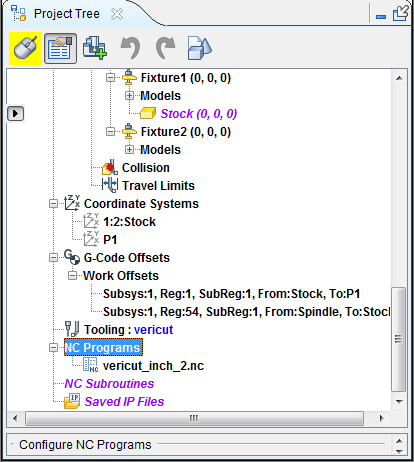
-
Add the next setup to the project file. The Project Tree should now look something like the picture below.
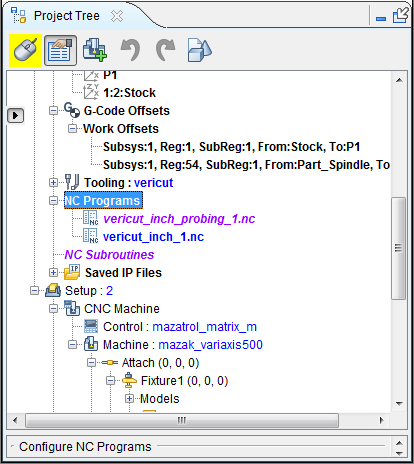
-
Before processing the second setup, merge the IP file you saved in step 2. (You can either use File tab > Merge In-Process in the Vericut main menu, or in the Project Tree, right click on the IP file shown in Setup 1 and select Merge IP File from the pull-down menu.)
- Once the "merge" is complete, you are ready to process Setup 2 without re-processing Setup1. Setup 1 is restored to the state it was in when you saved the IP file, Setup 2 is unchanged.