Optimize Control (Optimize Control window)
Location:
Optimize tab >  (Optimize Control)
Optimize tab >  (Optimize)
Project tab > Settings window: Output Files tab, Optimization section Settings button
Toolbar short cut: 
The Optimize Control button opens the Optimize Control window enabling you to optimize files, specify the file to receive the optimized data, choose the type of stock material and NC machine involved in the cutting the workpiece. Feed rates and spindle speeds can be monitored via the Status window. A summary of the cutting conditions encountered during optimization and min/max optimized feed rates is written to the Log and available for use when creating a report file showing an overview of the results of the current Vericut session.
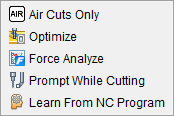
The Optimize command button can be used to quickly optimize your program. Simply click on the command button and a dropdown menu will appear prompting you to select between Air Cuts, Optimize, Force Analyze, Prompt While Cutting, and Learn From NC Program options. You can learn more about all these options in the Mode section below.
📝 NOTE: Plunge cutting operations are not supported by Optimization. Optimization will ignore plunge cuts during the optimization process.
📝 NOTE: Animation Speed Slider cannot be set below 100% while Optimization is active.
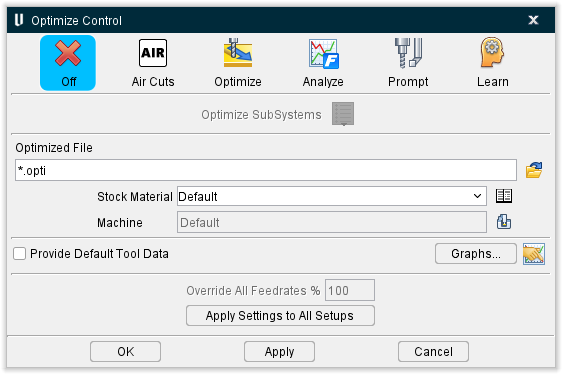
Mode — Controls when and how tool paths are optimized.
-
Air Cuts — Use this to gather information using Air Cut Feedrate to optimize control.
-
Optimize — Turns Optimization "On" and writes optimized NC program data to the file specified with the Optimized File feature. For optimization to occur, Stock Material records must be "associated" with the cutting tools in the NC program file. There are two methods of doing this:
-
Tool Library association method - associate the Optimization tool Description and number of Teeth with a tool in a Tool Library file, then choose the stock Material and Machine in the Optimization Control window.
-
Tool List association method - choose the stock Material and Machine in the Optimization Control window, then build a tool list that associates Stock Material records with cutting tools to be optimized in the NC program file.
With either method, tools without "cutting tool-to-Stock Material record" associations are not optimized. If both methods are used, associations in the tool list override those stored with tools in the Tool Library. -
Analyze — Turns Optimization "On" and runs through machining process to gauge the forces used in machining. Force calculations are done but no optimized NC program is generated. This enables you to run Force and review the Graphs that are generated to determine appropriate values to use in the Feed Optimization. At end of Optimization, a Graph can be viewed showing the forces that were used and what they were optimized to.
-
Prompt — Turns Optimization "On" and interactively prompts for optimization data at each tool change by displaying the Optimization Settings window. Use the Optimization Settings window features to enter data for optimizing the cuts performed by the current tool. When you finish, Vericut automatically stores the information in the Tool Library file, and sets tool properties to point to the new Stock Material record. Vericut restarts the simulation, turns Optimization on and uses this information to write optimized NC program records to the specified Optimized File until the next tool change is encountered.
-
Learn — Turns Optimization "On" and automatically creates a new Tool Library file for the "current" project file unless Append to Existing Tool Library File is selected. The new Tool Library file is created in the file specified by Tool Learn Library in the Learn Mode Options subsection. The Stock Material records (SM records) in the Tool Library file that is created can then be manually fine-tuned using features in the Optimization window, and then used to optimize the NC program.
Learn From NC Program can be turned On / Off at any time during cut processing. Each time Learn From NC Program is turned on, it creates a Tool Library file. The file contains Optimization settings for every tool loaded since cutting was started with Learn From NC Program turned "On", including the tool that was cutting at time that Learn From NC Program was turned "Off". These settings are based only on cutting conditions that occurred between the time cutting was started with Learn From NC Program was turned "On" and the time when cutting stops and Learn From NC Program turned "Off". To get complete and accurate information for each tool, process the whole job through Learn From NC Program. Turning Learn From NC ProgramOn / Off during cutting can be used to analyze cutting conditions for a specific group of cuts.
When Learn From NC Program mode is turned on, any tools with matching SM records are skipped, not "learned". Any tools without SM records are "learned" and a new SM record is created. The old and new records are combined in a new OP library file.
For each tool, Optimization finds the maximum volume removal rate and chip thickness that occurred during cutting and uses them for corresponding Optimization settings for the tool. The optimization mode is set to a combination of "Chip Thickness" and "Volume Removal" or set to a combination of Force, Power, and Tool Deflection if optimizing for Force. Axial Depth and Radial Width values are determined by the cut that produces the highest volume removal rate. Default values are used for other settings unless they have specifically been changed using Learn Mode Options tab.
This feature only automatically creates an updated Tool Library file (.tls) containing the "OP Description" and "# Teeth" values associated with the newly created Stock Material records. It does not automatically optimize the tool path or produce the Optimized File. Once Learn From NC Program creates the updated Tool Library file, you are prompted whether or not you want to optimize the NC program using the newly created Tool Library file.
📝 NOTE: Plunge cutting operations currently cannot be learned from. Learn From NC Program will ignore plunge cuts during the optimization process.
Optimize SubSystems — Use this menu to select which subsystem to optimize.
Optimized File — Use to specify the name of the modified (optimized) NC program file to receive optimized NC program data. Enter the /path/filename in the Optimized File text field or click on the  (Browse) icon and use the Optimized NC Program File file selection window to specify the /path/filename.
The format of this file, APT vs. G-Code, is the same as the tool path file being optimized. When an APT NC program is optimized the programmed "FEDRAT" records are commented out using "$$" and written to the modified path for reference. The Optimized File name must be different from that of the original NC program file. Optimization will not permit the original NC program file to be overwritten.
In many situations, there is more than 1 file being optimized. You might have multiple programs and you might have subroutine files that are being optimized. Therefore, in most cases, this field is specifying the rules for renaming the input files, and not the exact name of the optimized file.
For example, assume input file is test.mcd:
-
*.opti → test.opti
-
opti_*.* → opti_test.mcd
-
\path\*.* → \path\test.mcd
-
name.opti → name.opti
-
name → name
An ‘*’ before the dot means: put the original base file name here.
An ‘*’ after the dot means: put the original extension here.
📝 NOTE: The Optimized File name (including path) must be different from that of the original NC program file. Optimization will not permit the original NC program file to be overwritten.
The above rules apply to the main program and to subroutines except if a specific filename is specified (‘*’ is not used in the name) and there are more than 1 NC program files or if subroutine files are being optimized. It is highly recommended that if you are optimizing more than 1 program or are optimizing subroutine files, that you use one of the top 3 formats. The remainder of the documentation describes how this field applies to this one exception.
If we are optimizing multiple input files, and a specific optimize file name was given, we concatenate a sequence number. For example:
-
name.opti → name001.opti, name002.opti, …
-
name → name.001, name.002, …
-
\path\name → \path\name.001, \path\name.002, …
If we are optimizing a subroutine file, and a specific optimize file name was given, the subroutine name will be used rather than the specified name. For example: assume we are optimizing the subroutine “sub1.mcd”
-
name.opti → sub1.opti
-
name → sub1
-
\path\name.* → \path\sub1.mcd
Stock Material — Identifies the stock material being cut. The material name is changed via clicking the arrow and selecting from a list of available materials, or clicking in the data field and typing a new material name. Select the  icon to open the Stock Material Catalog window.
Machine — Identifies the NC machine being used to cut the workpiece. This feature functions similar to Stock Material described above. Select the  icon to change the machine via the Project Tree panel.
📝 NOTE: For optimization to occur the Stock Material and Machine names must match those of the desired Stock Material records in the Tool Library file.
Override All Feedrates % — Set the percentage to be overridden.
Apply Settings to All Setups — When pressed, all settings (including learn mode settings for the various tool types) are applied to all setups in the project. This saves time configuring a project for optimization since most of the settings do not change, and avoids making mistakes duplicating the Force Material File Directory location and other optimization settings between setups.
Air Cuts Only Settings
This feature is only active when Air Cuts Only is selected as the Mode.
Break-up Partial Air Cuts — Toggle on (checked) to have Vericut break up motions that spend some time in air, from motions that engage material. The “air cut” portions are optimized, while motions in material remain at their programmed feedrates. This enables all other fields in this section to be manually edited except for Air Cut Feedrate.
Air Cut Feedrate — This option is useful for reducing time of proven NC programs, without affecting cutting feed rates and resulting surface finishes. When the checkbox is cleared, this feature controls the feed rate used by all other optimization methods to optimize air cuts. Default is 100% of Max Feed Rate. Toggle the Default option on (checked) to use the default rate.
Resolution — This option controls the frequency or "sampling distance" used to analyze each tool path motion. Each feed rate controlled motion is partitioned into samples based on this distance. The samples are then analyzed during feed rate calculation. You can use the Auto setting to let the software decide for you or use the Distance setting to manually enter a distance in the adjoining field.
Entry Clearance Distance — This option is only available when Break-up Partial Air Cuts is toggled on. Use the text field to manually enter the clearance distance.
Exit Clearance Distance — This option is only available when Break-up Partial Air Cuts is toggled on. Use the text field to manually enter the clearance distance.
Optimize Settings, Force Analyze Settings, and Prompt While Cutting Settings
Provide Default Tool Data — When this option is toggled on (checked), the Optimize Control window provides a host of tool information. Default Tool Data (DTDs) seen in Tool Manager consider the current Stock Material, the Cutter’s teeth count and Force settings, and the Cutting Limits Source for cutting data. For tools imported with cutting data, DTD reflects imported cutting data values. For tools that do not have imported cutting data, Vericut attempts to retrieve cutting data from Vericut Tool Data for the current Stock Material. If cutting data isn’t found via either of those methods, then standard default SMR values are provided. In short, DTD data values are the same as a user gets when a new SMR is added to the Cutter.
Graphs — Opens the Graphs panel.
 — Opens the Preferences window, Graphs tab.
Learn From NC Program Options
This feature is only active when Learn From NC Program is selected as the Mode.
Reset and Optimize after Learning — If toggled "On", Vericut automatically optimizes settings based on measured activity for each setting (e.g. chip thicknesses, cutting forces, spindle power, tool deflection, etc.), sorted from lowest to highest, then chooses values based on the “Learn Percentile” for each setting. Each learned value is based on that setting’s own measured/sorted activity, and may not necessarily be derived from the same cutting condition as other Force settings.
Update Optimization Settings for Existing Records — If toggled "On", existing Stock Material records are updated with new volume, chip thickness, and spindle speed values.
📝 NOTE: If Update Optimization Settings for Existing Records is toggled "On", and the same tool is loaded multiple times in the NC program, the Tool Library file produced by Learn From NC Program, will have only one record for the tool. The settings for the tool are based on the "worst case" cut condition of all cuts made with the tool during the current NC program. If toggled "Off", a record will be created for any optimizable tool that does not have a record. The record will only be created for the first occurrence of a tool.
Append to Existing Tool Library — If toggled "On", Learn From NC Program adds Stock Material records to the existing Tool Library file for the current project file. Otherwise the "Tool Library to be created" window will display enabling you to specify the /path/filename for the new Tool Library file to be created.
Create Stock Material Record per Tool Use — If toggled "On", this instructs Optimize Control to generate individuated Stock Material Records for each tool as it is used. In other words, tools used multiple times receive multiple Stock Material Records. These records can be accessed through the Stock Material Catalog window after the program is run.
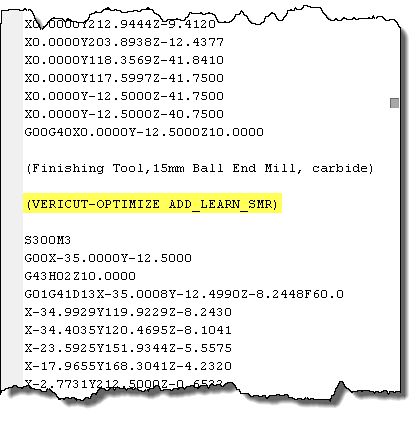
When a particular tool is used to perform different cutting operations in the same tool change sequence, e.g. roughing followed by finish cutting, an “VERICUT-OPTIMIZE ADD_LEARN_SMR” comment can be used to trigger when to begin learning for a new tool use case.
Formats:
-
G-Code (Fanuc) => (VERICUT-OPTIMIZE ADD_LEARN_SMR)
-
APT/CLS => PPRINT/VERICUT-OPTIMIZE ADD_LEARN_SMR
Tool Learn Library — Use to specify the Tool Library file that is to receive the "learned" Stock Material records. Enter the /path/filename in the Tool Learn Library text field or click on the (Browse) icon and use the Tool Learn Library file selection window to specify the /path/filename.
Machine Max Feedrate — Displays the current highest feedrate possible for the selected machine. This field cannot be changed from this window.
Air Cut Feedrate — Displays the current feedrate for air cuts. Use the pulldown menu to specify Feed/Min, Feed/Rev, or % of Prog. as your units. This fieldi and pulldown menu can be edited by toggling off (not checked) the Default checkbox.
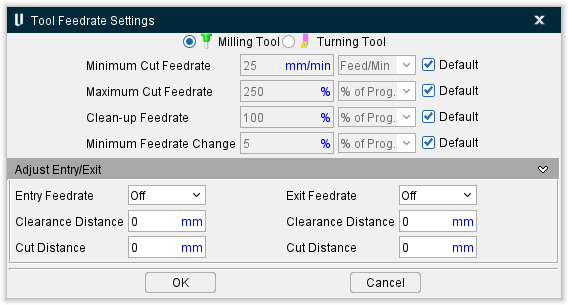
More Feedrate Settings — Opens the Tool Feedrate Settings window.
-
Milling Tool / Turning Tool toggle — Use to specify which tool type you will be adjusting settings for.
-
Minimum Cut Feedrate — specifies the minimum optimized feed rates that can be output when removing material. Default checkbox must be toggled off (not checked) in order to manually edit. When Default is toggled on (checked) it uses the setting 100% of Max Feed Rate for Direction Change. Use the pulldown menu to specify whether to use Feed/Rev or Feed/Min as your units.
-
Maximum Cut Feedrate — specifies the maximum optimized feed rates that can be output when removing material. Default checkbox must be toggled off (not checked) in order to manually edit. When Default is toggled on (checked) it uses the setting 150% of Max Feed Rate (90% of Clean Up Feedrate). Use the pulldown menu to specify whether to use % of Prog., Feed/Rev, or Feed/Min as your units.
-
Clean-up Feedrate — feedrate used when the tool is adjacent to, but not removing material. This condition is commonly referred to as a "spring pass". Default checkbox must be toggled off (not checked) in order to manually edit. When Default is toggled on (checked) it uses the setting 50% of Max Feed Rate. Use the pulldown menu to specify whether to use % of Prog., Feed/Rev, or Feed/Min as your units.
-
Minimum Feedrate Change — specifies the minimum change from the current optimized feed rate that will cause a new optimized feed rate to be output. This feature controls the quantity of feed rates output to the optimized NC program file. A small value causes more optimized feed rates to be output than when a larger value is entered. Default checkbox must be toggled off (not checked) in order to manually edit. When Default is toggled on (checked) it uses the setting the same as Minimum Cut Feedrate. Use the pulldown menu to specify whether to use % of Prog., Feed/Rev, or Feed/Min as your units.
-
-
Adjust Entry/Exit
-
Entry Feedrate — Use to specify when (by distance), and how (Feed/Min, Feed/Rev, % of Program, % of Calc), feed rates are calculated for entering material.
-
Exit Feedrate — Use to specify when, and how, feed rates are calculated for exiting material. Options are same as described for Entry Feedrate. Options:
-
Off — Turns off Entry (or Exit) Feedrate calculation and application during optimization.
-
Feed/Minute — Uses the feed rate entered in the corresponding data field.
-
Feed/Revolution — Similar to Feed/Minute but calculated by each revolution of the fool rather than time.
-
% of Prog. — Adjusts the programmed feed rate based on the percentage entered in the corresponding data field. 100% uses the programmed feed rate as is, 50% cuts feed rate in half, etc.
-
% of Calc. — Similar to % of Prog. except adjusts the calculated feed rate.
-
Clearance Distance — Use to specify the distance before entering material to start applying the specified Entry Feedrate or Exit Feedrate.
-
Cut Distance — Use to specify the distance to cut into material, using the Entry Feedrate or Exit Feedrate, before normal feed rate optimization resumes.
-
Limit By — Use to toggle between Chip Thickness, Force, Power, Deflection, and Volume to specify the optimization settings/limits (and their corresponding values) that Vericut must learn from each tool in order to support optimizing via the chosen method. You can toggle on (check) as many of these limiters as you want.
Learn Percentile — This feature determines what percentile of learned values (sorted in increasing order) is chosen for learned Force optimization settings. Learn mode now also uses this method, instead of learning from the most severe cutting condition. This method learns optimization values that produce safer and more consistent optimized feed rates than in previous versions.
-
Maximum (100%): chooses the value from 100% of the measured/sorted data (these are the highest values measured).
-
Aggressive (95%): (default) chooses the value from 95% of the measured/sorted data, ignoring the highest 5% of values.
-
Moderate (90%): chooses the value from 90% of the measured/sorted data, ignoring the highest 10% of values.
-
Conservative (85%): chooses the value from 85% of the measured/sorted data, ignoring the highest 15% of values.
-
Custom: enables users to specify any percentile value (via keying in or using the slider) for determining learned values for optimization setting(s).
Begin Learning from NC Program — Click this button to begin optimizing in Learn mode.
Output Options
This feature is only active when Optimize is selected as the Mode.
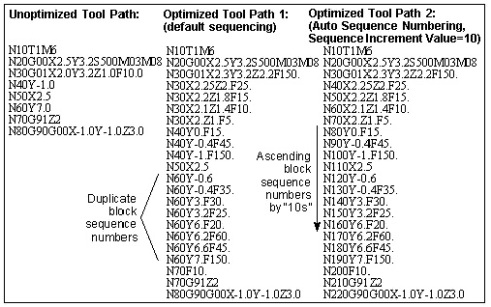
Auto Sequence Numbering — When active (Yes), the Auto Sequence Numbering feature re-sequences optimized NC program records in ascending order. The Sequence Increment Value (see below) is used for the beginning sequence number, and as the increment value for subsequent sequence numbers. Both optimized and non-optimized blocks with sequence numbers are re-sequenced. Sequence numbers are not added to un-optimized blocks without a sequence number.
📝 NOTE: If the general control setting Default Word="N", then "N" does not appear in the sequence number. The result is a sequence number without a word, for example: "50G01X5", such as required by Heidenhain controls.
Add Sequence Number to Added Blocks — When active (Yes), adds sequence numbers to blocks added during optimization via the Add More Cuts Optimization setting.
Sequence Increment Value — Initial value and increment value for re-sequencing optimized G-Code NC program records.
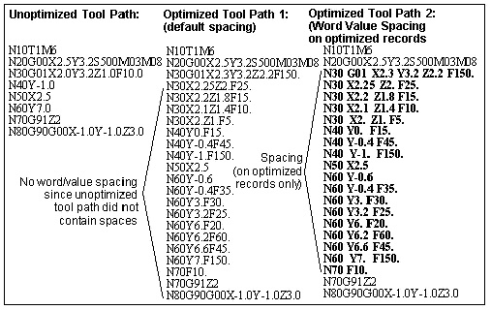
Word Value Spacing — When active (Yes), Optimization includes a space between word/value pairs in the optimized NC program file. Un-optimized records do not receive spacing. When this feature is not used, optimized NC program records are not spaced.
Add/Date/Time Stamp to Optimized File — When active (Yes), Optimization will add a date and time stamp to the optimized file.
Add/Date/Time Stamp at Line Number — Use to set the line number at which the date and time stamp will be added.
Output Format — Select between Decimal and Word options to control how the information will be displayed. Decimal will output numeric values as decimals. Word will refer to Word Format table to determine whether each value should be in trailing, leading, or decimal format.
See Configuring "G-code Output Options" NC Control Settings, in the Using the Control Settings window section, also in the Machine/Control tab section of Vericut Help for additional information.
OK — Applies the changes and closes the Optimize Control window.
Apply — Applies the changes and leaves the Optimize Control window open.
Cancel — Closes the Optimize Control window without applying changes.