Post Processor
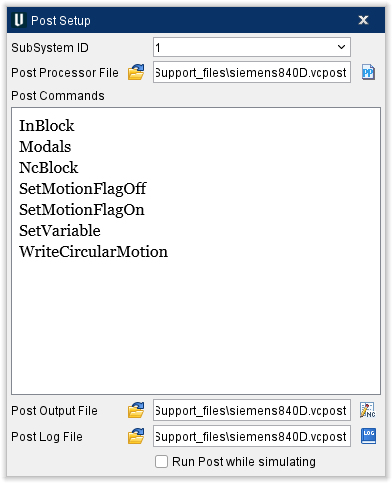
Post Setup window
Location:
Utilities tab >  (Post Processor)
The features in the Post Setup window enable you to select and view a Vericut VCPost post processor file and select, generate, and view the posted output file.
 (Close) — Use this icon to close the Post Setup window.
SubSystem ID — Use to specify ID of the machine subsystem for which you are generating posted output for. Select from the pull-down list of subsystems defined for the current machine.
Post Commands — The Post Commands list contains a list of the subroutines used in the post processor.
Post Processor File — Name of the VCPost post processor to use. Click on the  (Browse for post-processor) icon to display the Post Processor file selection window and use it to specify the /path/filename.
 (Edit Post-Processor) — Opens the post processor file in a text editor window (ref. Text File in the Edit menu section of Vericut Help for a complete description of the text editor's features) enabling you to edit the post processor.
Post Output File — Name of the file to receive the posted output data. Enter the /path/filename in the Post Output File text field or click on the (Browse for Post Output file) icon to display the NC Program file selection window and use it to specify the /path/filename.
 (Edit Post Output File) — Opens the Post Output File in a text editor window (ref. NC Program Editor in the Project Tree section of Vericut Help for a complete description of the text editor's features) enabling you to edit the posted NC program file.
PostLog File — Name of the file to receive the post log data. Enter the /path/filename in the PostLog File text field or click on the (Browse for Post Log File) icon to display the Post Processor Log file selection window and use it to specify the /path/filename.
 (PostEditLog) — Opens the post log file in a text editor window (ref. NC Program Editor in the Project Tree section of Vericut Help for a complete description of the text editor's features) enabling you to view and/or edit the post log file.
Run Post while simulating — When toggled "on" (checked), the Post Output File is generated during the NC program simulation. Note that you can start the simulation, stop the simulation and then continue the simulation at any time during the post processing cycle as long as you do not toggle "off" (unchecked) the Run Post while simulating feature, marking the end of the generating posted output cycle.
See Post Process command line options in the Automating Vericut section of the Vericut Help Library for information on post processing in batch mode.