Open Review File
Location: Home tab >  (Open File)
Toolbar short cut for opening a review file: 
The Open File command button opens the Open Vericut Review File file selection window enabling you to specify the review file that you want to look at.
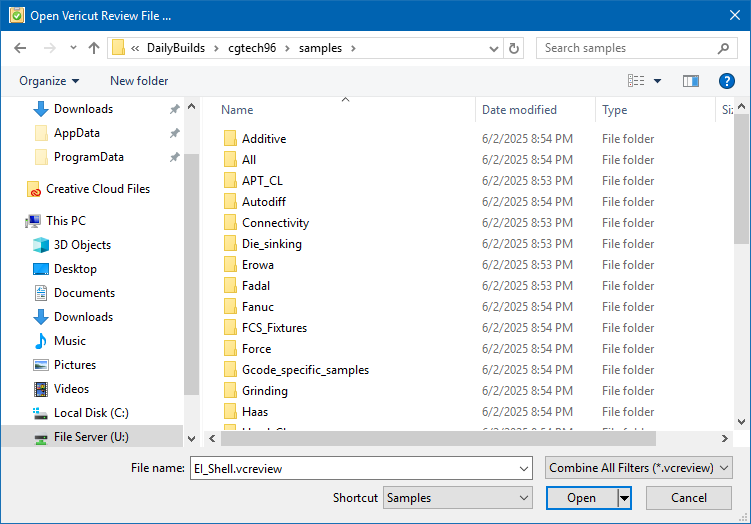
Most features on this window are standard file selection window features that enable you to navigate through directories, filter files, and type, or select, /path/filenames.
The "Open Vericut Review File" File Selection Window
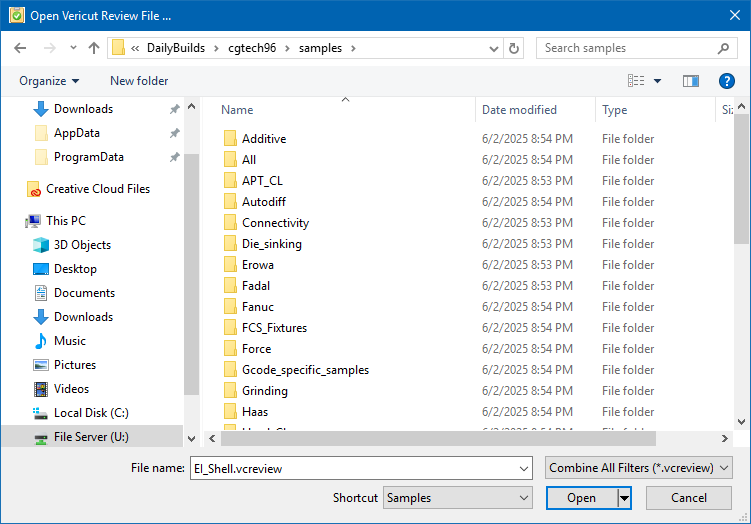
The "Open Vericut Review File" file selection window is used to open review files. Most features on this window are standard file selection window features that enable you to navigate through folders, filter files, and type, or select, /path/filenames.
Using the Standard “Open Vericut Review File” File Selection Window
Opening a File
-
In the Vericut Reviewer menu ribbon, select Home tab > Open File to display the "Open Vericut Review File" file selection window.
-
In the "Open Vericut Review File" file selection window, select the directory in the tree on the left side of the window containing the file you want to open.
You can select the folder from the Shortcut pull-down list if it is found there. -
Once you select the directory in the directory tree, the files in that directory are displayed in the center section of the file selection window. Use the Filter feature to specify the type of files that you want displayed.
- Select the file that you want to open from those displayed in the center section of the file selection window so that it becomes highlighted.
- Click on Open in the lower right corner of the window to open the file and close the file selection window.
- You can click on Cancel in the lower right corner of the window to close the file selection window without opening a file.