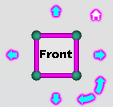
Preferences
Location: Home tab >  (Preferences)
The Preferences command button opens the Preferences window enabling you to specify the Vericut project file (.VcProject) that you want displayed when you start the next Vericut Reviewer session, the number of "recent files" that you want the software to remember, and the PDF reader/web browser that you want to use for online Help.
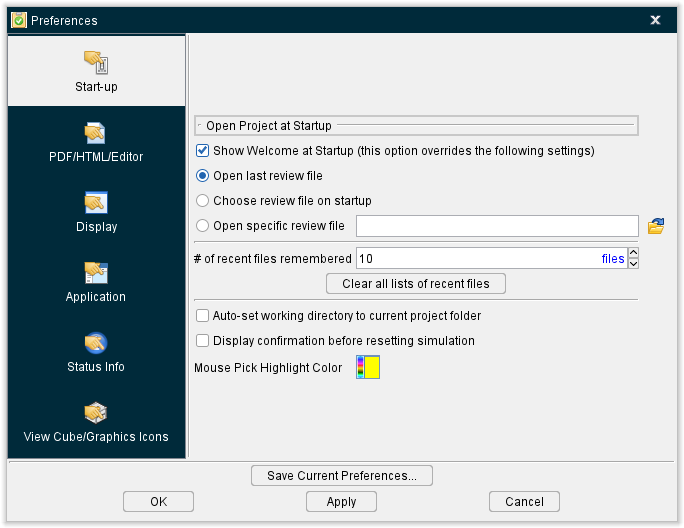
Start-up tab — Use the features on this tab to specify the Vericut Reviewer project file (.vcreview) that you want displayed when you start the next Vericut Reviewer session, the number of "recent files" that you want the software to remember.
PDF/HTM/Editor tab — Use the features in this tab to specify the location of the Adobe Reader and/or the location of the Internet Browser that you want Vericut Reviewer to use to display online Help and/or the location of the NC program editor that you want to use.
Display tab— Use the features in this tab to specify display characteristics (Look & Feel, Font Size, Icon Size, etc.) that you want to use.
Application — Use the features of this tab to select various basic settings about your software.
Status Info — Use the features in this tab to set the visibility of various info in the Status panel.
View Cube/Graphics Icon tab — Use the features in this tab to turn the View Cube On/Off, specify View Cube window size and View Cube color settings.
Save Current Preferences — This feature enables you to save the current preferences file settings to an external file. Selecting Save Current Preferences displays the Save File file selection box enabling you to specify the \path\filename for the file to be saved.
OK — Saves the window settings and closes the Preferences window.
Apply — Apply the settings on the current tab.
Cancel — Closes the Preferences window without saving the window settings.
Start-up tab
The features on the Start-up tab enable you to specify the Vericut project file (.VcProject) that you want displayed when you start the next Vericut Reviewer session, the number of "recent files" that you want the software to remember.
Show Welcome at Startup (this option overrides the following settings) — When toggled "on", this will display the Welcome Screen when Vericut Reviewer is opened. Having this feature active means the next four features will not be active at Startup.
Open last review file — When toggled "on", the last created Vericut Reviewer project file is displayed upon startup.
Choose review file on startup — When toggled "on", the Vericut Reviewer session opens and displays a window enabling you to select which Vericut Reviewer project file displays..
# of recent files remembered — Use this feature to specify the number of "Recent Files" that you want Vericut Reviewer to remember and display.
Clear all lists of recent files — Use this feature to clear all "Recent Files" lists. This includes the "Recent Files" lists in the File menu in the main Vericut Reviewer window.
Auto-set working directory to current project folder — When toggled “on” (checked), Vericut Reviewer automatically sets the Working Directory to the folder that the “current” project file was located in.
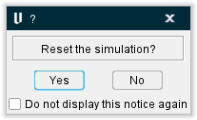
Display confirmation before resetting simulation — When toggled “on” (checked), generates a confirmation window when the simulation is reset.
Mouse Pick Highlight Color — Use the  (Color Palette) icon to specify a color for the “Mouse Pick” indicator . The right side of the (Color Palette) icon shows the current color for the “Mouse Pick” indicator. To change the color of the “Mouse Pick” indicator, click on the (Color Palette) icon to display the color palette window shown below.
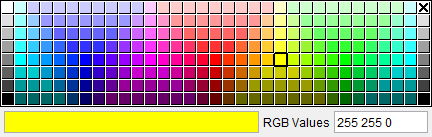
Click on a color in the color palette window, to specify the color for the “Mouse Pick” indicator. The color palette will close and the right side of the  (Color Palette) icon in the Preferences window: Start-up tab will update to reflect the selected color.
To close the color palette window without changing the color, click on the  in the upper right corner of the color palette.
PDF/HTML Editor tab
The features on the PDF/HTML tab enable you to specify the Adobe Reader and/or Internet Browser that you want to use to display online Help.
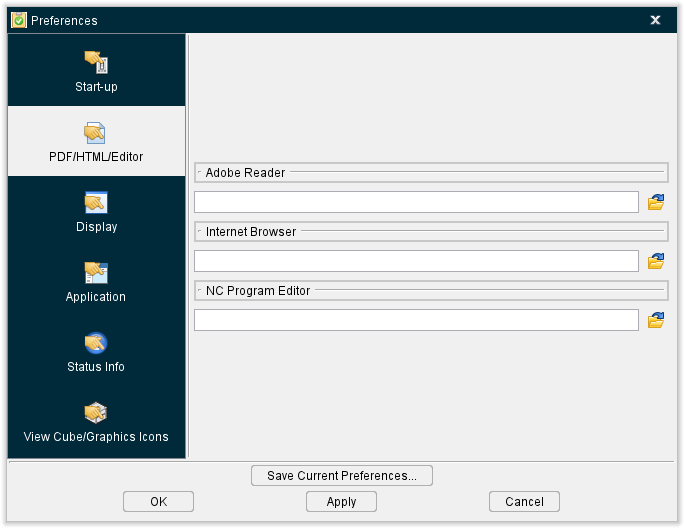
Adobe Reader — Enter the /path/filename in the Adobe Reader text field, or click on the  (Browse) icon and use the Open file selection window that displays, to specify the path/file name of the Adobe Reader that will display online Help.
📝 NOTE: This feature is only available on Windows computers.
Internet Browser — Enter the /path/filename in the Internet Browser text field, or click on the (Browse) icon and use the Open file selection window that displays, to specify the /path/filename of the internet browser that Vericut is to use to display online Help.
NC Program Editor — Enter the /path/filename of the NC program editor that you want to use in the NC Program Editor text field , or click on the (Browse) icon and use the Open file selection window that displays, to specify the /path/filename of the NC program editor that you want to use. This feature replaces the environment variable CGTECH_TPEDITOR.
All three of the above settings are stored in the Preferences File. For more information on the Preferences File, see Vericut File Descriptions section of Vericut Reviewer Help.
Display tab
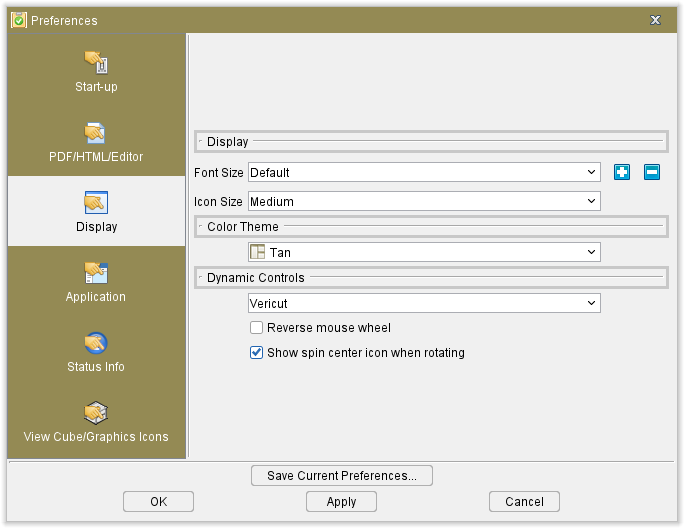
The features on the Display tab enable you to specify display characteristics (Font Size, Icon Size, Color Theme, Dynamic Controls and Reverse mouse wheel) that you want to use.
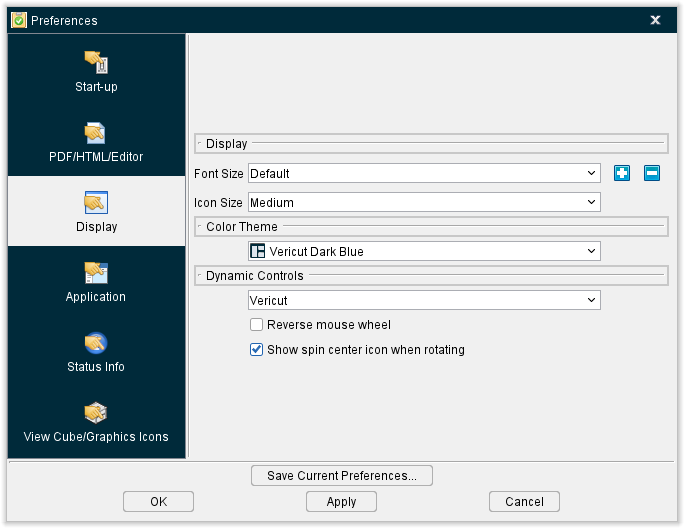
Font Size — The Font Size features enable you to change the size if the font for all text used in Vericut Reviewer (menus, Vericut Logger, windows, screen tips, etc.) Select the desired text size from the pull-down list. The following pictures show the difference text size displayed for each of the Font Size choices.
-
Default —

-
Medium —

-
Large —

-
X-Large —

 (Text Larger) — Use the Text Larger icon to make the text in Vericut Reviewer larger. Each time you click on the Text Larger icon, the text gets incrementally larger to a maximum font size of approximately “24 point”.
- Max Font Size —
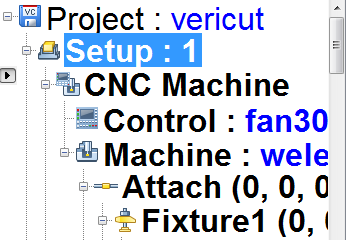
 (Text Smaller) — Use to make the text in Vericut Reviewer smaller. Each time you click on "Text Smaller", the text gets incrementally smaller to a minimum font size of approximately "6 point".
- Min Font Size —
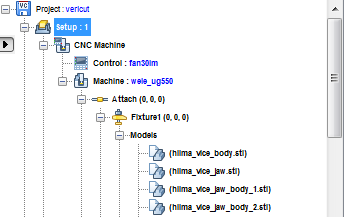
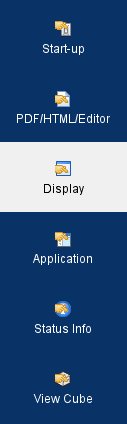
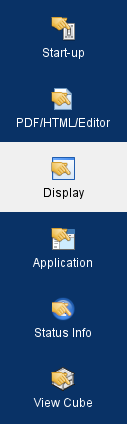
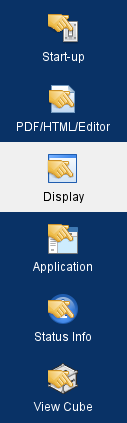
Icon Size — The icons used throughout Vericut Reviewer are available in three different sizes. The following features enable you to select the icon size used in Vericut Reviewer. A checkmark next to the feature indicates the current selection.
Icon Small/Medium/Large — Use this pulldown menu feature to change the size of the displayed icons. See below for a side by side comparison of icon sizes.
| Small | Medium | Large |
|---|---|---|
 |
 |
 |
Color Theme
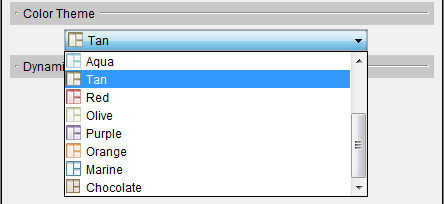
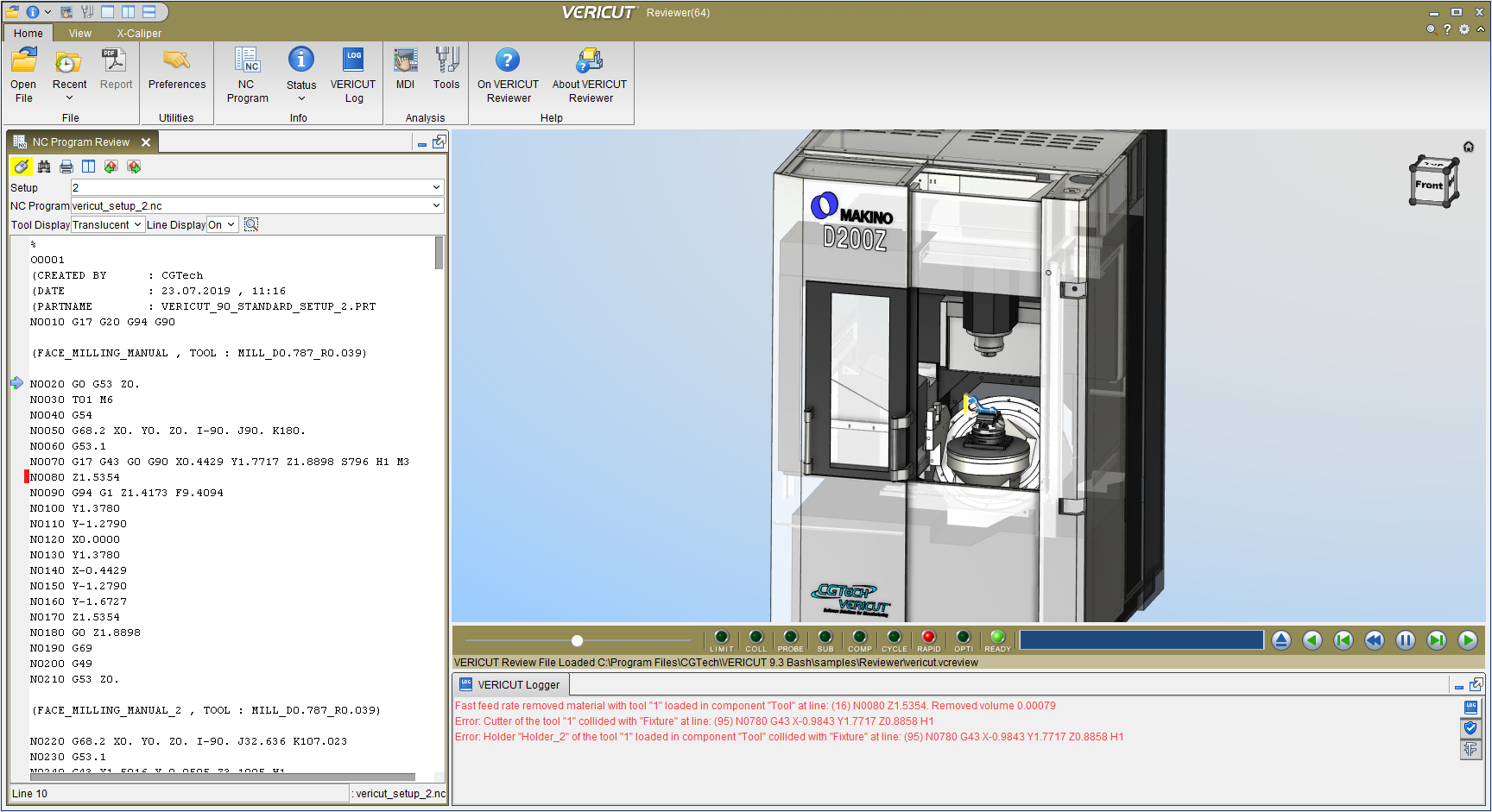
The Color Theme feature enables you to select a “favorite” color for the display of the Main window and dialogs. Select the desired color from the Color Theme pull-down list.
Vericut Reviewer Main Window
Sample Dialog
Dynamic Controls
The Dynamic Controls option enables you to use the same mouse actions while in Vericut Reviewer, that are required to perform dynamic pan, zoom or rotate in each of the supported CAD systems. This parameter is saved in the Preferences file.
-
CATIA — Use the CATIA mouse action conventions for dynamic pan, zoom and rotate.
-
Creo — Use the Creo mouse action conventions for dynamic pan, zoom and rotate.
-
EdgeCAM — Use EdgeCAM mouse action conventions for dynamic pan, zoom and rotate.
-
GibbsCAM — Use GibbsCam mouse action conventions for dynamic pan, zoom and rotate.
-
hyperMILL — Use the hyperMILL mouse action conventions for dynamic pan, zoom and rotate.
-
MasterCAM — Use the MasterCAM mouse action conventions for dynamic pan, zoom and rotate.
-
NX — Use Siemens NX mouse action conventions for dynamic pan, zoom and rotate.
-
Power MILL — Use the Power Mill mouse action conventions for dynamic pan, zoom and rotate.
-
SOLIDWORKS — Use the SOLIDWORKS mouse action conventions for dynamic pan, zoom and rotate.
-
Top Solid — Use the Top Solid mouse action conventions for dynamic pan, zoom and rotate.
-
Top Solid 7 — Use the Top Solid 7 mouse action conventions for dynamic pan, zoom and rotate.
-
Vericut — Use the Vericut standard mouse action conventions for dynamic pan, zoom and rotate. See Dynamic Zoom, Pan and Rotate section of Vericut Reviewer Help for additional information.
Reverse Mouse Wheel — Toggle on/off to reverse the action of mouse wheel motion.
Show spin center icon when rotating — Toggle on/off to display the spin center icon when manipulating graphics area image.
Application tab
The features on the Application tab are used to select various default options for your software.
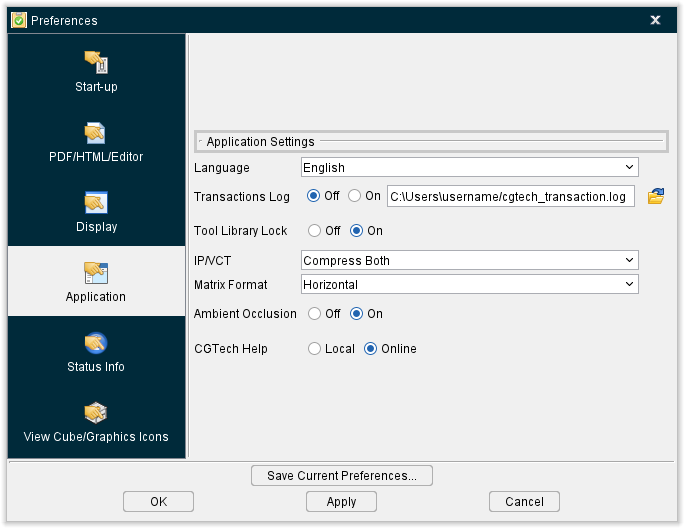
Language — Use this dropdown menu to specify which language you want the software to run in. Current options include: English, Chinese, Czech, French, German, Italian, Japanese, Korean, Portuguese, and Spanish.
Transactions Log — When toggled on (checked), this feature stores a complete log of your Vericut sessions in a location of your choice as designated via the location field to the right of the toggle. When toggled off (not checked), no log will be saved.
Tool Library Lock — When toggled on (checked), this feature locks tool library files to prevent manipulation. When toggled off (not checked), no lock will be applied.
IP/VCT — Use this pulldown field to change the amount of compression used for IP and VCT files. Options to choose between include:
-
No Compression — Turns off compression.
-
Compress IP Only — Applies compression to IP but not VCT files.
-
Compress VCT Only — Applies compression to VCT but not IP files.
-
Compress Both — Applies compression to both IP and VCT files.
Matrix Format — Use this pulldown field to change the layout of the matrix in the model position tap. Choose between Horizontal and Vertical layouts.
Ambient Occlusion — When toggled on (checked), approximates how bright light should be shining on specific surface parts.
CGTech Help — Toggle between accessing a Local saved copy of Vericut's Help documentation or an Online version that updates frequently.
Status Info tab
The features on the Status Info tab enable you to control the way the Status panel displays.
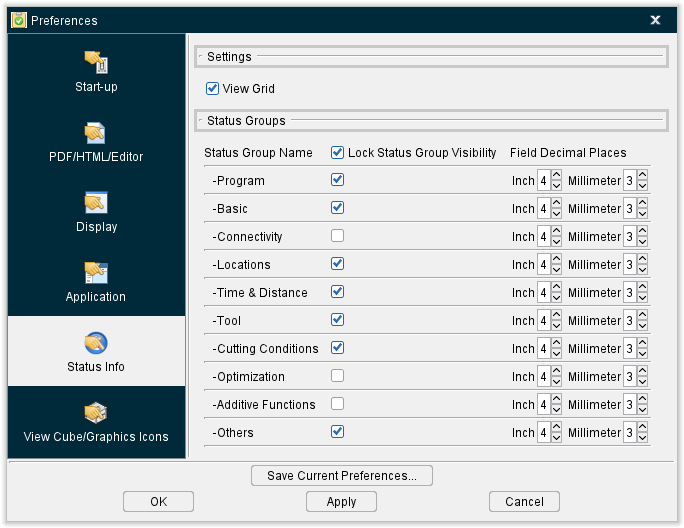
View Grid — This feature is on (checked) by default, the Status window data is neatly arranged into tables having visible grid lines. Turning this option off (unchecked) omits the grid lines to provides a more “spacious” Status window appearance.
Status Group Name — This column specifies the status group. This column cannot be edited.
Lock Status Group Visibility — Use the toggles in this column to control whether or the field is visible. More info about each of these Groups can be found in the Status Panel page of the Help.
Field Decimal Places — Use the fields in this column to control how many decimal places display for inch and millimeter measurements. By default, Vericut sets the display to 4 decimal places for both.
View Cube/Graphics Icon tab
The features on the View Cube/Graphics Icon tab enable you to turn the View Cube On/Off/, specify View Cube window size and View Cube color settings.
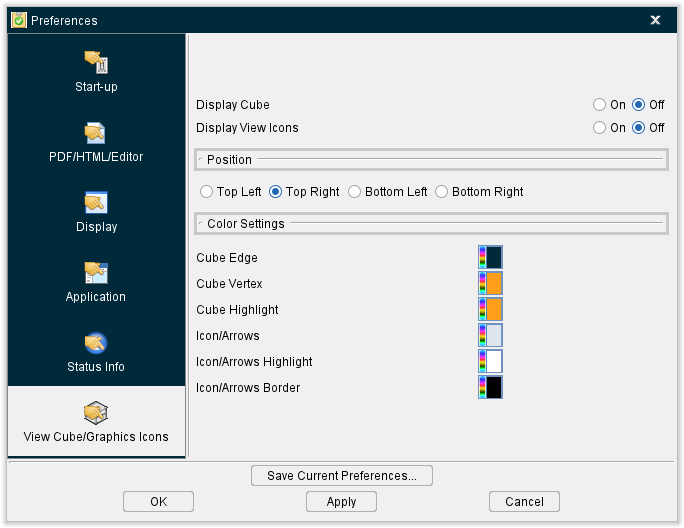
Display Cube — Use this feature to turn the display of the View Cube On or Off.
Poisition — Use this feature to specify which corner of the Graphics Area you want the View Cube to be displaye in.
Color Settings — The Color Settings feature enables you to specify a color for each of the View Cube features described below.
Use the  (Color Palette) icon next to each of the View Cube features to specify a color for the particular feature.
The right side of the (Color Palette) icon shows the current color for the View Cube feature. To change the color of the feature, click on the (Color Palette) icon to display the color palette window shown below.
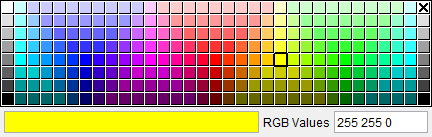
Click on a color in the color palette window, to specify the new color for the feature. The color palette will close and the right side of the  (Color Palette) icon next to the View Cube feature will update to reflect the selected color.
To close the color palette window without changing the color, click on the  in the upper right corner of the color palette.
Cube Edge — Use this feature to specify a color for the View Cube’s edges as shown in the picture below.
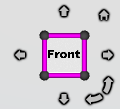
Cube Vertex — Use this feature to specify a color for the View Cube’s vertices as shown in the picture below.
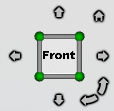
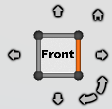
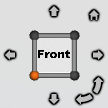
Cube Highlight — Use this feature to specify a highlight color for the View Cube’s edges and vertices. Holding the cursor over an edge or vertex will change the color of the entity to the highlight color so that you can see exactly which entity you are about to select as shown in the pictures below.
| Highlighted Edge | Highlighted Vertex |
|---|---|
 |
 |
Icon/Arrows — Use this feature to specify a color for the View Cube’s icons and arrows as shown in the picture below.
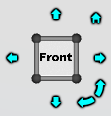
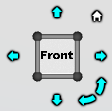
Icon/Arrows Highlight — Use this feature to specify a highlight color for the View Cube’s icons and arrows. Holding the cursor over an icon or arrow will change the color of the entity to the highlight color as shown in the pictures below. Notice how the Home icon is white because it is being hovered over while the arrows remain blue.
Icon/Arrows Border — Use this feature to specify a border color for the View Cube’s icons and arrows. Holding the cursor over an icon or arrow will change the color of the entity to the highlight color as shown in the pictures below.
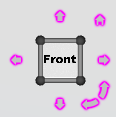
Icon/Arrows Border — Use this feature to specify a border color for the View Cube’s icons and arrows. Holding the cursor over an icon or arrow will change the color of the entity to the highlight color as shown in the pictures below.
Putting it all together you get a View Cube window that looked like the picture below.