Introduction to Vericut File Selection Windows
File selection windows are used throughout Vericut to open and save various Vericut file types. They are also accessed by using the Browse buttons found on many Vericut windows to assist you in specifying required /path/filenames. Most features on this window are standard file selection window features that enable you to navigate through directories, filter files, and type, or select, /path/filenames. Each window may vary slightly depending on its intended purpose. This section describes the features common to all Vericut file selection windows. Features specific to a particular window are described in the documentation for the window.
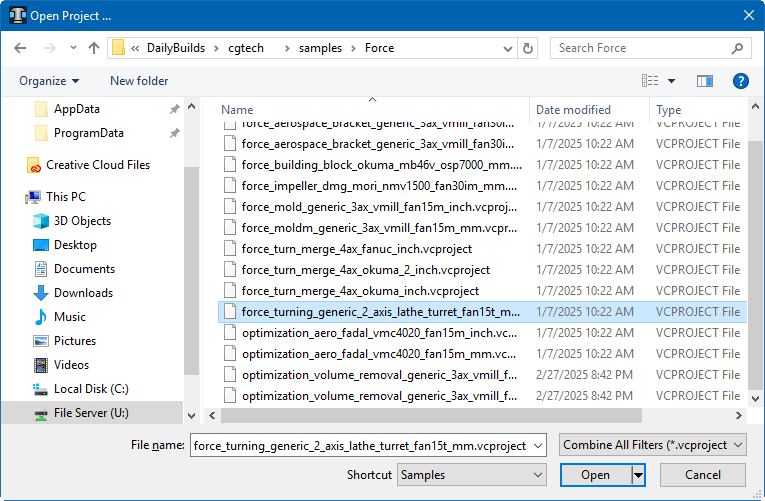
File pathway — Displays the pathway currently being navigated so that any previous folder can be easily navigated to either through the Back and Forward buttons or by clicking on a previous item within the pathway listing itself.

You can also use the down arrow ( ) to generate a pulldown list of recent file pathways that can be quickly loaded. Additionally, there is a refresh icon (
 ) to updated the file pathway as needed.
Search bar — This feature is used to quickly find files within the current file pathway. The current folder being search will also be shown within the search bar until it is typed into. For example: Search Desktop.

Organize — The feature opens a menu of possible options for controlling your list of files and how they are displayed.
-
Cut — removes selected content and saves it in temporary folder until it is pasted into a desired place.
-
Copy — saves selected content into a temporary folder without removing content.
-
Paste — places saved content from temporary folder on to a selected location.
-
Undo — cancels the most recent action taken.
-
Redo — enacts the most recently undone action.
-
Select all — highlights all items.
-
Layout —
-
Menu bar — opens a window enabling you to edit the menu bar.
-
Details pane — toggles on/off the display of a pane that shows information such as the type of file, the size of the file, the date modified, the date created, and the offline availability.
-
Preview pane — toggles on/off the display of a pane that shows images from the file if available.
-
Navigation pane — toggles on/off the display of a pane that shows the highest level folders that can be started from in navigation.
-
Folder and search options — opens a menu enabling you to alter the search options.
-
Delete — removes selected content.
-
Rename — selects the file name and switches it to an editing mode where the title can be altered.
-
Remove properties — deletes all information that would be shown on the Details pane.
-
Properties — opens a properties window enabling you to view information related to the file's origin.
-
Close — closes the window.
New Folder — creates a new folder within the selected folder group.
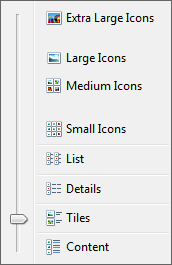
Change Your View — allows you to select between several different options of display for your files including: extra large icons, large icons, medium icons, small icons, list, details, tiles, and content.
Hide the preview pane/Show the preview pane — toggles on/off the display of the preview pane.
Get help. — Opens the Windows Help and Support window.
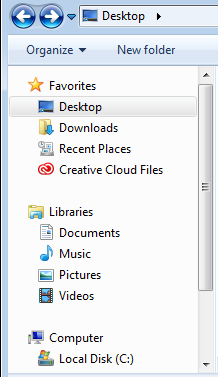
Navigation Pane — Displays the highest level of folder that can be navigated from.
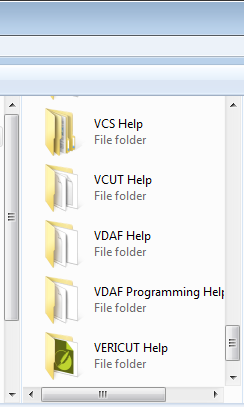
File Pane — Displays the folders and files located within the previously selected folder.
-
To select multiple files in these windows, try these techniques:
-
Select multiple files in sequence — Click the first file name in the sequence, then press and hold the
key while clicking the last file name in the sequence. The first, last and all files between will be added to the File list at the bottom of the window. -
You can also click on the first file name in the sequence, and then while still holding down the mouse button, drag the cursor to the last file name in the sequence.
-
Select additional individual files — Press and hold the
key while selecting each additional file. Each will be added to the File list at the bottom of the window. -
With either method, selecting a file name a second time, while holding down the
key, un-selects the file. The order in which the files are selected determines the order that files will be displayed in the File field.
Preview pane — Displays images from the file if available.
File name — Displays the name of the selected file to be opened.
Filter — Use this feature to specify the types of files to be displayed in the File List. You can also use the down arrow () to generate a pulldown list of recent file names that can be quickly loaded.
Shortcut — Use this pulldown menu to quickly navigate to common folders that are used with Vericut files.
Open — Loads the selected file and closes the window.
Cancel — Closes the window without loading any files.
Using the Standard Vericut File Selection Window
File selection windows are used throughout Vericut to open and save various Vericut file types. Most features on this window are standard file selection window features that enable you to navigate through directories, filter files, and type, or select, /path/filenames. This is the most commonly used file select window used in Vericut. The few exceptions are described in the Help Sections where they are used.
This section describes using the file selection window when the “standard” file selection Folder Tree structure is displayed in the left panel.
Opening a File
-
Select the folder in the Navigation pane on the left side of the window containing the file you want to open. You can also select the folder from the Shortcut pull-down list if it is found there.
-
Once you select the folder in the folder tree, the files in that folder are displayed in the center section of the file selection window. Use the Filter feature to specify the type of files that you want displayed.
- Select the file that you want to open from those displayed in the center section of the file selection window so that it becomes highlighted.
- Click on Open in the lower right corner of the window to open the file and close the file selection window.
- You can click on Cancel in the lower right corner of the window to close the file selection window without opening a file.
Saving a File
-
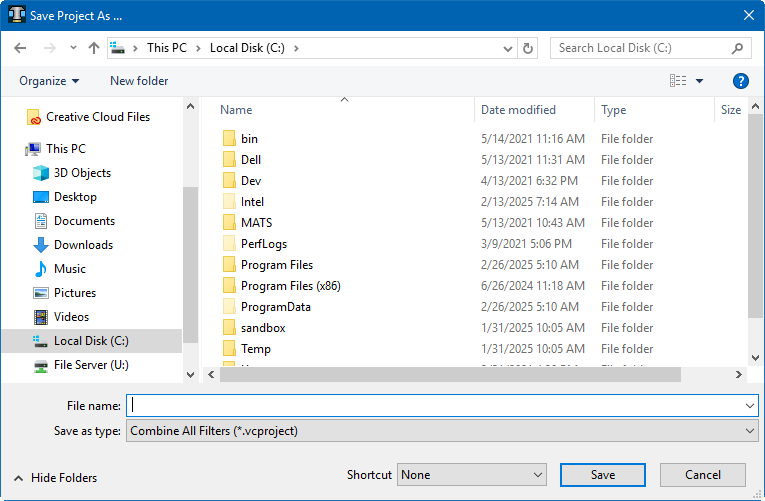
Select the folder in the tree on the left side of the window that you want to save the file to. You can also select the folder from the Shortcut pull-down list, located in the upper right corner of the file selection window, if it is found there.
-
Once you select the folder in the folder tree, the files in that folder are displayed in the center section of the file selection window. Use the Filter feature to specify the type of files that you want displayed.
- Enter the name of the file that you want to save in the File text field, or select a file from those displayed in the center section of the file selection window if you want to replace it.
- Click on Save in the lower right corner of the window to save the file and close the file selection window.
- You can click on Cancel in the lower right corner of the window to close the file selection window without saving the file.
Using the “Favorites” Vericut File Selection Window
The “standard” file selection windows are used throughout Vericut to open and save various Vericut file types. Most features on this window are standard file selection window features that enable you to navigate through directories, filter files, and type, or select, /path/filenames. This is the most commonly used file select window used in Vericut. The couple of exceptions are described below.
Opening a File in a Favorite Folder
-
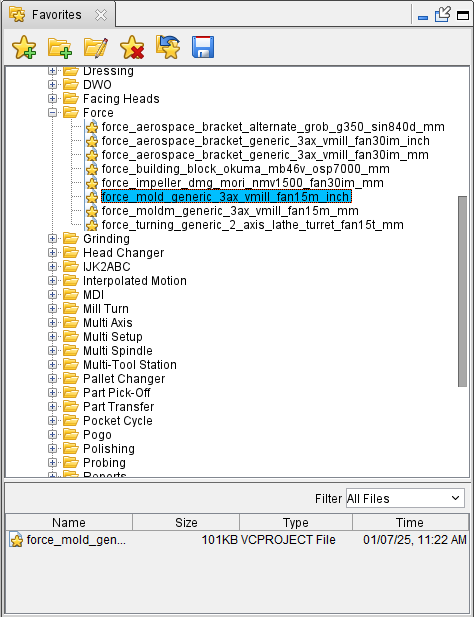
Select the “favorite” folder in the Favorites List, on the left side of the window, containing the file you want to open.
-
You can also select the folder from the Shortcut pull-down list if it is found there.
- Once you select the “favorite” folder in the Favorites List, the files in that folder are displayed in the center section of the file selection window, filtered according to the setting of the Filter feature when the “favorite” folder was created.
- Select the file that you want to open from those displayed in the center section of the file selection window so that it becomes highlighted.
- Click on Open in the lower right corner of the window to open the file and close the file selection window. You can also double-click with the left mouse button on the file that you want to in the center section of the file selection window to open the file and close the file selection window.
- You can click on Cancel in the lower right corner of the window to close the file selection window without opening a file.
Opening a Favorite File
- Select the “favorite” file in the Favorites List, on the left side of the window.
- Once you select the “favorite” file in the Favorites List, the file name will be displayed in the center section of the file selection window.
- Select the file name that you want to in the center section of the file selection window so that it becomes highlighted.
-
Click on Open in the lower right corner of the window to open the file and close the file selection window.
💡 Tip: You can also double-click with the left mouse button on the file that you want to in the center section of the file selection window to open the file and close the file selection window. -
You can click on Cancel in the lower right corner of the window to close the file selection window without opening a file.
Saving a File to a Favorite Folder
-
Select the “favorite” folder in the Favorites List, on the left side of the window, where you want to save the file.
-
You can also select the folder from the Shortcut pull-down list if it is found there.
- Once you select the “favorite” folder in the Favorites List, the files in that folder are displayed in the center section of the file selection window, filtered according to the setting of the Filter feature when the “favorite” folder was created.
- Enter the name of the file that you want to save in the File text field, or select a file from those displayed in the center section of the file selection window if you want to replace it.
- Click on Save in the lower right corner of the window to save the file and close the file selection window.
- You can click on Cancel in the lower right corner of the window to close the file selection window without saving the file.