Collision Branch
Right-click on a Collision Branch in the Project Tree panel to display the following menu:
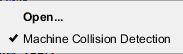
Open — Opens the Collision and Travel Limits window: Collision Detect tab enabling you to specify when collisions between two machine components are detected, which components are protected, and the tolerances used for detecting collisions.
Machine Collision Detection — Toggles Machine Collision Detection “on” (checked) and “off”.
The sequence of events that takes place when a collision is detected is dependent on how the Animation Speed Slider is set and whether Stop at Max Errors is toggled “on” or “off”. See What Happens When a Collision is Detected? section of Vericut Help below, for complete information.
What Happens When a Collision is Detected?
The sequence of events that takes place when a collision is detected is dependent on how certain Vericut features are set. It is assumed that collision checking conditions have already been set and collision checking has been turned on using the Collision Branch.
What happens when a collision is detected is dependent on how the Animation Speed Slider (ref. Animation Speed Slider, in the Getting Started section of Vericut Help) is set and whether Stop at Max Errors (ref. Configure Project menu, Start/Stop tab section of Vericut Help) is toggled “on” or “off”.
The following summarized the events that will take place with various combinations of Animation Speed Slider/Stop at Max Error settings:
-
The Animation Speed Slider is set at 100% and Stop at Max Errors is toggled “Off”.
Vericut reports the collision error in the Logger and in the Vericut Log file.
Vericut continues processing. -
The Animation Speed Slider is set at 100% and Stop at Max Errors is toggled “on”.
Vericut reports the collision error in the Logger and in the Vericut Log file.
Vericut stops at the end of the block. -
The Animation Speed Slider is set at less than 100% and Stop at Max Errors is toggled “off”.
Vericut reports near miss conditions (if Near Miss values are set) to the Logger and Vericut Log file.
Vericut reports the collision error in the Logger and in the Vericut Log file.
Vericut continues processing. -
The Animation Speed Slider is set at less than 100% and Stop at Max Errors is toggled “on”.
Vericut reports near miss conditions (if Near Miss values are set) to the Logger and Vericut Log file and immediately stops processing.
Press Play to continue processing.
Vericut reports the collision error in the Logger and in the Vericut Log file and immediately stops processing.
Press Play to continue processing.