Word Format (Word Format window)
Location:
Machine/Control tab >  (Word Format)
Toolbar short cut: 
The Word Format command button opens the Word Format window enabling you to specify how the NC control interprets G-Code words and special characters, to specify syntax checking rules (error conditions) for checking your NC program file for valid syntax.
To learn more about how Vericut processes G-Code data, see "About Building NC Controls", in the Building NC Controls section of Vericut Help.
📝 NOTE: Always reset Vericut (press  (Reset Model) on the Vericut main window) after making changes to the control configuration.
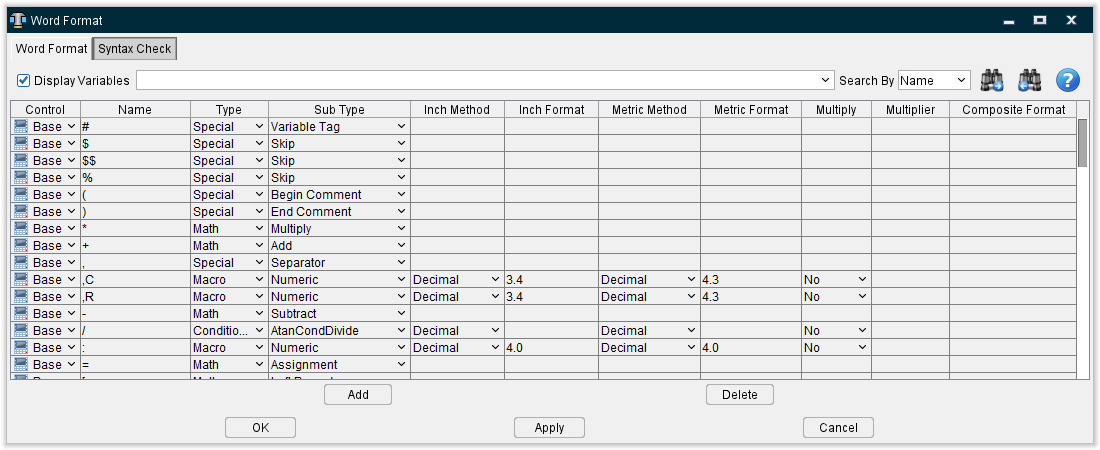
Word Format tab — List of machine code or "G-Code" data words and characters that are interpreted by the control, arranged in alphabetical order. The list provides a summary of word types, sub-types, inch and metric formats, and multipliers and composite formats.
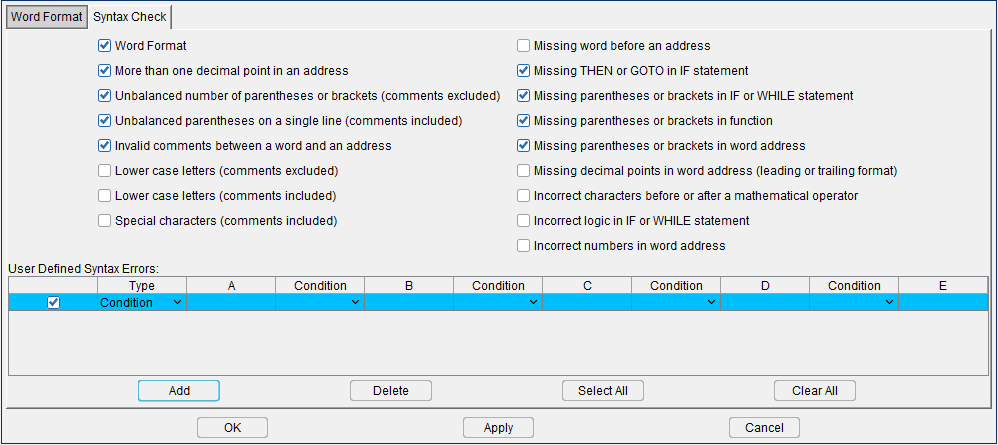
Syntax Check tab — The features on this tab enable you to turn On/Off Vericut defined syntax checking rules (error conditions) and to define custom syntax checking error conditions for checking the statements in your NC program file for valid syntax.
Add — Adds a new entry into the table.
Delete — Deletes the highlighted entry.
OK — Saves additions/modifications and dismisses the Word Format window.
Apply — Saves additions/modifications and leaves the Word Format window open.
Cancel — Closes the Word Format window without saving any additions/modifications.
To learn more about how Vericut processes G-Code data, see "About Building NC Controls", in the Building NC Controls section of Vericut Help.
Word Format window, Word Format tab
The features on the Word Format tab enable you to specify how the NC control interprets G-Code words and special characters. Once words are defined, they can be "grouped" with address values via the Machine/Control tab > G-Code Processing function to perform specific actions by calling Vericut supplied or custom macros. Undefined words cause errors when processed, and are not acted on by Vericut.
Words and special characters and their settings are stored in the control file.
Each column in the Word Table represents a specific feature that enables you to define how the NC control interprets specific G-Code words or special characters.
Control — Identifies which kind of control is being used.
-
Base — The main control file which controls specific machines.
-
Add On — Control files relating to additional controls that might be used to run the machine.
-
Custom — User-created control files that are entirely unique.
Name — Identifies the word or special character. Each word name must be unique.
Type — Specifies the type of control function performed by the word. Options:
-
Logical — Evaluates a logical expression. See "Logical Sub-type" below for more detailed classifications.
-
Special — Accesses special NC control functions. See "Special Sub-type" below for more detailed classifications.
-
Math — Performs a mathematical operation. See "Math Sub-type" below for more detailed classifications.
-
Function — Calls the control function specified in the Function Name field.
-
Type II — Specifies that the word is a three character mnemonic representing a Type II data command, e.g. "AXO", "CLS", etc.
-
Macro — Word will be paired with a value, then configured via the Machine/Control tab > Word Format function to call one or more action macros.
-
Conditional — Similar to the Functions word type, except performs multiple functions, depending on the condition of word use. Conditional words are typically supported by special routines written by Vericut or other developers to evaluate word use.
Sub Type — Sub-types further differentiate word functions. Available sub-types are dependent on the word Type.
-
Logical Sub Type — Options for evaluating logical expressions:
-
Equal
-
Not Equal
-
Greater than
-
Greater Than or Equal
-
Less Than
-
Less Than or Equal
-
AND
-
OR
Vericut also supports the following bitwise operators:
-
Bitwise AND: If both of the corresponding bits are on, then the resulting bit is on.
-
Bitwise OR: If either of the corresponding bits are on, then the resulting bit is on.
-
Bitwise XOR: If either, but not both, of the corresponding bits are on, then the resulting bit is on.
Simple examples:
-
9 AND 8 = 8
-
9 OR 8 = 9
-
9 XOR 8 = 1
-
7 AND 8 = 0
-
7 OR 8 = 15
-
7 XOR 8 = 15
These operators follow the standard rules of precedence.
📝 NOTE: For a compound equation, it is always best to use parenthesis, or brackets, to insure the order in which the equation will processed. Not all controls follow the standard rules of precedence.
Special Sub Type — Options for performing special control functions. Click on the record "Sub Type" field and select from the list of available options in the pull-down menu. See Specials - listed alphabetically section for details on each Special.
Math Sub Type — Options for performing math operations. Click on the record "Sub Type" field and select from the list of available options in the pull-down menu.
-
Add
-
Subtract
-
Multiply
-
Divide
-
Power
-
The word POWER is used for raising a number to a power. Define POWER as Type = Math, Sub Type = Power when the syntax is of the form:
#1 = 3 POWER 2
(meaning 3 raised to the second power, more commonly written as: 3 ^ 2)
If the syntax is of the form: -
#1 = POWER(3,2)
(meaning that the first argument is to be raised by the power of the second argument) -
Define POWER as Type = Function, Sub Type = pow
-
Left Precedence
-
Right Precedence
-
Assignment
-
Mod
-
The Mod mathematical operator divides the first number (value1) by the second number (value2), then assigns the remainder to the specified word, where word can be either a variable or a machine component.
When defined as a Math operator (similar to * / + -), the expected syntax is:
word = value1 Mod value2
word is set to the remainder when value1 is divided by value2.
For example:
word = 10 Mod 20 = 10
word = 10 Mod 3 = 1
word = 10.1 Mod 3 = 1.1
word = 12 Mod 3 = 0
word = 7 Mod 0 = 7
📝 NOTE: Mod can also be used as a function. See Mod in the Functions – Listed alphabetically section, also in Vericut Help. -
Div
-
The Div mathematical operator divides the first number (value1) by the second number (value2), truncates the results, and assigns the results to the specified word, where word can be either a variable or a machine component.
The expected syntax is:
Word = value1 DIV value2
For example:
Word = 10 DIV 3 = 3
Word = -8 DIV 3 = -2
#1 = 12 DIV 3 = 4 -
Concatenate String
-
This operator is used to concatenate two string variables.
Example:
VarA, VarB, and VarC are all defined in the Variables panel as "Text" variables -
VarA, VarB, and VarC are all defined in the Word Format window as Type=Special, Sub Type=Variable Name
is defined in the Word Format window as Type=Math,
Sub Type=Concatenate String -
VarA = "ABC"
-
VarB = "DEF"
-
VarC = VarA << VarB
-
VarC = ABCDEF
-
Link Frame
Use to configure the control to use the Siemens Frame link operator ":". The Frame link operator is used to combine the settings of 2, or more, functions or Frames in one Frame setup.
-
Atan2_d
The Atan2_d mathematical operator takes the arc tangent of y,x (first value, second value). The return value is in degrees, and is in the range of -180 to 180.
For example (using the Heidenhain ANG operator):
Q10050 = +Q10042 ANG +Q10041
In this example, Q10042 is the Y value, and Q10041 is the X value.
ANG is set to be of Type Math and Sub Type Atan2_d. This then performs: Q10050 = atan2(y, x) -
Function Sub Type — The control function that is called when the word is processed. Click on
 in the record "Sub Type" field and select from the list of available options in the pull-down menu. See Functions - listed alphabetically.
You can also enter the name of a "custom" mathematical function, created with the Vericut Macro Language (CML), in the Sub Type text field as these will not appear in the pull-down list.
📝 NOTE: The only time a value should ever be typed in is if it is a CMS function. -
Type II Sub Type — Describes syntax expected in a "Type II" command. Enter one or more of the descriptors listed below in the "Sub Type" text field to describe the expected syntax. Descriptors used in combinations are separated by commas.
-
WV — word/value pair, e.g. "X1"
-
T — text string
-
V — numeric value
-
EXAMPLES:
-
Configuration for set axis offsets command "(AXO,X1,Y2,Z3)":
Name=AXO
Type= Type II
Sub Type = WV,WV,WV -
Configuration for call subroutine command "(CLS,SUB1)":
Name= CLS
Type= Type II
Sub Type= T,V,V,V,V,V
📝 NOTE: The "V" descriptors shown in the example above, allow passing variables to the subroutine, although none are being passed in the above call example. -
Macro Sub Type — Specifies how the control interprets values, or "addresses" that follow the word. Click on the record "Sub Type" field and select from the list of available options in the pull-down menu.
-
Numeric — Interprets word values as numbers. The system reads the numeric characters following the macro word until a non-numeric character is found, for example: alphabet, symbol, or separator. The non-numeric character indicates the beginning of a new word.
-
Alphabet — Interprets word values as alphabet characters. The system reads the alphabet characters following the macro word until a non-alphabetic character is found, for example: number, symbol, or separator.
-
Alpha-Numeric — Interprets word values as an alpha-numeric text string. The system reads the characters following the macro word until a symbol or separator character is found.
If a "Word" is defined to have an alpha-numeric value, then the text that follows is assumed to be the corresponding value. -
If the text value corresponds to an existing variable, then the value passed will be the contents of the corresponding variable.
-
If the text value corresponds to a variable tag followed by a numeric value, then the value passed will be the contents of the corresponding variable.
- Array variables are not supported.
- Expressions other than variables are not supported.
- Alpha numeric characters include: A-Z, 0-9, ‘_” and sometimes ‘-“.
- The above enhancement does not apply to block like the following, since an alpha-numeric string does not follow the word
a. Word = NAME
b. Word [NAME]
-
Composite-Numeric — Separates word values into pieces which can be individually acted on. The system uses the Composite Format to "parse" the numeric characters following the word until a non-numeric character is found, for example: alphabet, symbol, or separator. See Composite Format for examples. Each separated piece of a composite-numeric word/value is available for calling macros via the Machine/Control tab > Word Format function, and can be graphically selected from a word pick list.
-
List-Numeric — Separates an argument list following the word into pieces which can be individually acted on. This option is useful in a situation like acting on "n" values differently in the sample codes: TEXT(n,n,n,n,...) or TEXT n,n,n,n,... Parens may be present but are not required, and commas separate the arguments. Up to 32 arguments can be listed. Each argument must be numeric, or a math expression which equates to a numeric value. Similar to Composite-Numeric value types, each separated piece of a list-numeric word/value is available for calling macros. However, these pieces do not appear in the word pick list. Specify the pieces via listing the word followed by a space and the sequential number of the argument in the list. Following the above example, you could use the Machine/Control tab > Word/Address function to associate macros with "TEXT 1" (corresponds to the first "n" parameter value, "TEXT 2" (second "n" parameter), and so on.
-
List-Alpha-Numeric — Same as above description for List-Numeric with one addition. The value may be a quoted-text string. In this case the quoted-text is not analyzed, and is just passed as text to an associated Word/Address macro.
*Alpha-Numeric + Arguments — This subtype is used to support subroutines with arguments for the Siemens 840D PROC command. The text argument associated with this subtype value will include an alpha-numeric string, and optionally, a string beginning with a "(" and ending with a ")".
-
Text String — Interprets word values as a text string. The system reads all the characters following the macro word until the end of the line even if there is a defined word in it.
-
None — The word does not have an associated value. The first character after the word indicates the beginning of a new word.
-
Conditional Sub Type — The conditional control function that is called when the word is processed. Click on
 in the record "Sub Type" field and select from the list of available options in the pull-down menu. See Conditionals - listed alphabetically. You can also enter the name of a "custom" conditional function, created with the Vericut Macro Language in the Sub Type text field as these will not appear in the pull-down list.
📝 NOTE: The only time a value should ever be typed in is if it is a CMS conditional. -
Inch Method — Specifies how to interpret inch address values. This feature is significant only for values that do not contain a decimal point. Values with a decimal are always interpreted via the "Decimal" method. See NOTE below. Options:
-
Decimal — Interprets values as floating point decimals.
-
Leading or Decimal — Interprets values without a decimal as having leading zeros. Depending on the active unit system (inch or metric), values are interpreted as described by the corresponding "Format" (see below).
-
Trailing or Decimal — Similar to Leading or Decimal, except interprets values as having trailing zeros.
-
Inch Format — Specifies the number of digits before and after the decimal point when interpreting Inch Method, "leading", or "trailing" zero values. Data entry format is: a.b where "a" specifies the number of digits before, and "b" specifies the number of digits after the decimal point. See NOTE below.
-
Metric Method — Specifies how to interpret metric address values. This feature is significant only for values that do not contain a decimal point. Values with a decimal are always interpreted via the "Decimal" method. See Inch Method, above, for list of options. See NOTE below.
-
Metric Format — Specifies the number of digits before and after the decimal point when interpreting Metric Method, "leading", or "trailing" zero values. Data entry format is: a.b where "a" specifies the number of digits before, and "b" specifies the number of digits after the decimal point. See NOTE below.
-
Multiply / Multiplier — When Multiply is set to "Yes", the word value is multiplied by the amount specified in the Multiplier field. (Note that a multiplier of "1" has no effect on the word value.)
📝 NOTE: Only available when Type = Macro or Type = Conditional
- Composite Format — Specifies how to break up, or "parse" Composite-Numeric value types. Enter one or more numbers separated by spaces to specify the quantity of parsed number values and the significant places of each. An asterisk "*" can be used as a wild card entry. Each parsed value appears in the word pick list of the Configuration menu > Word/Address function to perform individual actions. Values left of decimal points are processed left to right.
EXAMPLE:
Parsing "T" word/values:
| Sample data block | Composite Format | Parsed values |
|---|---|---|
| T0203 | 2 2 | T=203, T1=02, T2=03 |
| T102 | 1 2 | T=102, T1=1, T2=02 |
| T0304 or T304 | * 2 | T=304, T1=03, T2=04 |
| T030405 or T0405 | * 2 2 | T=30405, T1=03, T2=04, T3=05 |
| T10001 | * 2 | T=10001, T1=100, T2=01 |
| T102 | 1 1 1 | T=102, T1=1, T2=0, T3=2 |
| T12345678 | 2 * 2 | T=12345678, T1=12, T2=3456, T3=78 |
| T102.3 | * 2.1 | T=102.3, T1=1, T2=02, T3=3 |
| T102.3 | 2.1 | T=102.3, T1=10, T2=3 |
| T12345678.321 | 2 2.2 | T=12345678.321, T1=12, T2=34, T3=32 |
Add — Adds a record to the Word Table enabling you to add words or special characters to the control configuration.
Delete — Deletes the highlighted word record from the control configuration.
📝 NOTE: Always reset Vericut (press  (Reset Model) on the Vericut main window) after making changes to the control configuration.
↘️ Shortcut: You can right-click in the Component/Component collision list to display the following menu.

These provide the same functionality as Add and Delete described above. Word Help opens the relevant section of the Vericut Help.
Also see Add, Modify, or Delete Words the Control Interprets section of Vericut Help for additional information.
Word Format window, Syntax Check tab
The features on the Syntax Check tab enable you to turn On/Off Vericut defined syntax checking rules (error conditions), and to define custom syntax checking error conditions for checking the statements in your G-Code NC program file for valid syntax. The syntax rules and settings are stored in the control file.
📝 NOTE: This feature is not applicable to APT NC programs.
The actual syntax checking of an NC program file is started in the NC Program panel. See NC Program, in the Info tab section of Vericut Help for more information.
Vericut Defined Syntax Errors
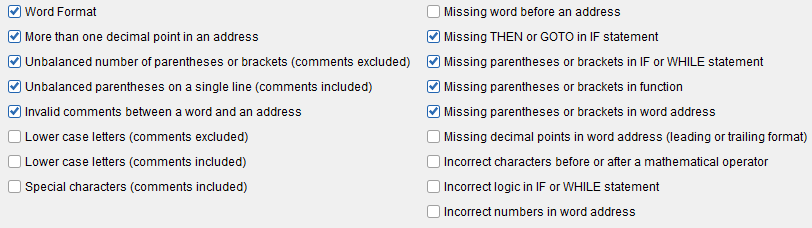
The following error conditions are provided with Vericut. Simply toggle On (checkmark displayed) the syntax error conditions that you want checked.
More than one decimal point in an address — Outputs an error when more than one decimal point is found in an address.
Missing word before an address — Outputs an error when a necessary word is missing before an address.
Unbalanced number of Parentheses or brackets — Outputs an error when the statement contains more "opening" characters (i.e. (, or [ ) than "closing" characters (i.e. ), or ]).
Invalid comments — Outputs an error when invalid comment statements are found, for example, a comment in the middle of a block.
Missing THEN or GOTO in IF statement — Outputs an error when an IF statement is missing a THEN, or GOTO, statement.
Missing parentheses or brackets in If or While statement — Outputs an error when an IF, or While, statement is missing necessary parentheses, or bracket, characters.
Missing parentheses or brackets in function — Outputs an error when necessary parentheses, or bracket, characters are missing in a Function (or Conditional).
Missing parentheses or brackets in Word Format — Outputs an error when necessary parentheses, or brackets, characters are missing in a Word Format.
Word Format — Outputs an error if a word of type Macro is directly followed by a mathematical expression without being enclosed in parentheses or brackets (left/right precedence).
For example:
INVALID:
X 5-2
X #1 - #2
VALID:
X-5
X = 5-2
X (5-2)
X #1
📝 NOTE: Left/right precedence are not needed if an ‘=’ is used.
Unbalanced Parentheses on a single line — Outputs an error when a single line contains more "opening" parentheses characters ( ( ) than "closing" parentheses characters ( ) ).
Lower case letters (comments excluded) — Outputs an error if lower case letters are detected in a block. Comments are excluded in this check.
Lower case Letters — Outputs an error if lower case letters are detected in a block. Comments are included in this check.
Missing decimal points in Word Format (leading or trailing format) — Outputs an error if incorrect characters are found before (leading) or after (trailing) a mathematical operator, i.e. “+”, “-“, “*”, “/” and etc.
Incorrect characters before or after a mathematical operator — Outputs an error if brackets are missing in mathematical expression of a Word Format.
For example:
X#101+#102 <-BAD
X[#101+#102] <- GOOD
Incorrect logic in IF or WHILE statement — Outputs an error when an IF or WHILE statement uses "=" instead of "==" or "EQ"
Incorrect numbers in word address — Outputs a syntax error if a comma is used as a decimal sign in the NC code.
User Defined Syntax Errors
User Defined Syntax Error Record Table

Each record in the table contains the following features:
Check box — Each record has a checkbox enabling you to toggle the record On/Off.
Type — You can define the following two types of User Defined syntax errors
-
Condition — Enables you to specific conditions that will be considered an error.
-
A, B, C, D, E — Each of these fields represent a word, or group of words, used with the Condition fields to define the error condition. Each field is a text field that uses a space to separate words. The "space" is interpret as an "OR" condition.
For example, "G30 G31" is interpret as "G30 or G31"
The tilde character, "~", is used to define a range of numbers/values.
For example, "G30~33" is interpret as "G30 or G31 or G32 or G33".
It can be used to check for mutual exclusive groups.
For example: "G30~39" AND "G30~39" means you can only have a G3* code in the same line, otherwise it's an error.
It can also be used to check the limits.
For example "X-6~5" will find all X values between -6 to 5. -
Condition — Use each of the Condition fields to specify the condition between the words, or groups of words, in the adjacent columns (i.e., "A" NOT "B"), that together define the error condition. Select the desired condition from the pull-down list. Choose "blank", (interpret as an "OR" condition), AND, or NOT.
For example, "G30 G31" AND "G90" means if there is a "G30" or a "G31" and there is a "G90" on the same line, it's an error. -
Word Format — Enables you to check the numeric format of a word's address.
-
A — Use this column to specify the word, or words, used with the Condition field to define the error condition. Use a space to separate the words in this field.
-
Condition — Use this field to specify the error condition for the word, or words specified in column A that define the error condition. Select the desired condition from the pull-down list. Choose Decimal or Integer.
For example, "M N" Decimal means Word M and Word N must followed by an integer, otherwise it's an error.

Add — Adds a User Defined Syntax Error record, after the highlighted record, to the table.
Delete — Deletes the highlighted User Defined Syntax Error record from the table.
Select All — Toggles On all, both Vericut defined and User Defined syntax error conditions.
Clear All — Toggles Off all, both Vericut defined and User Defined, syntax error conditions.
See Add, Modify, or Delete Error Conditions for Syntax Checking section of Vericut Help for additional information.
Conditionals - listed alphabetically
The meaning of many words are conditional depending on the context of the block in which they are found.
For example:
An "=" can indicate an assignment, as in #5 = 3 but an "=" can also indicate a logical equal, as in: IF (#5 = 3) GOTO …
Conditional functions, referenced via the Machine/Control tab > Word Format table, are used in these cases to define the type of Word based on context of the current block. Typically, the conditional function sets the Word Type and Sub Type for the current word, for the current block. In a few cases, it might also change the Word itself.
For example:
The OkumaCondNWord conditional function will either keep the Word as "N", or change the Word to be "N_LABEL", "N_GOTO_LABEL", or "N_GOTO_SEQ". In these cases, these other words must also be defined in the Word Format table.
Conditionals
AbCondEqual
This conditional determines whether the "=" should be interpreted as an assignment or as a logical operator. If the "=" is part of an IF or GTO Type II command, it will be defined as a logical operator. Otherwise, it will be determined as an assignment operator.
AbCondLeftParen
This conditional looks at the next two characters to determine if it is a known "TYPE II" command. If the following 2 characters are: AB, AP, AT, CC, CL, CN, CS, CY, FA, KB, MD, MI, MT, NS, QU, RN, TA, TB, TC, TS, TT, or ZT, then the left paren is interpreted as the beginning of a type II command. Otherwise it is interpreted as a comment.
AbCondRightParen
If a comment is currently being processed, then the right paren is interpreted as an "END COMMENT" special control word. Otherwise it is interpreted as an "END TYPEII" word.
AtanCondDivide
AtanCondDivide(block_str)
If the "/" symbol is part of an ATAN argument and is not imbedded within brackets ([ ]), then this function returns the type SEPARATOR. Otherwise this function returns the type DIVIDE.
AtanCondDivideComment
AtanCondDivideComment (block_str)
If a block starts with character “L”, followed by a program number and character “/”, the symbol “/” indicates the start of comments, i.e. “Lnnnn/comments”. This function returns the type COMMENT. If the "/" symbol is part of an ATAN argument and is not imbedded within brackets ([ ]), then this function returns the type SEPARATOR. Otherwise this function returns the type DIVIDE.
BeckhoffCondLeftBracket
This is a conditional for a Left Bracket on a Beckhoff control.
If CGTECH is on the input block, this is a Left Precedence.
Else if the Left Bracket is at the very beginning of the block or if it comes immediately after a $GOTO, then this is a “Macro” word.
Else this is a Left Precedence.
CinciCondEqual
If G10 exists in the block, ignore the current word. If G11 exists in the block, interpret the current word as a logical EQUAL. Otherwise, interpret the current word as an assignment.
CinciCondLeftBracket
If the previous character was "T", ignore the current word. Otherwise, interpret the current word as a LEFT PRECEDENCE. Requires values to be initialized using the CinciBlockInit macro.
CinciCondLeftParen
This conditional returns "Begin Type II", if a Type II command follows. Otherwise returns "Left Precedence". Requires values to be initialized using the CinciBlockInit macro.
CinciCondRightBracket
The current word will be either ignored or interpreted as a RIGHT PRECEDENCE depending on how the matching CinciCondLeftBracket was interpreted. Requires values to be initialized using the CinciBlockInit macro.
CinciCondRightParen
This conditional returns "End Type II", if it is currently processing a Type II command. Otherwise it returns "Right Precedence". Requires values to be initialized using the CinciBlockInit macro.
CinciCondTWord
If the current word was preceded by a "[", interpret the current word as a VARIABLE TAG. Otherwise, interpret the current word as a MACRO.
CinciCondVWord
This conditional returns "Assignment", if a G10 is contained in the block. Otherwise it returns "Command".
ConstCondEXPWord
This conditional word type is used to differentiate between a word specifying a variable or a real number in scientific format/notation. In the Siemens 840D language a number can be defined in scientific format using decimal exponent: 0.123EX-5. In this case the EX is not a word. To process this input correctly, define the word EX in Word Format Table as a Conditional with subtype ConstCondEXPWord.
📝 NOTE: If the EX word is used in a context which doesn't represent valid scientific notation, it is processed as a variable name.
CycleCondPWord
This conditional sets P_1 (default) or P_2 after checking the context of the block containing the P-word. P_2 is set when the block contains a G76 and either X, Y, U or W words.
CycleCondQWord
This conditional sets Q_1 (default) or Q_2 after checking the context of the block containing the Q-word. Q_2 is set when the block contains a G76 and either X, Y, U or W words.
CycleCondRWord
This conditional sets R_1 (default) or R_2 after checking the context of the block containing the R-word. R_2 is set when the block contains a G74, G75, G76 and either X, Z, U or W words.
CycleCondUWord
This conditional sets U_1 (default) or U_2 after checking the context of the block containing the U-word. U_2 is set when the block contains a G71, G72, G73 and either P or Q words.
CycleCondWWord
This conditional sets W_1 (default) or W_2 after checking the context of the block containing the W-word. W_2 is set when the block contains a G71, G72, G73 and either P or Q words.
FadalCondAsteriskWord
FadalCondAsteriskWord(block_str)
If the Asterisk Word comes after a "#" character, then this function returns the type MULTIPLY. Otherwise this function returns the type COMMENT.
FadalCondEqualWord
FadalCondEqualWord(block_str)
If the Equal Word comes after the string "IF", then this function returns the type EQ . Otherwise, this function returns the type ASSIGNMENT.
FadalCondLParenWord
FadalCondLParenWord(block_str)
If the Left Parenthesis Word comes after a "#" character, then this function returns the type LPAREN. Otherwise this function returns the type COMMENT.
FadalCondNWord
FadalCondNWord(block_str)
If the N Word comes after a "#" character, then this function returns the type IGNORE. Otherwise this function returns the type COMMAND.
FadalCondRParenWord
FadalCondRParenWord(block_str)
If the Right Parenthesis Word comes after a "#" character, then this function returns the type RPAREN. Otherwise this function returns the type END_COMMENT.
FadalCondRWord
FadalCondRWord(block_str)
If the R Word comes after a “G” character, then this function returns the type COMMAND. Otherwise this function returns the type VARIABLE_TAG.
FanucTPCondRWord
This conditional is designed for Fanuc TP controls.
If R occurs within the Position section of the program, the Word is of Type Macro (typically used for point data).
Else If R is within [], the Word is of Type Macro
Else R is a Variable Tag
GeminiCondEqual
This conditional determines whether the "=" should be interpreted as an assignment or as a logical operator. If the "=" is part of an IFT, it will be defined as a logical operator. Otherwise, it will be determined as an assignment operator.
GLCondPWord
GLCondPWord(block_str)
If the P word is part of a PDO command, in CYCLE mode, or if the next non-space character on the block is a "=", then this functions returns the type COMMAND. Otherwise this function returns the type VARIABLE_TAG.
GLCondPWord2
GLCondPWord2(block_str)
The P word can either be part of a COMMAND, or a VARIABLE_TAG. If P is part of a "LET" TYPE II command or if P is part of a VALUE argument of a TYPE II command, or is preceded by =, +, -, *, /, [, or (, then the P will be interpreted as a VARIABLE TAG. If an integer value does not follow the P, then the P will be interpreted as a COMMAND. If the integer number is followed by a =, +, -, *, /, ], or ), then the P will be interpreted as a VARIABLE TAG. Otherwise the P will be interpreted as a COMMAND. This conditional function is an alternative to GLCondPWord. You can use which ever function produces the correct results for you.
HeidCondDivide
- Conditional function which determines how a "/" character is to be interpreted.
- If a "REP" precedes the "/" on the line, then it will be interpreted BEGIN COMMENT.
- If a "CYCL DEF 14.1" precedes the "/" on the line, it is recognized as a list separator used between contour subroutines.
- Otherwise it will be interpreted as DIVIDE.
HeidCondEqual
This conditional function supports the Heidenhain SYSREAD/SYSWRITE function
- IF the line is in the form: FN 17: SYSWRITE IDxxx NRxxx IDXxxx =xxxx, then = is of type MACRO
- IF the line is in the form: FN 18: SYSREAD Qxxx = IDxxx NRxxx IDXxxx, then = is of type IGNORE
- IF the line is in the form: FN 23: Qxxx = CDATA Qxxx then = is of type IGNORE
- IF the line is in the form: FN 24: Qxxx = CDATA Qxxx, then = is of type IGNORE
- Otherwise = is of type assignment
HeidCondLblWord
On a Heidenhain control, the LBL word can either be followed by a quoted string, or by a number, or by an expression which equates to a number, or an expression that equates to a string. For example:
Q77 = 99
QS75 = “TEST”
GOTO LBL 99
GOTO LBL “TEST”
GOTO LBL Q77
GOTO LBL QS75
LBL 99
LBL “TEST”
If LBL is followed by a double quote character or by “QS”, then this conditional function will change the word to be LBL_STRING. Otherwise, this function will change the word to be LBL_VALUE. LABEL_VALUE must be defined in the Word Table as type Macro with a Numeric value, and LABEL_STRING must be defined in the Word Table as type Macro with a Alpha-Numeric value.
HeidCondLeftParen
This conditional is designed for Heidenhain MillPlus controls, where standard comments are preceded by a semicolon, but it is also permissible to use (comment) at the end of a block. It is used to determine when the "(" word is used as a left precedence for mathematical expression, and when it is used as a start of comment character.
HeidCondLENWord
This conditional determines how the Word “LEN” will be interpreted.
If LEN is on a line with SUBSTR (For example: QS10 = SUBSTR(SRC_QS5 BEG2 LEN5), LEN will marked as a Separator.
Otherwise, LEN will be process as a “Macro” Word with a numeric argument.
HeidCondLessThan
This conditional is designed for Heidenhain controls where the LT word is used as logical operator "less than" for "IF" statements and the APPR/DEP function uses LT as an option for line tangential.
When an "LT" word is specified as Type: Conditional with SubType: HeidCondLessThan, it will be considered to be logical operator "less than", when used with an "IF" statement. It will be considered to be a MACRO, if used with an "APPR/DEP’ statement.
HeidCondMultiply
This conditional is designed for the Heidenhain 530i control where the End Of Block (EOB) character is "". It is used to determine when the "" word is used as a mathematical multiply operator, and when it is used as an EOB character. If the "*" is only followed by white space characters (blank space, tab, etc.), it is interpret as an EOB character.
HeidCondPercent
On a Heidenhain control, the ‘%’ word can either be a MOD operator, or is the BEGIN/CALL/END of a sub.
If there is a ‘=’ that precedes the ‘%’, we will set this to be Math MOD operator with a numeric argument.
If a path name follows the ‘%’, we will set this to be of Type MACRO, with a Text argument
Otherwise we will set this to be of Type MACRO, with an Alpha-Numeric argument
HeidCondRightParen
This conditional is designed for Heidenhain MillPlus controls, where standard comments are preceded by a semicolon, but it is also permissible to use (comment) at the end of a block. It is used to determine when the ")" word is used as a right precedence for mathematical expressions, and when it is used as an end of comment character.
HeidCondPGM
This conditional is for the PGM word on a Heidenhain control. The value type for the PGM word is dependent on how PGM is being used on the block.
If PGM is part of a BEGIN or END statement, then the value type is set to Text, remainder of line. BEGIN and END are unit sensitive. They must be as specified.
Else if PGM is followed by a path name, then the value type is set to Text. It identifies it as a path if there is a ‘:’ or a ‘\’ in the string that immediately follows the PGM.
Else the type is set to Alpha Numeric.
📝 NOTE: If this conditional returns the value type as Text, remainder of line, then the corresponding macro associated with PGM needs to be a macro that excepts this type of argument. For example: HeidBeginPgmName
HeidCondQWord
If the Q word comes after a D0 or a D1 string and prior to a P0 string, then this conditional function returns the type COMMAND. Otherwise this conditional function returns the type VARIABLE TAG
HeidMillPlusCondEWord
If the E word is part of an expression or is being assigned to a value, the E word will be interpreted as a VARIABLE TAG. Otherwise, the E word will be interpreted as a MACRO Word (Similar to X, Y, or Z).
Specifically, if the first non-space character before or after the current character is one of the following, then it will be interpreted as a VARIABLE TAG: []=<>*/-+^:,
KtCondLeftParen
KtCondRightParen
KtCondLeftParen(), KtCondRightParen()
These conditionals support the "(" and ")" words when used as mathematical precedence and as Begin Type 2 data.
LaserdyneCondEqual
This conditional determines whether the "=" should be interpreted as an assignment or as a logical equal operator.
This function looks to see if the equal is associated with an IF, AND, OR, or NOT. If it is, the type is set to a logical equal operator, otherwise it is set to ASSIGNMENT. It only look at the current statement (statements end with a ':'), and it assumes that all IF, AND, OR, and NOT expressions will have an logical operator (EQ,NE,GT, LT, GE, LE).
LaserdyneCondLeftParen
If the Left Parenthesis if followed by “DFS” or “CLS”, then this is a “BEGIN TYPE II” Word, otherwise, this is a “Left Precedence” Word.
LaserdyneCondRightParen
If the Right Parenthesis is associated with a matching “Left Precedence Word on this block, then this word is a “Right Precedence” Word, otherwise, this is a “END TYPE II” Word.
MazakCondLeftBracket
If the Left Bracket is part of a G140 block, then interpret it as a begin comment character. Otherwise, interpret the current word as a LEFT PRECEDENCE.
G140 is a engraving cycle, the string with [] is the string to engrave. The concept here is to define the string as a comment, and then after motion, use the macro GetCommentString to copy the comment to a variable that will be used by the engraving subroutine.
See also: MazakCondRightBracket
MazakCondRightBracket
If the Right Bracket is part of a G140 block, then interpret it as an end comment character. Otherwise, interpret the current word as a RIGHT PRECEDENCE.
See also: MazakCondLeftBracket
NumCondAWord
NumCondAWord(block_str)
If the non-white space character immediately preceding the A Word is a "=", "<" , ">", "+", "-", "*", "/", "&", or "!", it is interpret as type FUNCTION, and sets the word to mathematical function ATAN. Otherwise the word is interpreted as a COMMAND (or MACRO).
NumCondCWord
NumCondCWord(block_str)
If the non-white space character immediately preceding the C Word is a "=", "<" , ">", "+", "-", "*", "/", "&", or "!", it is interpret as type FUNCTION, and sets the word to mathematical function COS. Otherwise the word is interpreted as a COMMAND (or MACRO).
NumCondDollarSignWord
NumCondDollarSignWord(block_str)
If the Dollar Sign Word comes after an "=", and the previous non-space character is a '+', '-', '*', '/', '=', '<', '>, or a '[', then this function returns the type FUNCTION, and sets the word to NUM_INPUT. Otherwise this function returns the type CONSOLE_MSG.
NumCondEqualWord
NumCondEqualWord(block_str)
If the Equal Word comes after the string "G79", "UNTIL", or "WHILE", or if the Equal Word comes after the string "IF" and before the word "THEN", then this function returns the type EQ. Otherwise, this function returns the type ASSIGNMENT.
NumCondEWord
NumCondEWord(block_str)
If the E Word comes after a number, or if it begins the block, then this function returns the type VARIABLE_TAG. Otherwise this function returns the type FUNCTIONS, and sets the word to E_FUNC.
NumCondRWord
NumCondRWord(block_str)
If the non-white space character immediately preceding the R Word is a "=", "<" , ">", "+", "-", "*", "/", "&", or "!", it is interpret as type FUNCTION, and sets the word to mathematical function SQRT. Otherwise the word is interpreted as a COMMAND (or MACRO).
NumCondSWord
NumCondSWord(block_str)
If the non-white space character immediately preceding the S Word is a "=", "<" , ">", "+", "-", "*", "/", "&", or "!", it is interpret as type FUNCTION, and sets the word to mathematical function SIN. Otherwise the word is interpreted as a COMMAND (or MACRO).
NumCondTWord
NumCondTWord(block_str)
If the non-white space character immediately preceding the T Word is a "=", "<" , ">", "+", "-", "*", "/", "&", or "!", it is interpret as type FUNCTION, and sets the word to FIX. Otherwise the word is interpreted as a COMMAND (or MACRO).
OkumaCondNWord
OkumaCondNWord(block_str)
This function internally redefines the "N" word during parsing depending upon how it is being used:
- If the next non-space character is numeric and the string "IF" or "GOTO" existed previously on the line, then this routine returns the type CONDITIONAL, and sets the word to N_GOTO_LABEL.
- If the next non-space character is numeric and the string "IF" or "GOTO" does not previously exist on the line, then this routine returns the type CONDITIONAL, and sets the word to N_LABEL.
- If the next non-space character is not numeric, and the string "IF" or "GOTO" existed previously on the line, then this routine returns the type CONDITIONAL, and sets the word to N_GOTO_SEQ.
For this functionality to work, the following words must be defined in the Configuration menu > Word Format window:
- Name=N, Type=Conditional, Function Name=OkumaCondNWord
- Name=N_GOTO_LABEL, Type=Macro, Value Type=Alpha-Numeric
- Name=N_GOTO_SEQ, Type=Macro, Value Type=Numeric, Inch Method/Metric Method=Decimal
- Name=N_LABEL, Type=Macro, Value Type=Alpha-Numeric
Then, the Configuration menu > Word/Address function must also be configured to process the above-listed words, for example in the "Specials" class:
- Word=N Range=*, Condition=* *, Macroname=Sequence, Scan=Yes, After=No
- Word=N_GOTO_LABEL Range=*, Condition=* *, Macroname=LabelName & GotoLabel, Scan=No, After=No
- Word=N_GOTO_SEQ Range=*, Condition=* *, Macroname=GotoJump, Scan=No, After=No
- Word=N_LABEL Range=*, Condition=* *, Macroname=LabelMacro, Scan=Yes, After=No
OliCondLeftParent
OliCondLeftParent(block_str)
If the Left Parenthesis Word comes after a "=" character, then this function returns the type LPAREN. Otherwise this function returns the type BEGIN_TYPEII.
OliCondRightParent
OliCondRightParent(block_str)
If the Right Parenthesis Word comes after a BEGIN_TYPEII word, then this function returns the type END_TYPEII. Otherwise this function returns the type RPAREN.
OMVCondEqual
If the “=” word comes after the string "IF", then this function returns the type logical EQUAL . Otherwise, this function returns the type ASSIGNMENT.
OMVCondLessThan
If the “<” Word comes after the string "IF", then this function returns the type logical LESS THAN . Otherwise, this function returns the type LEFT PRECEDENCE.
OMVCondGreaterThan
If the “>” Word comes after the string "IF", then this function returns the type logical GREATER THAN . Otherwise, this function returns the type RIGHT PRECEDENCE.
OMVCondLeftParen
If the “(” Word is within !...!, then this function returns the type logical LEFT PRECEDENCE . Otherwise, this function returns the type BEGIN COMMENT.
OMVCondRightParen
If the “)” Word is within !...!, then this function returns the type logical RIGHT PRECEDENCE . Otherwise, this function returns the type END COMMENT.
OsaiCondEqualWord
OsaiCondEqualWord(block_str)
If the Equal Word comes after the string "GTO", "IF", "EPB" or "WOS" then this function returns the type EQ. Otherwise, this function returns the type ASSIGNMENT.
PlasmaCondLParenWord
This conditional determines whether or not ‘(‘ starts a comment. If the ‘(‘ is nested within angle brackets ‘<’ and ‘>’ then it will be interpreted as “Left Precedence”, otherwise it will be interpreted as “Begin Comment”.
PlasmaCondRParenWord
This conditional determines whether or not ‘)‘ ends a comment. If the ‘)‘ is nested within angle brackets ‘<’ and ‘>’ then it will be interpreted as “Right Precedence”, otherwise it will be interpreted as “End Comment”.
QuoteCondBINWord
This conditional word type is used to differentiate between a word specifying a quoted string or an integer number in binary format. In the Siemens 840D language a number can be defined in binary format in single quotes ‘B1011101’. In this case it is not a string but a number 93. To process this input correctly, define the word ‘B in the Word Format Table as a Conditional with subtype QuoteCondBINWord.
📝 NOTE: If the content of a quoted string is not a valid binary number it is processed as a quoted string.
QuoteCondHEXWord
This conditional word type is used to differentiate between a word specifying a quoted string or integer number in hexadecimal format. In the Siemens 840D language a number can be defined in hexadecimal format in single quotes ‘HABDF101’. In this case it is not a string but the number 180220161. To process this input correctly, define the word ‘H in the Word Format Table as Conditional with subtype QuoteCondHEXWord.
📝 NOTE: If content of quoted string is not a valid hexadecimal number it is processed as a quoted string.
QuoteCondOCTWord
This conditional word type is used to differentiate between a word specifying a quoted string or integer number in octal format. In some NC languages a number can be defined in octal format in single quotes ‘O17721’. In this case it is not string but the number 8145. To process this input correctly, define word ‘O in Word Format Table as a Conditional with subtype QuoteCondOCTWord.
📝 NOTE: If content of quoted string is not a valid octal number it is processed as a quoted string.
Siemens3RCond
Siemens3RCond(block_str)
This conditional is the same as SiemensRCond(block_str), except that it also looks to see if the @ command had finish prior to this point in the block. It does this by looking backwards from the current point, and checking to see if a non-operator, non-R, non-digit character exists between the current point and the @ command. When the R word is used as a command, it typically calls the VariableArgument macro. This sets up the addition arguments that are then processed by the specific Siemens macro.
Siemens840DRCond
This conditional determines whether the "R" should be interpreted as a variable tag, or as a macro call. This conditional will consider that "R" is a macro call if, and only if, there is a (G 81-89, 183, 184) on the same block and there is no other word in front of it. For example, G81 X R5 will have R be determined as a variable tag, since there is a word X in front of it.
This conditional will work as desired in all but one exception. If there is a variable name that ends with an alphabet character before the R, then the R will be considered as a variable tag, even if it was intended to be a macro call. If you want to have this condition used as a macro call, put a parenthesis, ( ), around the variable name; and this will resolve the problem.
SiemensArrayCond
This conditional word type is used to differentiate between a command and a variable array. If the word is followed by a ‘[‘ or if the word is followed by an integer and then a ‘=’, then the word will be interpreted as an array variable. Otherwise, the word will be interpreted as a command.
For example:
M1 = 3
M[1] = 3
M1
G[8] = 2
By defining M as a Conditional of type SiemensArrayCond, the first 2 cases above will be seen as variable M, index 1 being set to 3. The third case will be seen as a command. By defining G as a Conditional of type SiemensArrayCond, the fourth case will be seen as variable G, index 8 being set to 2.
📝 NOTE: The contents within [] can be an expression.
📝 NOTE: For this conditional to work, the corresponding word must already exist as an array variable.
SiemensAXISCond
SiemensAXISCond(block_str)
This conditional supports AXIS constants in logical expressions when an IF statement is processed. All axes used in the NC program and referred to in logical expressions should be defined in Word/Format table using the SiemensAXISCond conditional function and format specifically for the particular axis.
SiemensAXISCond2
This conditional is the key to understanding how we process motion vs AXIS on a Siemens control. This conditional determines whether the word (for example: X1) is motion command or a Siemens AXIS. Before getting into the details of how this condition determines what we have, lets look at some examples of what we might see on a block.
In Siemens, we can have the following:
X1 > moves the X component on current channel to 1
X11 > moves X component on the current channel to 11
X1=5 > moves the X1 component on channel 1 to 5
X2=5 > moves the X2 component on channel 2 to 5
_AX1 = X1 > sets the _AX1 AXIS variable to be X1 AXIS
IF (_AX1 == X1) > checks to see if the _AX1 AXIS variable is equal to X1 AXIS
$P_UIFR[1,X1,TR] = 5 > X1 is an AXIS, and causes the X Translate field of the $P_UIFR[1] to be set to 5
Array[X1] =5 > X1 is an AXIS and causess Array[1] to be set to 5 , X1 AXIS index is 1
$P_WPFRAME = CTRANS(X1,300) > sets the X Translate field of the $P_WPFRAME to 300
SUB100(1, X1) > X1 is an AXIS and is passed as the second argument on the proc call
The above is illustrated with X1, but the string could be anything.
Lets look at how a word typically gets defined to be of type SiemensAXISCond2. Typically SiemensCompToVcAsisMapping2 is called during the reset event on a Siemens840D control, and automatically create words in the Word table (if they do not exist) matching the component name for each motion component on the current channel. It sets this Word to be of Type Conditional, and set the conditional function to be SiemensAXISCond2.
This conditional function first then looks to see if the word should be interpreted as a Siemens AXIS. If any of the following are true, then we will interpret the word as an AXIS.
-
If the word is an argument to a PROC call
-
If the word is within () or []
-
If the previous item on the line was an assignment (AX1 = X1)
Otherwise, the word is a motion command. We now must adjust the Word/Value For example:
X1 > Word X1 gets converted to Word X/Value 1
X125 > Word X1/Value 25 gets converted to Word X/Value 125
TEST125 > Word TEST Value 125 gets converted to Word Y/Value 125
X1=5 > Word X1/Value 5 gets converted to Word X/Value 5
Specifically, we do the following:
-
If the word is just a single character, we leave it as is.
-
If we are looking at the word X2 in a block like X2=5, and we can not convert the word into a Vericut axis for this channel, we produce an error. The details on how we convert the word into a Vericut axis will most likely be changing.
-
If we are looking at the word X1 in a block like X1=5, and we can convert the word into a Vericut axis, then the word will be changed to match the corresponding register name.
-
If the word ends with a digit, the trailing digits will be removed from the word.
📝 NOTE: This conditional currently does not support statements like X2=5 while in channel 1.
SiemensAXISCond3
This conditional is the key to understanding how we process motion vs AXIS on a Siemens control. This conditional determines whether the word (for example: X1) is motion command or a Siemens AXIS. Before getting into the details of how this condition determines what we have, lets look at some examples of what we might see on a block.
In Siemens, we can have the following:
X1 > moves the X component on current channel to 1
X11 > moves X component on the current channel to 11
X1=5 > moves the X1 component on channel 1 to 5
X2=5 > moves the X2 component on channel 2 to 5
_AX1 = X1 > sets the _AX1 AXIS variable to be X1 AXIS
IF (_AX1 == X1) > checks to see if the _AX1 AXIS variable is equal to X1 AXIS
$P_UIFR[1,X1,TR] = 5 > X1 is an AXIS, and causes the X Translate field of the $P_UIFR[1] to be set to 5
Array[X1] =5 > X1 is an AXIS and causes Array[1] to be set to 5 , X1 AXIS index is 1
$P_WPFRAME = CTRANS(X1,300) > sets the X Translate field of the $P_WPFRAME to 300
SUB100(1, X1) > X1 is an AXIS and is passed as the second argument on the proc call
The above is illustrated with X1, but the string could be anything.
Let’s look at how a word typically gets defined to be of type SiemensAXISCond3. Typically SiemensCompToVcAsisMapping3 is called during the reset event on a Siemens840D control, and automatically create words in the Word table (if they do not exist) matching the component name for each motion component on the current channel. It sets this Word to be of Type Conditional, and set the conditional function to be SiemensAXISCond3.
This conditional function first then looks to see if the word should be interpreted as a Siemens AXIS. If any of the following are true, then we will interpret the word as an AXIS.
-
If the word is an argument to a PROC call
-
If the word is within () or []
-
If the previous item on the line was an assignment (AX1 = X1)
Otherwise, the word is a motion command. We now must adjust the Word/Value For example:
X1 > Word X1 gets converted to Word X/Value 1
X125 > Word X1/Value 25 gets converted to Word X/Value 125
TEST125 > Word TEST Value 125 gets converted to Word Y/Value 125
X1=5 > Word X1/Value 5 gets converted to Word X/Value 5
Specifically, we do the following:
-
We check to make sure the AXIS is valid.
-
We convert the Siemens AXIS into a Vericut register
-
If the word is not followed by a ‘=’, and the word ends with a digit, the trailing digits will be removed from the word. This will be part of the value
📝 NOTE: This conditional currently does not support statements like X2=5 where X2 is a component on channel 2, and we are currently in channel 1.
SiemensCALLCond
This conditional Sub Type can be used to correctly parse the Siemens 840D CALL statement. In one case CALL is followed by a subroutine name which requires the use of Sub Type Alpha-Numeric. Another case is with “CALL BLOCK label1 TO label2” where CALL requires Sub Type None. This conditional function solves this ambiguity automatically.
SiemensCondColon
This conditional is Siemens specific. On a Siemens control, the colon character (:) can have multiple meanings. This conditional determines if the colon should be interpreted as a Frame operator or as a normal command word which typically would then call the Sequence macro.
📝 NOTE: The colon being used to mark the end of a label is handled specially using the inverse word feature. See the InverseWordValue macro in the Vericut Macros document for more information.
SiemensCondLParenWord
SiemensCondLParenWord()
If MCALL is on the line, the word type is set to Left Precedence, otherwise it is set to Begin Comment.
SiemensCondRParenWord
SiemensCondRParenWord()
If MCALL is on the line, the word type is set to Right Precedence, otherwise it is set to End Comment.
SiemensGCond
This conditional word type is used to differentiate between a G-Code command and a G[n] numeric variable array. Siemens 840D programming can use G as an integer array associated with all G-Code groups. This feature allows indirect programming of G-Code and testing the current value of a specific G group in an NC program. Note that to support indirect programming like G[8] = 2, the G[8] variable in G-Code Processing should contain the same macros as corresponding G-Code (G54 in this case).
For more information about G groups and programming see the Siemens 840D Programming Manual Fundamentals.
SiemensRCond
SiemensRCond(block_str)
If the R Word comes after a "@" character, then this function returns the type COMMAND. Otherwise this function returns the type VARIABLE_TAG.
SiemensSpindleCond
This conditional determines if the S word should be interpreted as an Siemens AXIS, an array variable or a command.
This conditional first checks to see if the word should be treated like an AXIS. If any of the following are true, it will be treated like an AXIS.
-
If is an argument to a proc call
-
if it is within () or []
-
If the last token was an assignment
In these cases, the word is changed to be SPI. SPI must be defined, and set to call the SiemensSPI function.
If the S word is not to be treated like an AXIS, then SiemensSpindleCond calls SiemensArrayCond to determine if it should be treated like a command or an array variable.
EXAMPLES:
S1000 ; Command, sets the spindle speed to 1000
S4 = 1000 ; Array, the array will be set, and then based on this, the appropriate spindle will be set to 1000
S[4] = 1000 ; Same as above
Array_var[S4] = 5 ; AXIS, the axis will be converted to an index
CGT_AXIS = S4 ; AXIS
Sub(1, S4) ; AXIS
SiemensTOCondWord
This conditional Sub Type can be used to correctly parse two different Siemens 840D statements where word TO is used. One case is in the CALL BLOCK statement where the word TO is followed by a label. The other case is the FOR loop statement where the word TO is followed by a number or expression.
ThermwoodCondPercent
This conditional is for a Thermwood control.
If the ‘%‘ is with [ ], then this is interpreted as MOD operator. Otherwise, this is interpreted as a BEGIN COMMENT
TosnucCondVWord
If the current word is within square brackets ( "[" and "]" ), interpret the current word as a VARIABLE TAG. Otherwise, interpret the current word as a MACRO.
Functions - listed alphabetically
The functions which can be referenced via Machine/Control menu > Word Format are listed below in alphabetical order. Functions are typically passed a single numerical value, and return a numerical value.
Functions
abs
abs(value)
This function returns the absolute value of the specified value.
AbsCeil
This function rounds the specified value to the next higher absolute integer value. For example: 2.3 would be rounded to 3, and -2.3 would be rounded to -3.
AbsoluteDimension
This new functions will handle formats like: X=AC[2] Y=IC[3] Z=AC[2] I=AC[1] J=AC[2] where "[" and "]" are the left and right precedence words. In the above format, AC and IC should be defined as words which then call the function.
If the primary word is X, Y, Z, A, B, C, U, V, or W then:
AbsoluteDimension will cause the specified value to be interpreted as absolute, and if the control is currently in incremental mode, it will convert it.
If the primary word is I, J, or K then:
AbsoluteDimension will use the absolute mode, the "Circle Center Mode" settings, and the "Incremental Circle Center Method" settings to determine how to convert the value.
If the primary word is anything other than the above, no conversion will be executed, and the incoming value will be returned.
Also see: IncrementalDimension
acos_d
acos_d(value)
This function returns the arc cosine of the specified value. The specified value must be in the range of -1.0 to 1.0. The return value is in degrees, and is in the range of 0.0 to 180.0.
acos_r
acos_r(value)
This function returns the arc cosine of the specified value. The specified value must be in the range of -1.0 to 1.0. The return value is in radians, and is in the range of 0 to pi.
asin_d
asin_d(value)
This function returns the arc sine of the specified value. The specified value must be in the range of -1.0 to 1.0. The return value is in degrees, and is in the range of -90.0 to 90.0.
asin_d270to90
asin_d270to90(value)
This function returns the arc sine of the specified value. The specified value must be in the range of -1.0 to 1.0. The return value is in degrees, and is in the range of 270.0 to 90.0.
asin_r
asin_r(value)
This function returns the arc sine of the specified value. The specified value must be in the range of -1.0 to 1.0. The return value is in radians, and is in the range of -pi/2 to pi/2.
atan2_d
atan2_d(yvalue, xvalue)
This function returns the arc tangent of yvalue, xvalue. The return value is in degrees, and is in the range of -180.0 to 180.0. If yvalue and xvalue are both zero, the return value will be zero. If only one argument is passed, it will be treated like an atan_d.
atan2_d0to360
atan2_d0to360(yvalue, xvalue)
This function returns the arc tangent of yvalue, xvalue. The return value is in degrees, and is in the range of 0.0 to 360.0. If yvalue and xvalue are both zero, the return value will be zero. If only one argument is passed, an atan will be executed, and the resulting value will be converted into an angle between 0.0 and 360.
atan2_d_2args
atan2_d(yvalue, xvalue)
This function returns the arc tangent of yvalue, xvalue. The return value is in degrees, and is in the range of -180.0 to 180.0. If yvalue and xvalue are both zero, the return value will be zero. This function is similar to atan2_d except this function requires that 2 arguments are passed. If not, an error will be produced.
atan2_r
atan2_r(yvalue, xvalue)
This function returns the arc tangent of yvalue, xvalue. The return value is in radians, and is in the range of -pi to pi. If yvalue and xvalue are both zero, the return value will be zero. If only one argument is passed, it will be treated like an atan_r.
atan_d
atan_d(value)
This function returns the arc tangent of the specified value. The return value is in degrees, and is in the range of -90.0 to 90.0.
atan_r
atan_r(value)
This function returns the arc tangent of the specified value. The return value is in radians, and is in the range of -pi/2 to pi/2.
BCD2Decimal
This function takes a BCD value and converts it to a decimal value. In other words: hex 524 get converted into decimal 524.
📝 NOTE: If the hex value is a BCD value, each hex digit must be in the range of 0-9.
BitwiseNOT
This function takes a value and produces the Bitwise NOT of the value. For example: The Bitwise NOT of 0110011 is 1001100
CalcCircleData
This function is passed in 3 values,
- The name of the 2 dimensional array variable containing the XY points
- The number of points (3 or 4) - currently, this argument is ignored
- The name of a 1 dimensional array variable where the results are to be stored
- [0] – X coordinate of the circle center
- [1] – Y coordinate of the circle center
- [2] – radius of the circle
Given 3 points, this routine will calculate the circle center and the radius.
If successful, a return value of 1 is returned, otherwise 0 is returned.
If this functions is unsuccessful, the circle center and radius will not be set.
📝 NOTE: The arguments are not checked during the scan pass. During the run pass, if the arguments are bad, and “Display Word or Function Errors” is turned on, an error will be given.
CalcCircleData2
This function is passed in 3 values,
-
The name of the 2 dimensional array variable containing the XY points
-
The number of points (3 or 4)
-
The name of a 1 dimensional array variable where the results are to be stored
-
[0] – X coordinate of the circle center
-
[1] – Y coordinate of the circle center
-
[2] – radius of the circle
If the number of points is set to 3, this routine will calculate the circle center and the radius.
If successful, a return value of 1 is returned, otherwise 0 is returned.
If the number of points is set to 4, this routine will calculate the circle center and the radius given the first 3 points, and then verify that the 4th point lies on this circle.
If all 4 points lie a circle, a return value of 1 is returned, otherwise 0 is returned.
If this functions is not successful in calculated the circle given the first 3 points, the circle center and radius will not be set.
📝 NOTE: The arguments are not checked during the scan pass.
The difference between CalcCircleData and CalcCircleData2 are:
-
CalcCircleData2 can successfully parse the input arguments. CalcCircleData could not parse correctly the second argument, and the workaround was to change the second argument to a string. CalcCircleData2 can handle the second argument as a number or an expression that equates to a number (as long as the expression for the second argument does not include an array variable).
-
CalcCircleData2 processes the second argument, and if set to 4, verifies the 4th point.
ceil
ceil(value)
This function returns the least integral value greater than or equal to the specified value.
cosh_d
cosh_d(angle)
This function returns the hyperbolic cosine of the given angle specified in degrees.
cosh_r
cosh_r(angle)
This function returns the hyperbolic cosine of the given angle specified in radians.
cos_d
cos_d(angle)
This function returns the cosine of the given angle specified in degrees.
cos_r
cos_r(angle)
This function returns the cosine of the given angle specified in radians.
Decimal2BCD
This function takes a decimal value and converts it to a BCD value. In other words: decimal 524 get converted into hex 524.
DFix
DFix(value)
This function truncates the decimal portion of "value" to the number of decimal places specified by DfixPrecisionIndex macro.
Examples:
Assuming that DfixPrecisionIndex = 3,
If the DFix "value" = 1.5672 results in 1.567
If the DFix "value" = 1.5678 results in 1.567
The value is always truncated.
DFup*
DFup(value)
This function takes the decimal portion of "value", and considers the below the specified number of decimal places, specified by DfupPrecisionIndex macro, to be a whole number and increases the final digit by 1.
Examples:
Assuming that DfupPrecisionIndex = 3,
If the DFup "value" = 1.5672 then the resulting value would be 1.568
If the DFup "value" = 1.5675 then the resulting value would be 1.568
If the DFup "value" = 1.5678 then the resulting value would be 1.568
If the DFup "value" = -1.5678 then the resulting value would be -1.568 (the function uses an "absolute value" for the calculation)
DRound
DRound(value)
This function rounds up decimal portion of "value" to the number of decimal places specified by DroundPrecisionIndex macro.
Examples:
Assuming that DroundPrecisionIndex = 3,
If the DRound "value" = 1.5672 then the resulting value would be 1.567
If the DRound "value" = 1.5678 then the resulting value would be is 1.568
If the DRound "value" = 1.5675 then the resulting value would be 1.568
If the DRound "value" = -1.5678 then the resulting value would be -1.568 (the function uses an "absolute value" for the rounding calculation)
exp
exp(power)
This function returns the natural logarithm "e" raised to the specified power.
floor
floor(value)
This function returns the greatest integral value less than or equal to the specified value.
Fractional
Fractional(value)
This function returns the fractional portion of the specified value.
GetBit (value, bit_number)
This function returns 0 or 1 indicating whether the specified bit is set for the given value.
For example: If you create a Word, GETBIT, which is a function of type GitBit, you could then do the following (Fanuc):
\#9 = 13 (binary 1101)

\#1 = GETBIT[#9, 0]

\#2 = GETBIT[#9, 1]

\#3 = GETBIT[#9, 2]

\#4 = GETBIT[#9, 3]
Variables 1,2,3,4 would be set to 1,0,1,1
get_current_N_seqno
get_current_N_seqno()
This function returns value of the current N word. If the N word was not specified on the current line, the value of the last specified N word is returned.
GetVarDim
GetVarDim(name)
Given an array variable name and an index (1,2, or 3), this function will return the dimension (size of array). Returns zero if an error occurs.
For example:
DEF REAL aaa[5,4]
R1 = GETVARDIM("aaa", 1) r1 = 5
R2 = GETVARDIM("aaa", 2) r1 = 4
GetVarType
GetVarType(name)
Given a variable name, this routine will return the type
This function was written specifically for Siemens, but could be used for any control
The following table shows the return value, the Siemens Variable Type, and Vericut’s corresponding variable type
3 = BOOL,BOOL Array Integer or Integer Array
5 = CHAR, CHAR Array Text
3 = INT or array of INT Integer or Integer Array
4 = REAL or array of REAL Number of Number Array
5 = STRING or array of STRING Text or String Array
6 = AXIS or array of AXIS Axis or Axis Array
7 = FRAME or array of FRAME Frame or Frame Array
-1 = Error
📝 NOTE: Currently in Vericut, BOOL is seen as a Integer, and Char is seen as a Text. For Siemens this should actually return of 1 for BOOL and 2 for CHAR (Possible future enhancement).
IncrementalDimension
This function will handle formats like: X=AC[2] Y=IC[3] Z=AC[2] I=AC[1] J=AC[2] where "[" and "]" are the left and right precedence words. In the above format, AC and IC should be defined as words which then call the function.
If the primary word is X,Y,Z,A,B,C,U,V,or W then:
IncrementalDimension will cause the specified value to be interpreted as incremental, and if the control is currently in absolute mode, it will convert it.
If the primary word is I,J, or K then:
IncrementalDimension will use the incremental mode, the "Circle Center Mode" settings, and the "Incremental Circle Center Method" settings to determine how to convert the value.
If the primary word is anything other than the above, no conversion will be executed, and the incoming value will be returned.
Also see: AbsoluteDimension
IncrementalValue
This function is an alternate way of handling the Siemens IC command. Traditionally, function IncrementalDimension was used. This function sets a flag stating that the value is incremental. It causes any Override Value to be ignored for this value.
In the Word Format table, the Conditional State “ABS_INC” has been enhanced to support either Incremental mode, or a value set with the IncrementalValue function. A few specific macros have been enhanced to look to see if this new incremental flag is set. These macros include:
-
XAxisMotion
-
YAxisMotion
-
ZAxisMotion
-
AAxisMotion
-
BAxisMotion
-
CAxisMotion
-
UAxisMotion
-
VAxisMotion
-
WAxisMotion
-
A2AxisMotion
-
B2AxisMotion
-
C2AxisMotion
-
CircleCenterX
-
CircleCenterY
-
CircleCenterZ
📝 NOTES:
-
The IncrementalDimensionMode feature is supported within XAxisMotion.
-
Mirroring is not supported with the CircleCenter… macros when used with this function.
- “After Motion” is not supported with this function.
INDEX
Result = INT
Parameter 1 = STRING
Parameters 2 to 3 = CHAR
This function implements the Siemens 840D function INDEX. It is used to find the character (2nd parameter) in the input string (1st parameter). The result gives the place at which the character was first found. The search is from left to right. The 1st character in the string has the index 0.
Also see: RINDEX
InStrPos
InStrPos (input_string, search_string, starting_position)
This function searches for the “search_string” within the “input_string”, and returns the index position of the “search_string”. If the “search_string is not found, this function returns the length of the “input_string”. The “starting_position” argument is optional. If present, it is the index into the “input_string” to where the search begins.
For example:
In this example, the INSTR word is defined as a function which call InStrPos.
QS1 = “INPUT SEARCH STRING”
QS2 = “SEARCH”
QL1 = INSTR(QS1, QS2, 0) ; QL1 = 6
QL2 = INSTR(“INPUT SEARCH STRING”, “SEARCH”, 0) ; QL2 = 6
QL3 = INSTR(QS1, “XXX”, 0) ; QL3 = 19
📝 NOTE: On the Heidenhain control, it would look like:
QL1 = INSTR(SRC_QS1 SEA_QS2 BEG0)
The configuration must convert this into the form above.
This can be done by defining SRC_ as ignore, and SEA_ and BEG as separators.
INTERSEC
INTERSEC (Table_name1[index1], Table_name2[index2], Intersection_point, Machining_type)
This function implements the Siemens 840D function INTERSEC. It is used to determine the point of intersection of two contour elements generated by the CONTPRON command. Parameter "Table_name" is used to specify a two dimensional array row where "index" is an integer expression defining the row index where contour element data is stored. Parameter "Intersection_point" is a real array variable, with the minimum size of 2, where intersection point will be returned.
Parameter "Machining_type" is an integer parameter specifying machining type. This parameter is ignored in the current implementation.
The function returns a 1 if the point of intersection is found, or 0 if it is not found. The current logic supports contour linear and circular elements.
For more details see Siemens Programming Manual, 06/2009, paragraph 15.4, page 815, Determine point of intersection between two contour elements (INTERSEC).
IntTrunc
IntTrunc(value)
This function returns the integer portion of the specified value.
IntTruncAdj
This function is identical to IntTrunc, except that it automatically adjusts for computer round off errors. The following are the results you can expect:
\#1 = TRUNC[4.1](ANSWER: 4)

\#2 = TRUNC[-4.1](ANSWER: -4)

\#3 = TRUNC[4.1 - 0.1](ANSWER: 3)

\#4 = TRUNC[-4.1 + 0.1](ANSWER: -3)

\#5 = TRUNC_ADJ[4.1](ANSWER: 4)

\#6 = TRUNC_ADJ[-4.1](ANSWER: -4)

\#7 = TRUNC_ADJ[4.1 - 0.1](ANSWER: 4)

\#8 = TRUNC_ADJ[-4.1 + 0.1](ANSWER: -4)
ISAXIS
ISAXIS(integer)
This function returns 1 if the specified AXIS exist, and 0 if it doesn’t. The AXIS is specified as an index number. The index number must be 1,2, or 3. The check, however, is dependent on multiple flags.
IF SiemensAXISLogic is set to 0 :
If the corresponding variable ($P_AXN1, $P_AXN2, or $P_AXN3) exist, and is of type AXIS, return 1. Otherwise, return 0.
ELSE IF SiemensAXISLogic is set to 1 :
The index number is set to the input index number minus 1.
IF the corresponding entry in the $MC_AXCONF_GEOAX_NAME_TAB table does not have a value, zero is returned
IF SiemensGEOAXLogic is set to 1:
The index is set to the value in the corresponding entry in the $MC_AXCONF_GEOAX_ASSIGN_TAB table minus 1
IF the index < 0, zero is returned.
IF the corresponding entry in the $MC_AXCONF_CHANAX_NAME_TAB table does not exist, return zero.
ELSE IF SiemensGEOAXLogic is set to 2:
Using the input index number, it gets the corresponding AXIS name from the $P_ACTGEOAX table.
IF the corresponding entry in the $P_ACTGEOAX table does not contain a value, return zero.
It then searches the $MC_AXCONF_CHANAX_NAME_TAB for an entry with a matching AXIS name.
IF a matching entry could not be found, zero is returned. Otherwise the index is set to this entry.
The index is set to the value in the corresponding entry in the $MC_AXCONF_MACHAX_USED table minus 1
IF the index < 0, zero is returned.
IF a corresponding entry in the $MN_AXCONF_MACHAX_NAME_TAB table contains a value, return 1. Otherwise return 0.
ISFILE
ISFILE (string)
It is used to check if the specified string refers to an existing file in the system. If file is found the function returns a 1 (TRUE), otherwise the function returns 0 (FALSE). The function checks the current Working Directory, project folder and library trying to find the specified file. The default file extension is MPF. The string argument can contain the file path if necessary.
ISNUMBER
ISNUMBER(string)
This function checks whether the string parameter is the valid representation of a real number. It returns a value 1 if the string represents a number, or a value of 0 if not.
See also function NUMBER.
ISVAR
ISVAR(string)
This function checks whether the input string parameter is a valid variable name. The variable name must be declared but does not necessarily have to be initialized. This function supports the Siemens 840D ISVAR function.
ln
ln(value)
This function returns the natural logarithm of the specified value. The specified value must be positive otherwise zero is returned.
log
log(value)
This function returns the base 10 logarithm of the specified value. The specified value must be positive otherwise zero is returned.
MAX
The MAX function returns the maximum of 2 values
For example:
\#1 = 5

\#2 = 3

\#3 = MAX[#1, #2] ;#3 = 5

\#3 = MAX[#1, 9] ;#3 = 9
MIN
The MIN function returns the minimum of 2 values
For example:
\#1 = 5

\#2 = 3

\#3 = MIN[#1, #2] ;#3 = 3

\#3 = MIN[#1, 9] ;#3 = 5
MINDEX
(str1, str2)
This is a string processing function used in Siemens 840D programs. It returns the index of the first occurrence of any character of str2 found in string str1. The returned index value is counted from 1. A return value of 0 indicates that no character in str2 is present in str1. For more details see the Siemens 840D Programming Manual.
Mod
The Mod function divides the first argument (value1) by the second argument (value2), and then assigns the remainder to the specified word, where word can be either a variable or a machine component.
When defined as a Function, the expected syntax is:
word = Mod[value1,value2]
word is set to the remainder when value1 is divided by value2.
For example:
word = Mod[10, 20] = 10
word = Mod[10,3] = 1
word = Mod[10.1,3] = 1.1
word = Mod[12,3] = 0
word = Mod[7,0] = 7
📝 NOTE: Mod can also be used as a mathematical operator. See Mod in the Word Format window: Word Format tab section, also in Vericut Help.
NOT
NOT value
It is used to check if an argument (value) is equal to 0 and returns 1 (TRUE), otherwise returns 0 (FALSE).
NumAtan
NumAtan(value)
Similar to atan2_d(yvalue, xvalue), except the return value is in thousandths of a degree.
NUMBER
NUMBER(string)
This function converts the input string into a real number and returns its value. The string must represent a valid real number. Scientific notification with an exponent is supported. It returns a value of 0 if the string does not represent a valid real number.
See also function ISNUMBER.
NumEFunc
NumEFunc(value)
If the variable is being assigned to a COMMAND word, a "NUM" specific factor is applied to the value of the variable.
NumInput
NumInput()
This function causes the program to prompt the user for input. If the first character of input is a-z or A-Z, a value of 1-26 is returned. If the user enters a numeric value, the value entered will be returned.
Example:
#1 = NUM_INPUT
Then define NUM_INPUT to be a word of Type “Function” and Sub Type “NumInput” which calls the function NumInput.
OperatorTextInput
OperatorTextInput(“Prompt Message”)
This function causes the program to pop up a window, and prompt the user for input. This pop up window will contain the specified “Prompt Message”. The user input will then be returned. The input will be interpreted as text. This function can be used as follows:
NAME = TEXT_INPUT(“Enter your name”)
Where Name is a variable of type Text.
TEXT_INPUT is a Word of type Function, which calls OperatorTextInput
📝 NOTE: Use brackets [] in place of parentheses () for statements that are defined as Math and are set to Left and Right Precedence.
OperatorValueInput
OperatorValueInput(“Prompt Message”)
This function causes the program to pop up a window, and prompt the user for input. This pop up window will contain the specified “Prompt Message”. The user input will then be returned. The input will be interpreted as numeric. This function can be used as follows:
Fanuc:
#1 = VALUE_INPUT[“Enter the X value”]
Siemens:
R1 = VALUE_INPUT(“Enter the X value”)
Where #1 or R1 is a variable of type Number (actually in this case, # or R is a Variable Tag, and variable 1 is of type Number). VALUE_INPUT is a Word of type Function, which calls OperatorValueInput.
ORISOLH2
This function is used to simulate Siemens 840D ORISOLH function.
This function is similar to ORISOLH except that internally, we use the new Ijk2Angles logic rather than the Old Ijk2Abc logic.
Function ORISOLH2 has 3 arguments:
-
Mode: Currently not used
-
B angle: This defines the tool rotation angle
-
C angle: This defines the tool orientation angle
Using the B angle, this routine will determine the rotation to be applied to the tool, and a rotation angle about the Z axis that should be applied to the local coordinate system. To determine these results, we use the Ijk to angles logic. The first angle should be associated with the tool rotation, and the second angle should be about the Z axis of the machine.
Then for each solution, we calculate the orientation angle (third angle of the IjkToAngle logic) based on the C input angle.
The results are set in the following Siemens variables:
$P_ORI_POS[0,0]: first solution, rotation about the Z axis (second angle)
%P_ORI_POS[0,1]: first solution, tool rotation angle (first angle)
$P_ORI_POS[0,2]: first solution, tool orientation angle (third angle)
$P_ORI_POS[1, …] second solution
%P_ORI_SOL: number of solutions: 0, 1, 2, or 109(vertical case)
$P_ORI_STAT: 3 status values
$P_ORI_STAT[0]: Status value for second rotary
$P_ORI_STAT[1]: Status value for first rotary
$P_ORI_STAT[2]: Always set to zero.
If this is a vertical case, $P_ORI_STAT[0] is set to 100 and $P_ORISTAT[1] = 0
Otherwise, the status value is the sum of the following:
0: No travel limit errors
1: First solution is less than the minimum
2: First solution is greater than the maximum
10: Second solution is less than the minimum
20: Second solution is greater than the maximum
📝 NOTES:
-
The travel limits are specified with SiemensRotaryRanges
-
Within SiemensRotaryRanges, the ranges are adjusted based on SiemensRotaryAxisOrder
-
At this time, first /second refers to “Vericut order”, which is Tool to Stock. This might change.
The function then returns a value of zero.
pow
The word POWER is used for raising a number to a power.
Define POWER as Type = Function, Sub Type = pow when the syntax is of the form:
\#1 = POWER(3,2)
(meaning that the first argument is to be raised by the power of the second argument)
If the syntax is of the form:
\#1 = 3 POWER 2
(meaning 3 raised to the second power, more commonly written as: 3 ^ 2)
Define POWER as Type = Math, Sub Type = Power
pow10
This function takes 1 argument and returns 10 raised to the specified power
For example:
Define the word POWER to be a function of type pow10. In the following block,
\#1 = POWER(3)
assuming that () are left/right precedence, #1 would have the value of 1000.
ORISOLH
This function is used to simulate Siemens 840D ORISOLH function. Function ORISOLH has 3 arguments:
1st is integer number called S_CNTRL in the subroutine.
2nd is real number specifying angle _BETA (same as ORISOL command) of the tool vector orientation for turning.
3rd is real number specifying angle _GAMA (same as ORISOL command) of the tool insert orientation for turning plane.
The functionality of this function is identical to ORISOL command and results are 3 rotary angles used inside the CYCLE809 subroutine. The output values are set by default to $P_ORI_POS, $P_ORI_SOL and $P_ORI_STAT (same variables as for command ORISOL specified in OT). Macros SiemensORISOLAxisOrder, SiemensRotaryRanges, and SiemensORISOLOption are applied same way as for ORISOL command and should be used in Events branch. Function returns value 0 if transformation is resolved.
RINDEX
Result =INT
Parameter 1 = STRING
Parameters 2 to 3 = CHAR
This function implements the Siemens 840D function RINDEX. It is used to find the character (2nd parameter) in the input string (1st parameter). The result gives the place at which the character was first found. The search is from right to left. The 1st character in the string has the index 0.
Also see: INDEX
Round
Round(value)
This function returns the integral value closest to the specified value.
SiemensACN
SiemensACN(value)
This function is used to set the rotary component, or spindle, at an angle specified by value. The new position is achieved by rotating component in a negative direction (CW) from current position.
📝 NOTE: This function is based on the Siemens 840D command ACN.
SiemensACP
SiemensACP(value)
This function is used to set rotary component, or spindle, at an angle specified by value.
The new position is achieved by rotating the component in a positive direction (CCW) from current position.
📝 NOTE: This function is based on the Siemens 840D command ACP.
SiemensAxName
This function is passed the name of an AXIS (a string value), and returns the AXIS value.
SiemensAxString
This function is passed an AXIS value, and returns the AXIS name (a string value).
SiemensAXTOSPI
SiemensAXTOSPI(string)
This function performs a Siemens AXTOSPI function. The input is an AXIS (string to this function), and the output is the spindle number.
This function uses the Siemens AXIS tables to get the index for this AXIS, and then uses $MA_SPIND_ASSIGN_TO_MACHAX table to get the corresponding spindle number
SiemensCFINE
This function is used to configure the control to use the Siemens Frame setting function CFINE. Function CFINE is used to set fine values of translation for specified axes in Frame.
SiemensCMIRROR
This function is used to configure the control to use the Siemens Frame setting function CMIRROR. Function CMIRROR is used to set a mirrored (reverse) orientation for specified axes in Frame.
SiemensCROT
This function is used to configure the control to use the Siemens Frame setting function CROT. Function CROT is used to set rotation angle values around specified axes in Frame.
SiemensCSCALE
This function is used to configure the control to use the Siemens Frame setting function CSALE. Function CSCALE is used to set scale values of specified axes in Frame.
SiemensCTRANS
This function is used to configure the control to use the Siemens Frame setting function CTRANS. Function CTRANS is used to set translation values for specified axes in Frame.
SiemensDC
SiemensDC(value)
This function is used to set the rotary component, or spindle, at an angle specified by value. The new position is achieved by rotating the component the shortest distance from current position.
📝 NOTE: This function is based on the Siemens 840D command DC.
SiemensMEAFRAME
This function is used to configure the control to use the Siemens Frame setting function MEAFRAME. Function MEAFRAME is used to create Frame based on difference between the actual measured location of 3 points on the machine and the assumed theoretical location of the three points.
SiemensMODAXVAL (Axis, Value)
If the specified Axis is a rotary component, the value will be converted to be within a specified range.
If the specified Axis is not a rotary component, the input value will be returned.
The range is specified as: \(MA_MODULO_RANGE_START[Axis] to (\)MA_MODULO_RANGE_START[Axis] + $MA_MODULO_RANGE[Axis])
If the above variables do not exist, or if the RANGE is less than 360, then the input value will be returned.
SiemensSPI
This function is specific to Siemens, and converts the spindle number to a machine axis name.
-
If the spindle number is not specified, or if the spindle_number is zero, we will get the spindle number from the $P_MSNUM variable.
-
We get the index in the $MA_SPIND_ASSIGN_TO_MACHAX variable which has a matching machine spindle_number.
-
We use the above index to get the machine axis name from the $MN_AXCONF_MACHAX_NAME_TAB variable.
Sign
This function is used to support the Heidenhain 530 SGN command which is used to check the algebraic sign of a number.
Example:
Q12 = SGN Q50
If result for Q12 = 1, then Q50 >= 0
If result for Q12 = –1, then Q50 < 0
sinh_d
sinh_d(value)
This function returns the hyperbolic cosine of the given angle specified in degrees.
sinh_r
sinh_r(value)
This function returns the hyperbolic cosine of the given angle specified in radians.
sin_d
sin_d(value)
This function returns the cosine of the given angle specified in degrees.
sin_r
sin_r(value)
This function returns the cosine of the given angle specified in radians.
Sqr
sqr(value)
This function returns the square of the specified value. This function can be used with the word list to process statements like: #1 = SQR(#2 + #3)
sqrt
sqrt(value)
This function returns the square root of the specified value.
STRCMP
STRCMP(string1, string2)
This function compares 2 strings and returns the following:
0 = The 2 strings are identical
-1 = The first string precedes the second string alphabetically
1 = The first string follows the second string alphabetically
StringToArrayIndex
StringToArrayIndex(“variable_name”, name, suppress_errors)
variable_name: This needs to be the name of a variable that is type : Array of Strings
name: This can either be a double quoted string, or a name of a variable of type: Text (or String)
suppress_errors: If TRUE or 1, then don’t print an error if no index is found.
This functions searches the array of strings specified by the first argument for the name specified by the second argument. If found, it returns the corresponding index. If not found, it returns -1.
📝 NOTE: This was written to support Siemens 840D NAMETOINT function.
variable_name:This needs to be the name of a variable that is type : Array of Strings
name:This can either be a double quoted string or a name of a variable of type : Text (or String)
suppress_errors:If TRUE or 1, then don’t print an error if no index is found.
STRLEN
STRLEN(string)
This function checks whether the string parameter is a valid string and then returns the number of characters in the string. If the string is invalid or empty, the function returns 0. This function corresponds to the Siemens 840D control function STRLEN.
SUBSTR
SUBSTR(string, index(, count))
This function extracts a substring from ‘string". The parameter, "index", specifies the index of the first character of "string" where the substring begins.
The optional parameter, "count", specifies the number of characters in the substring. By default all remaining characters are copied to the substring. Index is counted from 0 (the first character of "string" is referenced by 0). This function corresponds to the Siemens 840D control function SUBSTR.
tanh_d
tanh_d(angle)
This function returns the hyperbolic tangent of the given angle specified in degrees.
tanh_r
tanh_r(angle)
This function returns the hyperbolic tangent of the given angle specified in radians.
tan_d
tan_d(angle)
This function returns the tangent of the given angle specified in degrees.
tan_r
tan_r(angle)
This function returns the tangent of the given angle specified in radians.
TOLOWER
TOLOWER(string)
This function converts all characters of the input “string” to lower case characters and returns the new string. If the “string” parameter refers to a variable name, the contents of this variable is not modified.
ToolIDToIndex
ToolIDToIndex(string, [duplo])
This function returns the tool index into the Tool Manager list of tools for the given tool ID string. Specifically, it searches the tool list for the first matching cutter tool id, and returns the corresponding index. The index starts from 1 for the first tool. If no list exists, or if no matching entry can be found, the function will return zero. This function supports alpha numeric tool IDs (any string used as tool id). Note that the returned index will be different if the Tool Manager tool list is sorted using different criteria.
ToolnumToPocket
This function returns the pocket number for given the tool number. Specifically, it searches the tool list for the first matching cutter tool id, and returns the corresponding pocket number. If no list exists, or if the list is not based on pocket numbers, or if no matching entry can be found, the function will return the tool number. This function supports alpha numeric tool IDs (any string used as tool id).
There can be a second optional argument. Siemens describes this as a duplo value. If it exists, it will be ignored.
TOUPPER
TOUPPER(string)
This function converts all characters of the input "string" to upper case characters and returns a new string. If the "string" parameter refers to a variable name, the content of this variable is not modified. This function corresponds to the Siemens 840D control function TOUPPER.
Unsupported
This function will print an error message to indicate that this function is currently unsupported.This message will only be printed if “Display Word or Function Errors” is turned on.
The concept of the functions is that any function that we do not support can be configured as an “Unsupported” function.As long as the function is not used, and “Display Word or Function Errors” is turned off, we will not see any errors.Then, when you turn on “Display Word or Function Errors”, you can see all the functions that are currently unsupported.
📝 NOTE: This function does not increment the count of “Unknown words or invalid function arguments”.
Specials - listed alphabetically
The specials which can be referenced via Machine/Control menu > Word Format are listed below in alphabetical order. Functions are typically passed a single numerical value, and return a numerical value.
Specials
Begin Comment — Denotes the beginning of a comment record.
Begin Data / End Data — Denotes the beginning (or ending) of G-Code data to be processed by the control. If a Begin Data special word is defined without specifying an End Data word, the Begin Data word is used for both.
Begin Type II / End Type II — Denotes the beginning (or ending) of a Type II format record.
Console Message — Identifies the block as a message displayed on the machine operator's console.
Continuation — This character tells us to treat the next line as a continuation of the current line. This word must be defined as a single character.
End Comment — Denotes the ending of a comment record.
End of Block — Denotes the end of the G-Code data block.
End Of Partial Block — This feature was created for a LaserDyne control but can be used by any control. This feature allows a single block to be processed as multiple blocks.
📝 NOTE: The Word of this type must be a single character.
For example: assume ‘:’ is defined as a “End Of Partial Block character.
Block1 : Block2: Block3
Would be processed as:
Block1
Block2
Block3
A special Laserdyne check was added to not treat the character as an End Of Partial Block if it is within a comment or a string. For this check to be executed, the Control Type must be set to LaserDyne on the Control Settings panel.
EXECSTRING — Use to support the Siemens Sin840D EXECSTRING command. In the Sin840D control this command works as a function with a single string parameter. The parameter can be any expression which evaluates into string value.
Fagor Variable Tag —
This is a special variable tag for the Fagor control.
Supported Syntax: V.S.name (for global variables) and V.P.name (for local variables)
On a Fagor control, “V.” should be defined as a Special of type Fagor Variable Tag
-
If the next character is not a S or a P, an error will be given and the remainder of the line will be ignored.
-
The variable name will include the S. or P. prefix
-
IF the variable does not exist, it will be created (the Variable and the Word as type Variable Name)
Examples:
V.P.myvar1 = 10 (Variable “P.myvar1” is set to 10)
V.P.myvar3[99] (Variable “P.myvar3” will be created as an array variable of size 100, if it doesn’t exist)
Fanuc SETVN — When this word is found, a special Fanuc parser will be used to process the remainder of the block. A Fanuc SETVN command allows you to create a variable name alias for a variable number. For example:
SETVN510[FIRST_NAME, SECOND_NAME]
In the above command, FIRST_NAME will be associated with variable 510, and SECOND_NAME will be associated with variable 511.
When the variable is set, it will show up in the Variable window with the alias in parenthesis. For example
510 (FIRST_NAME)
511 (SECOND_NAME)
To use the alias name, it must be within [], for example:
[#FIRST_NAME] = 5
By default, you can only assign aliases for variables 500-549. The macro FanucSetvnVariableRange can be used to override this range. See also: macro FanucSetvnNameLimit
Heid DEF — Use to support Heidenhain's DEF word. If the number following the DEF is an integer, then the remainder of the line will be ignored.
For example:
CYCLE DEF 19.0 WORKING PLANE
In the block above, "WORKING PLANE" will be ignored because 19.0 is an integer value.
CYCLE DEF 19.1 A0 B90
In the block above, A0 B90 will be processed because 19.1 is not an integer value.
Heidenhain IF — Use to process a Heidenhain Mill Plus G29 Conditional Jump command. Consider the following example:
N112 G29 I1 E100 N=12 E100=(ABS(E99-10.)<0.1) - This should then jump to N12 if the condition is true.
N113 ( TOOL DIAMETER NOT IN TOLERANCE! )
N114 M0
N115 ( =END OF BLOCKS TOOL DIAMETER CHECKING= )
N12 G0 X100.000 Y75.000 Z210.000 B0.000 C0.000
After setting G29 to Special Sub Type "Heidenhain IF" in the Word Format window, Vericut will read the condition first and then process the IF Check as shown below.
E100=[ABS[E99-10.]<0.1]
N112 G29 E100 I1 N=12
Ignore — Ignores specific words in the tool path file.
Local Variable — This is specific to Okuma local variables.
NUM VAR Define — When this word is found, a special parser will be used to process remainder of the statement up to the closing word ENDV. This includes the creation and initialization of the numerical variables, and the creation of the corresponding words (of type "Special" and sub-type "Variable Name"). Word ENDV is part of the NUM VAR Command but it doesn’t have to be specified in Word Format table. The VAR command can contain several blocks but is processed as a single block.
The following defines the basic format of the VAR Command:
VAR
[name] = value [name]….
[name] [name]….
…
ENDV
where:
name – Variable name enclosed in brackets according to NUM syntax.
value – assigned initial value (or expression) to the variable when present after "=" character. If the initial value is in the form of an expression, it only can use previously defined and initialized variables.
Rules for using:
-
Brackets are part of the variable name
-
No spaces or other delimiters are required between name and/or value (if used they are ignored).
- Spaces can be used as a part of name (example [NBR AUBE]) inside brackets.
- Variable can be initialized immediately when defined or later (variable [INCR] in example below).
Example:
VAR
[ORI]
[NBR_AUBE]=19
[RET_BLOC][NB_AU_US][INCR][POSIT_D][NBR_FOIS]
[INCR]=360/[NBR_AUBE]
[AUBE_NUM] [TOOL_VIE][NB_AA_US][CHG_1][CHG_2]
ENDV
📝 NOTE: Numerical arrays are not supported.
Multiline Comment — Denotes the beginning of a comment record for comments intended to continue for more than one block. In other words the end of block is not interpreted as the end of comment. The end of comment can be specified in the block where comment begins or in any of following blocks at any position in the block. The End Comment word must be defined to correctly process multi-line comments. It is equivalent to C/C++ comments using "/*……*/" sequence, but not "//".
Okuma CALL — When this word is found, a special Okuma parser is used to process the remainder of the block.
By using the "Okuma CALL" word type, and setting the Control Type to "OKUMA OSP" on Control Settings: General tab, should eliminate "Error: The Word xxxx is not defined" error messages for Okuma when the word begins with N or O (provided that N and O are defined in the control).
ONA VAR Define — This is specific to an ONA control. In this control, they can define variables using the following syntax:
VAR $var1 AS INT
VAR $var2 AS REAL
VAR &var3 AS STRING
To support this, define VAR as a word of type special, with the special type set to ONA VAR define.
📝 NOTE: We currently do not support other variable types within the ONA control.
📝 NOTE: During parsing, if we read in a word of type ONA VAR Define, the special logic associated with this word will process the remainder of the line.
Quoted Text — Identifies the start/end delimiters for a quoted text string. The default character for delimiting a quoted text string is the double quote ("). If a different character(s) is used as a delimiter, it must be defined as a SPECIAL type word with a sub-type of Quoted Text. Quoted text is valid in Alpha-Numeric and List-Alpha-Numeric Word Value types.
Sin840D AX — This is a special black box parser for the Siemens AX command.
The format of the function is:
AX[name]
If the name within [] corresponds to a component on the current subsystem, AX[name] will be replaced with the components register. Otherwise AX[name] will be converted to the components name.
The Siemens Axis Tables are used to get the corresponding component from the specified name. See also: SiemensAXISLogic.
Sin840D CASE — When this word is found, a special 840D parser will be used to process the remainder of the block.
Sin840D DEF — When this word is found, a special 840D parser will be used to process the remainder of the block.
Sin840D DEFINE — When this word is found, a special 840D parser will be used to process the remainder of the block. It will parse the remainder of the line, and establish a temporary substitution entry.
The format is: DEFINE str AS … The "str" will be used as the "Input Text", and everything that follows the AS will be used as the "Output Text".
This substitution will be removed with the next reset, and will not be saved in the control file. Similar to variables, entries which are created in this manner will be marked with an "*" in the table on the Advanced Control Options window: Substitute tab.
An additional type of the DEFINE AS command is also available. It differs from the above description in the following ways.
- It is not case sensitive.
- It replaces whole word.
- The command can be followed by a comment.
Entries which are created using this type of DEFINE AS command will be marked with an "**" in the table on the Advanced Control Options window: Substitute tab.
You can use both types of DEFINE AS command in the table on the Advanced Control Options window: Substitute tab.
Usually all DEFINE commands are specified in initialization files (.def).
Sin840D DELETE — This is a special black box parser for the Siemens DELETE function.
When this word is parsed, the remainder of the line will be immediately processed.
This function deletes the specified file.
The return code is then set in the specified variable (0=valid, 3=File not found)
The format of this function is:
DELETE (return_code_var, filename)
📝 NOTE: The filename can be an expression that equates to a filename. The filename will be converted using a standard Siemens function (to convert “/N” to “/”, “_MPF” to “.MPF”, and “_SPF” to “.SPF”, and to concatenate “.MPF” if no extension is found).
Sin840D READ — When this word is found, a special 840D parser will be used to process the remainder of the block
This is used to process the Siemens 840D READ function. The format of this function is:
READ (return_code_var, filename, starting_line_number, number_of_lines, data_var)
return_code_var: variable to store the return code:
0 = valid
3 = File not found
22 = String array variable is smaller than # of lines
23 = File does not contains the lines specified
filename: This can be an expression that equates to a filename.
line_number: Starting line number to retrieve - starting at 1 (may be an expression)
number_of_lines: Number of lines to retrieve (may be an expression)
data_var: Variable to store the lines read - first line in index 0
📝 NOTES:
-
If there is a syntax error on the line (not within(), less than 5 arguments, specified variables do not exist), an error message will be given. In this case, the return code variable will not be set.
-
The two variables must be specified by name. Not within double quotes, and not as an expression.
-
The second, third, and fourth arguments can be specified as an expression.
📝 NOTE: The filename will be converted based on the following rules:
-
If there is a "/_N_", replace it with "/" (first occurance only)
-
If the filename ends with _SPF, change it to .SPF
-
If the filename ends with _MPF, change it to .MPF
-
If there is no ".", concatenate a ".MPF to the end.
Sin840D IP — This is a special black box parser for the Siemens IP command.
The format of the function is:
IP[name]
We will convert IP[name] to either I, J, or K.
The Siemens Axis Tables are used to get the corresponding I,J,K from the specified name. See also: SiemensAXISLogic.
Sin840D REP — When this word is found, a special 840D parser will be used to process the remainder of the block.
Sin840D REPEAT — When this word is found, a special 840D parser will be used to process the remainder of the block.
Sin840D Quoted Text — Identifies the start/end delimiters for a quoted text string. This is the same as “Quoted Text”, but also supports the Siemens method for including a double quote within a double quoted string. For example: “This is an ‘”’Example’”’ case”. In this case, the string that is produced is:
This is an “Example” case
This syntax is: single quote, double quote, single quote.
Sin840D SET — When this word is found, a special 840D parser will be used to process the remainder of the block.
Sin840D WRITE — This is a special black box parser for the Siemens WRITE function.
When this word is parsed, the remainder of the line will be immediately processed.
This function writes the data to the specified file.
If the file does not exist, the path will be stripped, and the file created.
Otherwise the data will be appended to the existing file.
The return code is then set in the specified variable (0=valid, 3=File Open failed)
The format of this function is:
WRITE (return_code_var, filename, data)
📝 NOTE: The filename can be an expression that equates to a filename. The filename will be converted using a standard Siemens function (to convert “/N” to “/”, “_MPF” to “.MPF”, and “_SPF” to “.SPF”, and to concatenate “.MPF” if no extension is found).
📝 NOTE: The data can be an expression that evaluates to a string.
Skip — If the Skip character is the first token in a block, then the entire rest of the block is skipped/ignored. If the Skip character is anywhere else in a block, then it is treated as "Ignore".
Separator — Character used to separate data that is acted on differently by the control, for example a list of arguments or values.
Variable Tag — Character which identifies the number that follows as a variable register number, e.g. "#". Example - "#100" indicates variable register number "100" is being referenced.
Subroutine — This is specific to Siemens. When a PROC is defined, we automatically add the proc name to the WORD list. The WORD is added a as a Special of type Subroutine. Then when this word is used in the program, we recognize it as a call to a subroutine. We then define this proc’s name and corresponding arguments as the value to the word SUBROUTINENAME. This allows the word/address table to configure SUBROUTINENAME to call the appropriate macro any time any proc is being called.
Text Argument — Used when defining Siemens 840D Frame access modifiers TR (translate value), FI (fine value), RT (rotate value), SC (scale factor) and MI (mirror flag).
Variable Name — Alpha-numeric word that identifies a variable which does not have an associated variable register number, e.g. "PPX" (type II variable format).
Variable Tag — Global - Same as Variable Tag, except the variable is always a global variable.
Variable Tag — Local - Same as Variable Tag, except the variable is always a local variable.
Variable Tag — String — Tag which identifies the number that follows as a string variable. Example— Assume QS is the string variable tag, then QS5=”ABC” would be assigning string variable number 5 to the value “ABC”. Within Vericut, we will display this variable as “QS_5”.
Variable Tag — Subsystem — Same as Variable Tag, except the variable is always a subsystem variable.
Using the Word Format window
Add, Modify, or Delete Words the Control Interprets
Word definitions provide the basis for Vericut to interpret G-Code characters and Word Formates. When defined, word/address pairs can then be "grouped" via the G-Code Processing window features to perform specific actions by calling Vericut supplied or custom macros. Undefined words cause errors when processed, and are not acted on by Vericut. Word definitions are saved in a Control file.
To learn more about how Vericut processes G-Code data, see "About Building NC Controls" section of Vericut Help.
📝 NOTES:
-
Start your control configuration by choosing a control from Vericut library that is as close as possible to the control you are configuring. (See the Library Control Files section of Vericut Help.) That way, most words will be already defined for you. Often, all that is left to do is to modify a few words to match your specific control functions.
-
Always reset Vericut (press on
 (Reset Model) in the Vericut main window) after making changes to the control configuration.
To add a word or special character to the control configuration:
- Click on
 (Word Format) in the Toolbar or Machine/Control tab > Word Format in the Vericut menu ribbon, to display the Word Format window.
 -
Click on the Word Format tab.
The features on the Word Format tab enable you to specify how the NC control interprets G-Code words and special characters. Undefined words cause errors when processed, and are not acted on by Vericut.
See Word Format window: Word Format tab section of Vericut Help for more information. -
On the Word Format tab, click Add. A word record will be added to the Word table.
-
Click in the Name field and enter the word "name" exactly as it appears in the NC program file.
- Click in the Type field and then choose the word "type" from the pull-down menu that describes the word's general function. Once the word "type" is selected, the required supporting feature columns will become active.
- Configure the rest of the word record as required to support interpreting the new word.
- Click on OK to accept your addition and close the Word Format window or Apply to accept your addition and leave the Word Format window open for additional work.
- Repeat steps 3, 4, 5, 6, and 7 to add additional word records to the Word table.
- When finished, save the Control file by clicking on Machine/Control tab > Save Control (or Save As) in the Vericut menu ribbon, or by clicking on the
 (Save Control) or
  (Save Control As) icons in the Toolbar, to save the settings as part of the NC control configuration.
To modify how a word or special character is interpreted:
-
Click on
(Word Format) in the Toolbar or Machine/Control tab > Word Format in the Vericut menu ribbon, to display the Word Format window. -
Click on the Word Format tab.
The features on the Word Format tab enable you to specify how the NC control interprets G-Code words and special characters. Undefined words cause errors when processed, and are not acted on by Vericut.
See Word Format window: Word Format tab section of Vericut Help for more information. -
In the Word Format tab Word table, select the record field to be modified. The word record will become highlighted.
- Modify the record fields as required.
- Click OK to accept your modification and close the Word Format window or Apply to accept your modification and leave the Word Format window open for additional work.
- Repeat steps 3, 4, and 5 to modify additional records.
- When finished, save the Control file by clicking on Machine/Control tab > Save Control (or Save As) in the Vericut menu ribbon, or by clicking on the (Save Control) or (Save Control As) icons in the Toolbar, to save the settings as part of the NC control configuration.
To delete a word or special character from the control configuration:
- Click on (Word Format) in the Toolbar or Machine/Control tab > Word Format in the Vericut menu ribbon, to display the Word Format window.
-
Click on the Word Format tab.
The features on the Word Format tab enable you to specify how the NC control interprets G-Code words and special characters. Undefined words cause errors when processed, and are not acted on by Vericut.
See Word Format window: Word Format tab section of Vericut Help for more information. -
In the Word Format tab Words table, select the record field to be deleted. The word record will become highlighted.
- Click on Delete. The highlighted record is removed from the Word table.
- Click OK to accept your deletion and close the Word Format window or Apply to accept your deletion and leave the Word Format window open for additional work.
- Repeat steps 3, 4, and, 5 to delete additional records.
- When finished, save the Control file by clicking on Machine/Control tab > Save Control (or Save As) in the Vericut menu ribbon, or by clicking on the (Save Control) or (Save Control As) icons in the Toolbar, to save the settings as part of the NC control configuration.
Add, Modify, or Delete Error Conditions for Syntax Checking
Use the procedures defined below toturn On/Off Vericut defined syntax checking rules and define custom syntax checking error conditions for use during Syntax Checking. The syntax rules and settings are stored in the control file.
📝 NOTES:
-
The Syntax Checking feature ia not applicable to APT NC programs.
-
Always reset Vericut (press on
 (Reset Model) in the Vericut main window) after making changes to the control configuration.
 - The actual syntax checking of an NC program file is started in the NC Program panel. See NC Program panel section of Vericut Help for more information.
To turn on/off Vericut defined syntax error conditions:
- Click on
 (Word Format) in the Toolbar or Machine/Control tab > Word Format in the Vericut menu ribbon, to display the Word Format window.
 -
Click on the Syntax Check tab.
The features on the Syntax Check tab enable you to turn On/Off Vericut defined syntax checking rules (error conditions), and to define custom syntax checking error conditions for checking the statements in your G-Code NC program file for valid syntax. The syntax rules and settings are stored in the control file.
See Word Format window: Syntax Check tab section of Vericut Help for more information. -
On the Syntax Check tab, a list of Vericut defined error conditions is shown at the top of the window.
Toggle "On" (checked) the error conditions that you want included during Syntax Checking.
Toggle "Off" (no check) the error conditions that you do not want to check for during Syntax Checking. -
Click on OK to accept your selections and close the Word Format window or Apply to accept your selections and leave the Word Format window open for additional work.
- When finished, save the Control file by clicking on Machine/Control tab > Save Control (or Save As) in the Vericut menu ribbon, or by clicking on the
 (Save Control) or (Save Control As) icons in the Toolbar, to save the settings as part of the NC control configuration.
To add user defined syntax error records:
- Click on >(Word Format) in the Toolbar or Machine/Control tab > Word Format in the Vericut menu ribbon, to display the Word Format window.
-
Click on the Syntax Check tab.
The features on the Syntax Check tab enable you to turn On/Off Vericut defined syntax checking rules (error conditions), and to define custom syntax checking error conditions for checking the statements in your G-Code NC program file for valid syntax. The syntax rules and settings are stored in the control file.
See Word Format window: Syntax Check tab section of Vericut Help for additional information and examples. -
In the Syntax Check tab, click on the Add button to add a new record to the User Defined Syntax Error table.
- Modify the record fields as required to define the error condition that you want to check for.
- Click OK to accept your added record and close the Word Format window or Apply to accept your added record and leave the Word Format window open for additional work.
- Repeat steps 3, 4, and 5 to add additional records.
- When finished, save the Control file by clicking on Save Control in the Toolbar or click on Machine/Control tab > Save Control (or Save As) in the Vericut menu ribbon, to save the settings as part of the NC control configuration.
To modify user defined syntax error records:
- Click on (Word Format) in the Toolbar or Machine/Control tab > Word Format in the Vericut menu ribbon, to display the Word Format window.
-
Click on the Syntax Check tab.
The features on the Syntax Check tab enable you to turn On/Off Vericut defined syntax checking rules (error conditions), and to define custom syntax checking error conditions for checking the statements in your G-Code NC program file for valid syntax. The syntax rules and settings are stored in the control file.
See Word Format window: Syntax Check tab section of Vericut Help for additional information and examples. -
In the Syntax Check tab, User Defined Syntax Errors: table, click on the record that you want to modify so that it becomes highlighted.
- Modify the record fields as required.
- Click OK to accept your modified record and close the Word Format window or Apply to accept your modified record and leave the Word Format window open for additional work.
- Repeat steps 3, 4, and 5 to modify additional records.
- When finished, save the Control file by clicking on Machine/Control tab > Save Control (or Save As) in the Vericut menu ribbon, or by clicking on the (Save Control) or (Save Control As**) icons in the Toolbar, to save the settings as part of the NC control configuration.
To delete user defined syntax error records:
- Click on (Word Format) in the Toolbar or Machine/Control tab > Word Format in the Vericut menu ribbon, to display the Word Format window.
-
Click on the Syntax Check tab.
The features on the Syntax Check tab enable you to turn On/Off Vericut defined syntax checking rules (error conditions), and to define custom syntax checking error conditions for checking the statements in your G-Code NC program file for valid syntax. The syntax rules and settings are stored in the control file.
See Word Format window: Syntax Check tab section of Vericut Help for additional information and examples. -
In the Syntax Check tab, User Defined Syntax Errors: table, click on the record that you want to delete so that it becomes highlighted.
- Click on the Delete button to remove the user defined syntax error record from the table.
- Click OK to accept your deleted record and close the Word Format window or Apply to accept your deleted record and leave the Word Format window open for additional work.
- Repeat steps 3, 4, and 5 to delete additional records.
- When finished, save the Control file by clicking on Machine/Control tab > Save Control (or Save As) in the Vericut menu ribbon, or by clicking on the (Save Control) or (Save Control As) icons in the Toolbar, to save the settings as part of the NC control configuration.
To turn on/off user defined syntax error conditions:
- Click on (Word Format) in the Toolbar or Machine/Control tab > Word Format in the Vericut menu ribbon, to display the Word Format window.
-
Click on the Syntax Check tab.
The features on the Syntax Check tab enable you to turn On/Off Vericut defined syntax checking rules (error conditions), and to define custom syntax checking error conditions for checking the statements in your G-Code NC program file for valid syntax. The syntax rules and settings are stored in the control file.
See Word Format window: Syntax Check tab section of Vericut Help for more information. -
On the Syntax Check tab, User Defined Syntax Error: table:
Toggle "On" (checked) the user defined error conditions that you want included during Syntax Checking.
Toggle "Off" (no check) the user defined error conditions that you do not want to check for during Syntax Checking. -
Click on OK to accept your selections and close the Word Format window or Apply to accept your selections and leave the Word Format window open for additional work.
- When finished, save the Control file by clicking on Machine/Control tab > Save Control (or Save As) in the Vericut menu ribbon, or by clicking on the (Save Control) or (Save Control As) icons in the Toolbar, to save the settings as part of the NC control configuration.
↘️ Shortcuts:
-
Click on the Select All button to toggle on (check) all error conditions in both the Vericut defined list and the User Defined Syntax Error table.
-
Click on the Clear All button to toggle off (un-check) all error conditions in both the Vericut defined list and the User Defined Syntax Error table.