Welcome Screen
The Welcome Screen automatically displays when you first start an Optimizer session. The features on the Welcome Screen provide access to commonly used first actions for a Vericut session, including starting a new project file, opening an existing project file, providing access to recently opened project files, and various ways to contact Vericut.
The Welcome Screen also provides access to Training videos and Training Sessions.
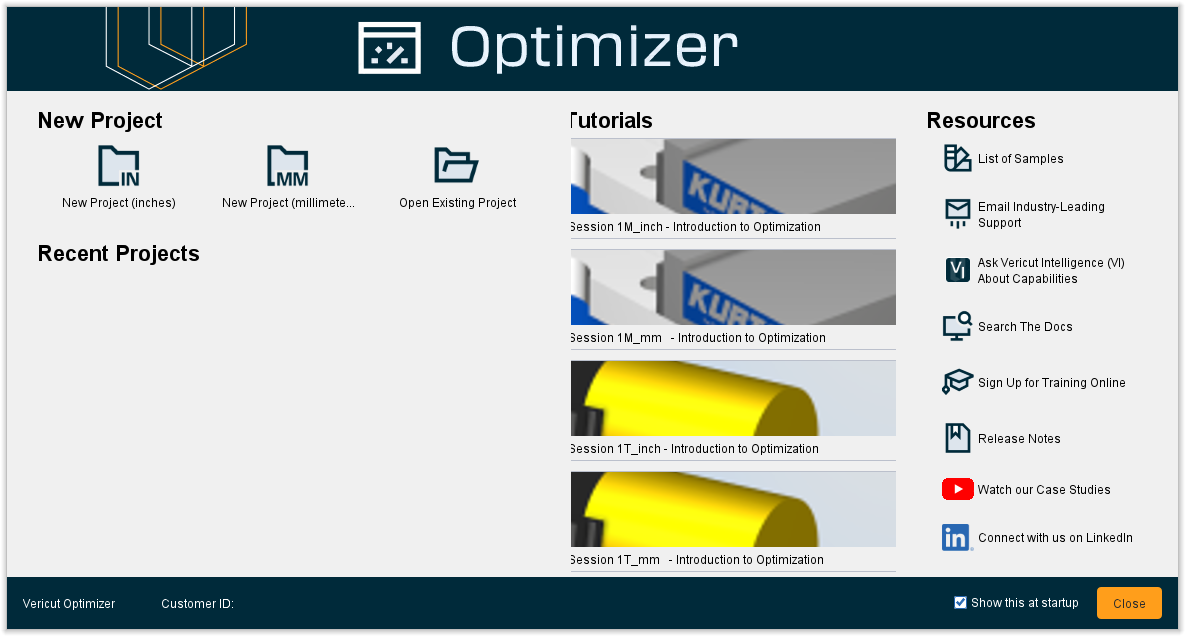
The bottom left corner displays the Vericut version number and your Customer ID. If you are using a temp license, it will also display the expiration date.
The bottom right corner has a Show this at startup toggle which can be used to set whether the Welcome Screen will display every time you open Vericut (checked) or only when you call it from Help tab > Welcome (not checked). There is also a Close button to exit the Welcome Screen.
The rest of the Welcome Screen consists of New Project, Recent Projects, Tutorials, and Resources. Each of these areas will be described in the sections that follow.
New Project
The features in the Projects group of the Welcome Screen provide quick access to starting a new project file, or open an existing project file.
New Inch Project — Opens a new inch project file in Vericut and closes the Welcome Screen.
New Millimeter Project — Opens a new millimeter project file in Vericut and closes the Welcome Screen.
Open Project — Opens the Open Project file selection window enabling you to specify the /path/filename of an existing project file. When you select Open in the file selection window, the project file will be opened in Vericut and the Welcome Screen will close.
📝 NOTE: You can re-display the Welcome Screen at any time by selecting Help tab > Welcome in the Vericut main menu ribbon.
Below these buttons, there will also be several Recent Files you have previously opened when using Vericut. If you have not previously opened files in Vericut before, the area will be blank until files have been opened.
Holding the cursor over any of the project files will display a window containing the /path/filename of the project file and a thumbnail image.
Clicking on a project file in the Recent Files list will open it in Vericut and close the Welcome Screen.
Recent Projects
The Recent Projects group of the Welcome Screen provides quick access to the most recently opened files along with information showing the last time it was modified. You can click on the file to open it.
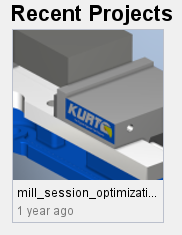
If there have been no recently opened projects, this section will appear blank.
Tutorials
The Tutorials group of the Welcome Screen provides quick access to any installed training sessions.
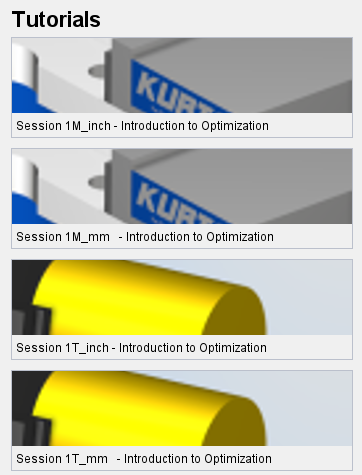
Holding the cursor over any of the training sessions I the Training list will display a window containing the /path/filename of the project file and a thumbnail image.
Clicking on a training session in the Training list will open the Training session instruction file in the Training Viewer panel, load the project file required by the training session in Vericut, and close the Welcome Screen.
Training Viewer Panel
The Training Viewer panel displays the relevant Training session instruction file. It also has several features to make navigating the instructions easier
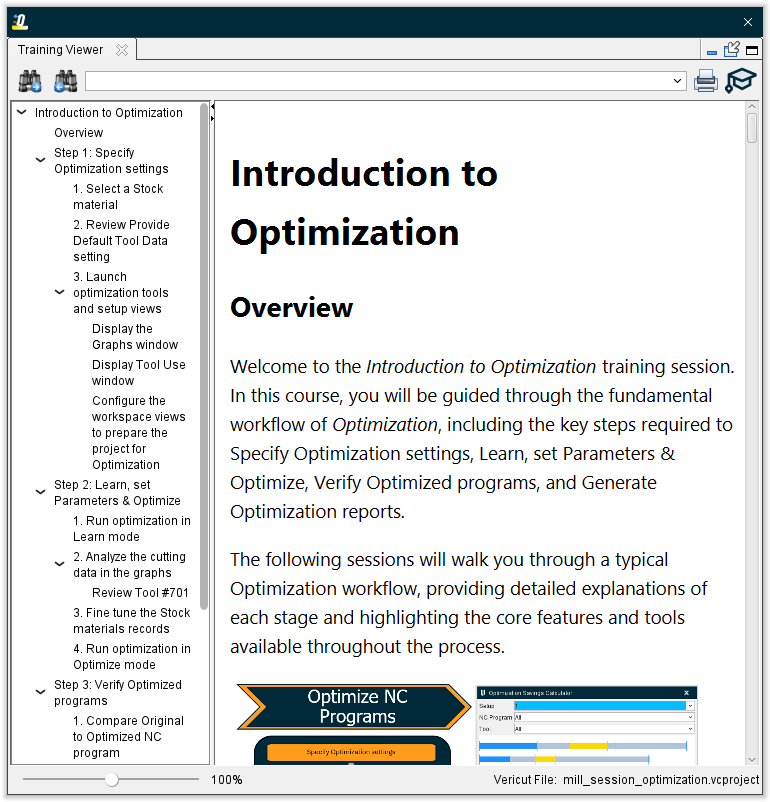
Search Forward — Use this function in conjunction with the Search bar to find and highlight the text you are searching for. This search will start at the top of the page and work its way toward the bottom.
Search Backward — Use this function in conjunction with the Search bar to find and highlight the text you are searching for. This search will start at the bottom of the page and work its way toward the top.
Search bar — Use this bar to enter the text you wish to search for.
Session Duration estimate — Displays how long it would likely take an average reader to read the entire file.
Print Button — Opens a standard Print window enabling you to specify how you would like to format this instruction file for printing. When satisfied, click Print to print or Cancel to exit without printing.
Time Estimates — Hover over this button to see roughly how long each session will take to complete.
Navigation Pane — On the left side of the Training Viewer Panel, major sections of the training content are displayed. You can click on one of those sections to be instantly navigated to that portion of the content.
Resources
The Resources icons provide quick one-click access to important things such as the list of samples, Vericut's AI, and our LinkedIn page among others.
 List of Samples — Opens the List of Samples window enabling you to easily search for specific samples to load. In the top left corner, a Categories pull-down menu can be used to specify a genre of sample you are looking for including options like Connectivity, Grinding, Robots, and more. In the top right corner, a Filter projects... text field can be used to search for specific projects. In the middle, all relevant samples will be displayed depending on what Category you have selected and the text you have used to Filter projects.
 Email Industry-Leading Support — Opens an e-mail page addressed to Vericut Support who can assist you with any technical issues.
 Ask Vericut Intelligence (VI) About Capabilities — Opens Vericut Intelligence enabling you to ask questions about Vericut, CNC machining, verification, and related topics in manufacturing.
 Search the Docs — Provides one-click access to the Vericut Help Library to learn more about the software.
 Sign Up for Training Online — Opens the Vericut training sign-up page where you can register for courses to learn how to better use Vericut products.
 Release Notes — Opens the latest Release Notes for you to review at your leisure.
 Watch our Case Studies — Provides one-click access to Vericut's YouTube page where you can find more videos of our software in action.
 Connect with us on LinkedIn — Provides one-click access to the Vericut Linkedin page where you can follow us.