NC Program Editor
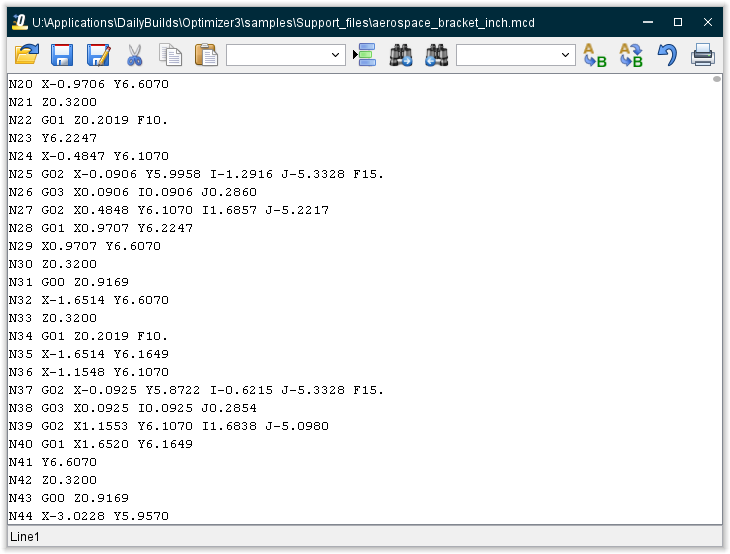
Selecting Edit from Configure NC Program displays a list of all NC programs and subroutines in the project file. Choosing one of the NC program files/subroutines opens a text editor window with the selected NC program file/subroutine file loaded and ready for editing. Standard text editing features are provided, such as: copy/cut, paste, search, etc.
⚠️ Warning: Editing the NC program file can cause undesirable results, especially when edits are made to portions of the NC program which have already been processed by Vericut. These edits can cause the NC program record number pointer to be out of sync with the edited NC program file. In these cases it is recommended that you rewind the NC program file after editing, and restart the simulation with the last unedited record prior to the first addition/deletion.
Icon Bar:

The items in the Icon Bar enable you to search for, and/or replace, specific items in the file listing, print the file, or exit the window. Moving the cursor over the icon will display name of the option. Each feature (from left to right) is described below.
 Open File — Open a file.
 Save File — Save the current file.
 Save As File — Save the current file under a different name.
 Cut — Cuts the highlighted text in the file listing and puts it in the paste buffer.
 Copy — Copies the highlighted text in the file listing to the paste buffer.
 Paste — Puts the contents of the paste buffer at the location of the cursor in the file listing.
Line Number or Search Text — Use this text field to enter a line number, or a string of text, to search for.
 Got Line Number — Moves the cursor in the file listing to the line number specified in the Line Number or Search Text field.
 Search Forward — Searches forward in the file listing for the text string specified in the Line Number or Search Text field.
 Search Backward — Searches backward in the file listing for the text string specified in the Line Number or Search Text field.
Replacement Text — Use this text field to enter a "replacement text" string.
 Replace One — Replace one occurrence of text string in the Line Number or Search Text field (or the highlighted text in the file listing) with the text string in the Replacement Text field.
 Replace All — Replace all occurrences of the text string in the Line Number or Search Text field with the text string in the Replacement Text field.
 Print — Print the file.
 Close — Closes the window.
↘️ Shortcut: Right-click in the NC Program Edit window to display the following menu:
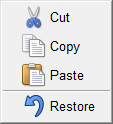
Cut, Copy, Paste and Restore provide the same functionality as in any word processor.
💡 Tip: The NC Program Editor also supports Windows-like shortcuts for the up/down/left/right arrows, Home, End, Page Up, and Page Down keys with optional Control key and/or Shift key modifiers. The following describes the behavior for each action.
No modifier key:
Up arrow key — moves the cursor to the previous line.
Down arrow key — moves the cursor to the next line.
Left arrow key — moves the cursor left 1 character. The cursor wraps to the previous line if the cursor is at the beginning of the current line.
Right arrow key— moves the cursor right 1 character. The cursor wraps to next line if the cursor is at the end of the current line.
Home key — moves the cursor to the beginning of the current line.
End key — moves the cursor to the end of the current line.
Page Up key — moves the cursor up about a window's worth of text.
Page Down key — moves the cursor down about a window's worth of text.
Shift key:
Holding down the Shift key while using any of the above keys produces the same behavior described above for no modifier key except that it highlights the text from the previous cursor position (or start of highlighting) to the current cursor position.
Control key:
Holding down the Control (Ctrl) key while using any of the keys below produces the behavior described.
Up arrow key — if not at the beginning of the current line, acts like home key. Else, works like up
Down arrow key — equivalent to pressing down and then home
Left arrow key — jumps to the start of the previous word on the current line or to the end of the previous line if at the beginning of the current line
Right arrow key — jumps to the start of next word on the current line or the beginning of the next line if at the end of the current line
Home key — jumps to the first character of the first line of the document
End key — jumps to the last character of the last line of the document
Page Up key — jump to the first character of the first line in the current window
Page Down key — jump to the last character of the last line in the current window
Control + Shift keys:
Holding down both the Control (Ctrl) key and the Shift key while using any of the above keys produces the same behavior described above for Control key except that it highlights the text from the previous cursor position (or start of highlighting) to the current cursor position.