Air Cuts
Location:
File tab > Air Cuts
Status Bar icon: 
The Air Cuts Only button is used to activate the feature of the same name if left-clicked. If you right-click on the same button, the Air Cuts window will open on the Air Cuts Only setting, enabling you to set the parameters for how the program should run.
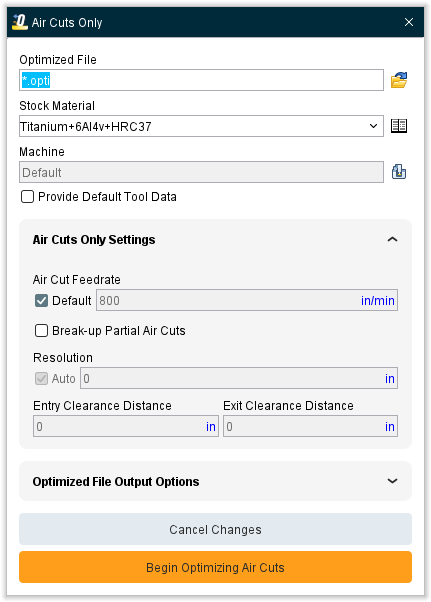
Optimized File — Use to specify the name of the modified (optimized) NC program file to receive optimized NC program data. Enter the *path*filename in the Optimized File text field or click on the  (Browse) icon and use the Optimized NC Program File file selection window to specify the \path\filename.
The format of this file, APT vs. G-Code, is the same as the tool path file being optimized. When an APT NC program is optimized the programmed "FEDRAT" records are commented out using "$$" and written to the modified path for reference. The Optimized File name must be different from that of the original NC program file. Optimization will not permit the original NC program file to be overwritten.
In many situations, there is more than 1 file being optimized. You might have multiple programs and you might have subroutine files that are being optimized. Therefore, in most cases, this field is specifying the rules for renaming the input files, and not the exact name of the optimized file.
For example, assume input file is test.mcd:
-
.opti *→** test.opti
-
opti_. → opti_test.mcd
-
\path*.* → \path\test.mcd
-
name.opti → name.opti
-
name → name
An ‘*’ before the dot means: put the original base file name here.
An ‘*’ after the dot means: put the original extension here.
📝 NOTE: The Optimized File name (including path) must be different from that of the original NC program file. Optimization will not permit the original NC program file to be overwritten.
The above rules apply to the main program and to subroutines except if a specific filename is specified (‘*’ is not used in the name) and there are more than 1 NC program files or if subroutine files are being optimized. It is highly recommended that if you are optimizing more than 1 program or are optimizing subroutine files, that you use one of the top 3 formats. The remainder of the documentation describes how this field applies to this one exception.
If we are optimizing multiple input files, and a specific optimize file name was given, we concatenate a sequence number. For example:
-
name.opti → name001.opti, name002.opti, …
-
name → name.001, name.002, …
-
\path\name → \path\name.001, \path\name.002, …
If we are optimizing a subroutine file, and a specific optimize file name was given, the subroutine name will be used rather than the specified name. For example: assume we are optimizing the subroutine “sub1.mcd”
-
name.opti → sub1.opti
-
name → sub1
-
\path\name.* → \path\sub1.mcd
Stock Material — Identifies the stock material being cut. The material name is changed via clicking the arrow and selecting from a list of available materials, or clicking in the data field and typing a new material name. Select the  icon to open the Stock Material Catalog window.
Machine — Identifies the NC machine being used to cut the workpiece. This feature functions similar to Stock Material described above. Select the  icon to change the machine via the Project Tree panel.
📝 NOTE: For optimization to occur the Stock Material and Machine names must match those of the desired Stock Material records in the Tool Library file.
Override All Feedrates % — Set the percentage to be overridden.
Begin Optimizing Air Cuts — Starts the optimization process.
Apply Settings to All Setups — When pressed, all settings (including learn mode settings for the various tool types) are applied to all setups in the project. This saves time configuring a project for optimization since most of the settings do not change, and avoids making mistakes duplicating the Force Material File Directory location and other optimization settings between setups.
Air Cuts Only Settings
Air Cut Feedrate — This option is useful for reducing time of proven NC programs, without affecting cutting feed rates and resulting surface finishes. When the checkbox is cleared, this feature controls the feed rate used by all other optimization methods to optimize air cuts. Default is 100% of Max Feed Rate. Toggle the Default option on (checked) to use the default rate.
Break-up Partial Air Cuts — Toggle on (checked) to have Optimizer break up motions that spend some time in air, from motions that engage material. The “air cut” portions are optimized, while motions in material remain at their programmed feedrates. This enables all other fields in this section to be manually edited except for Air Cut Feedrate.
Resolution — This option controls the frequency or "sampling distance" used to analyze each tool path motion. Each feed rate controlled motion is partitioned into samples based on this distance. The samples are then analyzed during feed rate calculation. You can use the Auto setting to let the software decide for you or use the Distance setting to manually enter a distance in the adjoining field.
Entry Clearance Distance — This option is only available when Break-up Partial Air Cuts is toggled on. Use the text field to manually enter the clearance distance.
Exit Clearance Distance — This option is only available when Break-up Partial Air Cuts is toggled on. Use the text field to manually enter the clearance distance.
The remaining group, Optimized File Output Options, is explained in the Optimize window section.
Cancel Changes — Removes all entered data and closes the window.
Begin Optimizing — Starts the optimization process.