Controlling VO with Record Comments
Comment records typically have no affect on the tool motion simulated by Vericut. However, special "Vericut comment" records are available to help control the NC program simulation in VO. For example, Vericut comments can be used to change cut colors, set VO user interface values, or cause VOto perform certain actions, such as: AUTO-DIFF model comparisons, reversing the view, etc. Some simple examples follow.
Note that for G-Code NC programs, the NC control must be configured to interpret the comment record format for that control, for example "begin comment" word, "end comment" word (if present), etc. See Word Format Table in the Configuration Menu section of VO Help.
The available Vericut comment records with specific formats and examples are described in the following sections.
VERICUT-CUTCOLOR Record
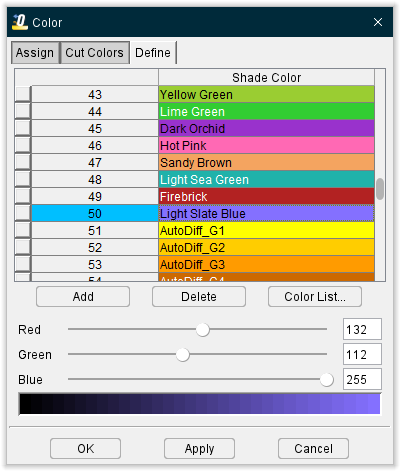
Special comment records that assign the cut color for the active tool. Cut colors are referenced via an index corresponding to the colors defined for use via the "Shade Color list" on the Edit menu > Colors: Define tab (See the VO Help section for additional information). Color index numbers range from 0-n where "0" refers to the first color in the list-typically assigned to be the Error color. "1" refers to the second listed color, and so on. The index number is always 1 less than the index seen in the user interface. Examples follow.
Note that for G-code tool paths, the NC control must be configured to interpret the comment record format for that control, for example "begin comment" word, "end comment" word (if present), etc.
Examples of use:
Set the cut color to "Light Slate Blue", as referenced in the sample Color window below:
APT/CLS — PPRINT/Vericut-CUTCOLOR 2
G-Code (Fanuc) — (Vericut-CUTCOLOR 2)
VERICUT-MODAL Record
This special comment record is used to specify a user interface value, such as a data field entry or an option choice. One user variable/value can be set per record. Most user variables found in a Project file can be set or modified in this way. Vericut-MODAL FASTFPR, for instance, can be used to change IPR values.
Note that for G-code tool paths, the NC control must be configured to interpret the comment record format for that control, for example "begin comment" word, "end comment" word (if present), etc.
Examples of use:
Set the Fast Feed data field value to "100":
APT/CLS — PPRINT/Vericut-MODAL FASTFEED=100
G-Code (Fanuc) — (Vericut-MODAL FASTFEED=100)
Choosing the Machining Type option for simulation of milling or turning operations:
APT/CLS milling mode — PPRINT/Vericut-MODAL MACHTYPE=milling
APT/CLS turning mode — PPRINT/Vericut-MODAL MACHTYPE=turning
G-Code (Fanuc) milling mode — (Vericut-MODAL MACHTYPE=milling)
G-Code (Fanuc) turning mode — (Vericut-MODAL MACHTYPE=turning)
Vericut-MOTION record
This special comment record is used to control when tool motions and cutting are simulated. When off, motion commands and tool positions are processed, but simulation, cutting, collision detection, and axis over-travel detection are suspended (ignored) during subsequent moves. When motion is turned on, the tool and/or NC machine "jumps" to its current position. The motion "on" condition is automatically set when a reset is done.
Note that for G-code tool paths, the NC control must be configured to interpret the comment record format for that control, for example "begin comment" word, "end comment" word (if present), etc.
Examples of use:
Turn motion off:
APT/CLS — PPRINT/Vericut-MOTION off
G-Code (Fanuc) — (Vericut-MOTION off)
Turn motion on:
APT/CLS — PPRINT/Vericut-MOTION on
G-Code (Fanuc) — (Vericut-MOTION on)
VERICUT-OPTIMIZE record
Vericut-OPTIMIZE records are special comment records that control when tool motions are optimized via Optimization.
Initially Optimization must be turned on by setting the Optimization Mode feature, on the Optimize Control window: Settings tab to "On". After that, Vericut-OPTIMIZE off and Vericut-OPTIMIZE on records can be used to suspend and restart the writing of optimized NC program records.
When a Vericut-OPTIMIZE off record is encountered, Optimization is not turned off, but the writing of "optimized" NC Program records to the Optimized File is suspended (ignored) during subsequent moves. During this time, un-optimized NC program records continue to be written to the Optimized File just as they were programmed. The writing of optimized NC program records remains suspended until the next Vericut-OPTIMIZE on record is encountered. A Vericut-OPTIMIZE on record must be used prior to the next tool change.
Examples of use:
Suspend writing optimized NC program records:
APT/CLS — PPRINT/Vericut-OPTIMIZE off
G-Code (Fanuc) — (Vericut-OPTIMIZE off)
📝 NOTE: Using either of the above "OPTIMIZE off" record suspends the writing of optimized NC program records until the next "OPTIMIZE on" record is encountered. During this time the OPTI status light in the Vericut window will display yellow.
Resume writing optimized NC program records:
APT/CLS — PPRINT/Vericut-OPTIMIZE on
G-Code (Fanuc) — (Vericut-OPTIMIZE on)
A format also exists for specifying which Stock Material record to use:
Vericut-OPTIMIZE DESC="description"
where "description" is an alpha-numeric text string that matches an existing Stock Material record Tool/Operation description defined for a cutter. The description must be enclosed in double quotes. This record syntax specifies one of the three values needed to identify which Stock Material record to use. The other two values come from Stock Material and Machine settings on the Optimize Control window: Optimization tab (ref. Optimize Control window: Optimization tab in the Optimize Control window section of VO Help. If an optimization record matching the four values is not found, VO continues to write un-optimized tool path records to the Optimized File.
Consider the following Stock Material records defined for a cutter in the Tool Library. The Blue icon indicates the Stock Material record with Tool/Operation description ".625D 1.50H FEM-Finish" is active.
Examples of specifying a different Stock Material record for use:
APT/CLS: PPRINT/Vericut-OPTIMIZE DESC=".625D 1.50H FEM-Rough"
G-Code (Fanuc): (Vericut-OPTIMIZE DESC=".625D 1.50H FEM-Rough")
📝 NOTE: For G-Code NC programs, the NC control must be configured to interpret the comment record format for that control, for example "begin comment" word, "end comment" word (if present), etc. See Word Format Table in the Configuration Menu section of VO Help for additional information.
"Vericut-OPTIMIZE OVERRIDEPERCENT=n" record- applies the specified % override to subsequent optimized feedrates. The value "n" is the percent multiplication applied to optimized feedrates.
Vericut-OPTIMIZE OVERRIDEPERCENT=100 causes subsequent optimized feedrates to not be overridden, and will be output at 100% of their calculated value.
Examples of specifying an override percentage to optimized feedrates:
APT/CLS: PPRINT/Vericut-OPTIMIZE OVERRIDEPERCENT=50
G-Code (Fanuc): (Vericut-OPTIMIZE OVERRIDEPERCENT=50)
See Tool Manager, Tool Table and Optimization window in the Project Tree section of VO Help for additional information on Optimization records.
See Optimization Control window in VO Help for additional information on Optimization Control window features.
📝 NOTE: For G-Code NC programs, the NC control must be configured to interpret the comment record format for that control, for example "begin comment" word, "end comment" word (if present), etc. See Word Format Table in the Configuration Menu section of VO Help for additional information.
Specify an Optimization library record for use with the current tool:
APT/CLS — PPRINT/Vericut-OPTIMIZE DESC=".5 Dia Ball EM, Carbide" TEETH=4
G-C>ode (Fanuc) — (Vericut-OPTIMIZE DESC=".5 Dia Ball EM, Carbide" TEETH=4)
VERICUT-OPTIMIZE ADD_Learn record
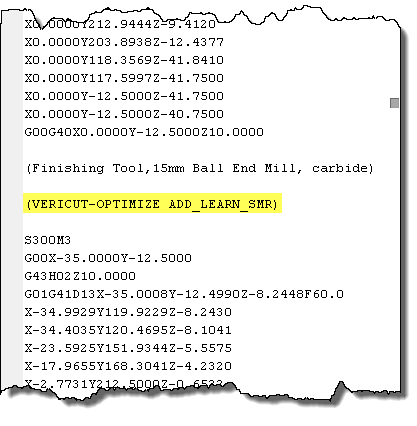
When a particular tool is used to perform different cutting operations in the same tool change sequence, e.g. roughing followed by finish cutting, an “VERICUT-OPTIMIZE ADD_LEARN_SMR” comment can be used to trigger when to begin learning for a new tool use case.
Formats:
• G-Code (Fanuc) => (VERICUT-OPTIMIZE ADD_LEARN_SMR)
• APT/CLS => PPRINT/VERICUT-OPTIMIZE ADD_LEARN_SMR
VERICUT-TC record
This special comment record is used to define the shapes of cutters, shanks or holders in a tool assembly. Anything allowed to follow "CUTTER/" is also allowed to follow "Vericut-TC". Like "CUTTER", this record is processed by default via Tool Change By in the NC Programs window set to: "Cutter Desc." or "Vericut TC". See the VO Help section for additional information.
Note that for G-code tool paths, the NC control must be configured to interpret the comment record format for that control, for example "begin comment" word, "end comment" word (if present), etc.
Examples of use:
Defines an APT-type seven parameter cutter shape- 1.0 diameter x .125 corner radius x 3.0 height:
APT/CLS — PPRINT/Vericut-TC 1.0,.125,0,0,0,0,3.0
G-Code (Fanuc) — (Vericut-TC 1.0,.125,0,0,0,0,3.0)
Defines a profile cutter shape:
APT/CLS — PPRINT/Vericut-TC XCUT,PTS,0,0,.5,0,ARC,1,0,.5,PTS,1,.5,1,1
G-Code (Fanuc) — (Vericut-TC XCUT,PTS,0,0,.5,0,ARC,1,0,.5,PTS,1,.5,1,1)
As above, except in APT/CLS multi-line record format using the "$" continuation:
PPRINT/Vericut-TC XCUT,PTS,0,0,.5,0,$
PPRINT/Vericut-TC ARC,1,0,.5,PTS,1,.5,$
PPRINT/Vericut-TC 1,1
Defines a profile shank shape:
APT/CLS — PPRINT/Vericut-TC SHANK,PTS,0,0,.5,0,.5,1,0,1
G-Code (Fanuc) — (Vericut-TC SHANK,PTS,0,0,.5,0,.5,1,0,1)
Defines a profile holder shape:
APT/CLS — PPRINT/Vericut-TC HOLDER,PTS,0,0,1,0,1.5,.5,1.5,3,0,3
G-Code (Fanuc) — (Vericut-TC HOLDER,PTS,0,0,1,0,1.5,.5,1.5,3,0,3)
Incorrect examples:
Continuation record missing "Vericut-TC":
PPRINT/Vericut-TC XCUT,PTS,0,0,.5,0,ARC,$
PPRINT/1,0,.5,PTS,1,.5,1,1,0,1
The word "ARC" split between lines:
PPRINT/Vericut-TC XCUT,PTS,0,0,.5,0,AR$
PPRINT/Vericut-TC C,1,0,.5,PTS,1,.5,1,1,0,1
Continuation record does not have the same keyword "TC":
PPRINT/Vericut-TC XCUT,PTS,0,0,.5,0,1,.5,1,1 $
PPRINT/Vericut-COMMAND reverse
VERICUT-TOOLID record
This special comment record is used to- specify the ID of a tool to use from a Tool Library file. This record is acted on only when Vericut is configured to retrieve tools from a Tool Library, for example: Tool Change By in the NC Programs window set to: "Tool Number". See the VO Help section for additional information.
Note that for G-Code tool paths, the NC control must be configured to interpret the comment record format for that control, for example "begin comment" word, "end comment" word (if present), etc.
Example of use:
Use tool in the library having ID #100002:
APT/CLS — PPRINT/Vericut-TOOLID 100002
G-Code (Fanuc) — (Vericut-TOOLID 100002)
📝 NOTE: This feature is intended to be used only for Verification. Using it with Machine Simulation will result in an incorrectly positioned tool being displayed only in a Workpiece view.
VERICUT-USERTAG record
This special comment record enables specifying User-Defined Tag values, for use in a report, from within the NC program file. The general format is PPRINT/Vericut-USERTAG "tagname"="tagvalue", for APT or CLS tool paths, or (Vericut-USERTAG "tagname"="tagvalue") for G-code tool paths.
Examples of use:
Use to specify the value for a "Text" type User-Defined Tag:
PPRINT/Vericut-USERTAG "text_entry"="This is the text that will appear in the Vericut report.")
(Vericut-USERTAG "text_entry"="This is the text that will appear in the Vericut report.")
where text_entry is the User-Defined Tag name, and "This is the text that will appear in the Vericut report.", is what will be written out in the report.
Use to specify the value for a "Table" type User-Defined Tag:
PPRINT/Vericut-USERTAG "table_name"="/path/filename")
(Vericut-USERTAG "table_name"="/path/filename")
where table_name is the User-Defined Tag name, and /path/filename represents the path and file name of the text file containing the data for the table.
Use to specify the value for a "Picture From File" type User-Defined Tag:
PPRINT/Vericut-USERTAG "picture"="/path/filename")
(Vericut-USERTAG "picture"="/path/filename")
where picture is the User-Defined Tag name, and /path/filename represents the path and file name of the image file containing picture for the report.
User-defined tags defined using a Vericut-USERTAG record can be used within a "Toolpath Loop", or a "Tool Change Loop" in a report. See Report Template window, Page Layout tab in the VO Help section for additional information.
Vericut-VARTAG record
A special comment record that enables assigning the value of an NC variable to a User-Defined Tag, from within the NC program file, for use in a report. The general format is PPRINT/Vericut-VARTAG "user-definedtag**name"="NC variable name", for APT, or CLS, NC programs, or (Vericut-VARTAG "user**-defined tag name"="NC variable name") for G-Code NC programs.
Note that for G-Code NC programs, the NC control must be configured to interpret the comment record format for that control, for example "begin comment" word, "end comment" word (if present), etc.
The user-defined tag value will be the NC variable's value at the time the comment statement is processed. If you have multiple comment statements, defining the same user-defined tag, with the same tool and NC program, the user-defined tag value will be NC variable's value at the time that the last comment statement is processed.
Example of use:
Assign the value of NC variable 5043 to user-defined tag Tool Tip Z :
APT/CLS — PPRINT/Vericut-VARTAG "Tool Tip Z"="5043"
G-Code (Fanuc) — (Vericut-VARTAG "Tool Tip Z"="5043")
📝 NOTES:
-
NC variable name is the name of the NC variable as long as the variable is not an array variable. If the variable is an array variable, NC variable name must be a single array element, like text[0, 1], or frame[1, X, TR]. See Variables window in the VO Help section for additional information on NC Variables.
-
User-defined tags defined using a Vericut-VARTAG record can be used within a "Toolpath Loop", or a "Tool Change Loop" in a Vericut report. See Report Template window, Page Layout tab in the VO Help section for additional information.