ToolsUnited
Location:
Tool Manager > Import tab > ToolsUnited
The ToolsUnited button opens the TolsUnited window enabling you to use that interface for importing tools.
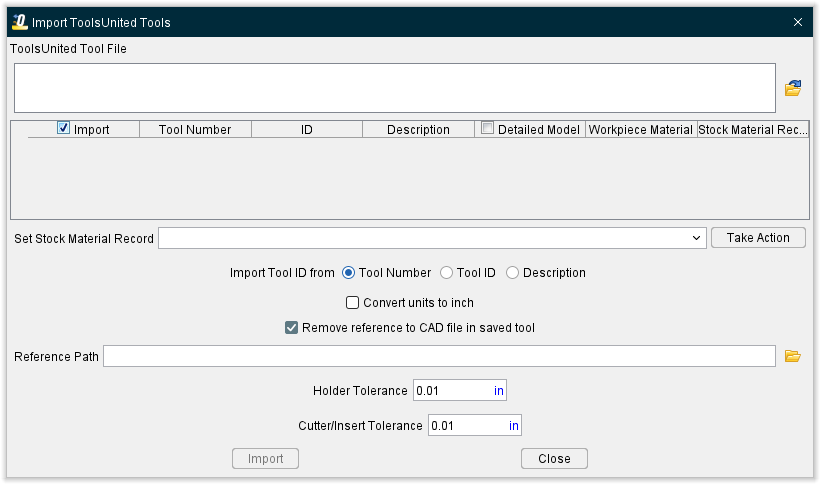
The Import ToolsUnited window enables you to easily download tool models from the ToolsUnited and quickly transfer them to a tool library. Cutting data can also be read in for ToolsUnited tooling during the import process for use in toolpath optimization within Tool Manager to run additional checks on your simulation.
ToolsUnited Tool File — Enter the \path\filename of the file containing the list of the tool models that you want to import in the text field, or click on the  (Browse) and use the Select ToolsUnited File file selection window that displays to specify the \path\filename of the file containing the list of the tool models.
Tool Table — After specifying the ToolsUnited tool file, the Tool Table will be populated with a list of the tool models contained in the ToolsUnited tool file. The column headings in the Tool Table correspond to the ToolsUnited field names coming from the XML file.
Import column — Toggle on (checked) to ensure that the selected tool is imported when Import Selected button is clicked. By default, the entire list will be checked on. Uncheck any boxes to exclude those tools when the tools are read in.
Tool Number — Displays the T_No from the ToolsUnited file for that specific tool.
ID column — Displays the assembly ID from the ToolsUnited file for that specific tool.
Description column — Displays the assembly name from the ToolsUnited file for that specific tool.
Detailed Model column — Displays a checkbox to check on if a detailed model is desired. Simplified spun representations of tools will be imported by default.
Workpiece Material column — Displays the Workpiece Material that was defined in ToolsUnited. This is optional in ToolsUnited software.
Stock Material Record column — Displays the Stock Material Record names that are available from the Force Material File Directory in Optimizer and any Stock Materials listed in Tool Manager. A new Stock Material name can be entered in this field if desired. This optional selection is intended to align existing Stock Material Records within Optimizer to a Workpiece Material name. This option is for use with Force and Optimization.
Set Stock Material Record — This feature enables you to specify a Stock Material Record to be assigned to a selected group of tool models listed in the Tool Table at the same time.
📝 NOTE: Setting Workpiece Material in ToolsUnited and Stock Material Record in the ToolsUnited Interface are important for using imported cutting parameters.
Take Action — Use to apply the Set Stock Material Record settings, above, to the selected tool models in the Tool Table.
Import Tool ID from — Select either the displayed Tool Number (default), Tool ID, or Description to be imported as Tool ID in Tool Manager. These data points are displayed above in the Tool Table.
Convert units to inch — Toggle on (checked) to automatically convert imported tools to inches. Toggle off (unchecked) to leave the imported tools in their default units.
Remove reference to CAD file in the saved tool — When toggled "off" (not checked), the imported tool models are stored in the same CAD format that they were imported in. When toggled "on" (checked), the imported tool components are saved as Optimizer Polygon files.
📝 NOTE: The Model Tolerance value specified in Settings window: Properties tab (Project tab > Settings) is used when creating the Optimizer Polygon (.ply) files.
Reference Path — The user can specify a path to where the polygon files will be saved. Reference path is only applicable when the “Remove reference to CAD file in saved tool” is toggled on (checked).
Holder Tolerance — Enables you to specify the Holder Tolerance by entering the tolerance value in the Holder Tolerance text field.
Cutter/Insert Tolerance — Enables you to specify the Cutter/Insert Tolerance by entering the tolerance value in the Cutter/Tolerance text field.
📝 NOTE: When specifying Holder Tolerance and Cutter/Insert Tolerance values, the specified values will be applied to Holder Tolerance and Cutter/Insert Tolerance in the Tool Manager Preferences window, the Import CAD Tool window and the Import ToolsUnited Tools window.
Import — Use to import the designated tool models from ToolsUnited Tool to the currently active Optimizer tool library and then close the ToolsUnited Tool Import Interface window.
Close — Close the ToolsUnited Tool Import Interface window without importing the specified tool models.