Favorites
Location:
File tab > Favorites
The Favorites button opens the Favorites panel, enabling you to quickly access frequently used directories and files without using a file selection window each time.
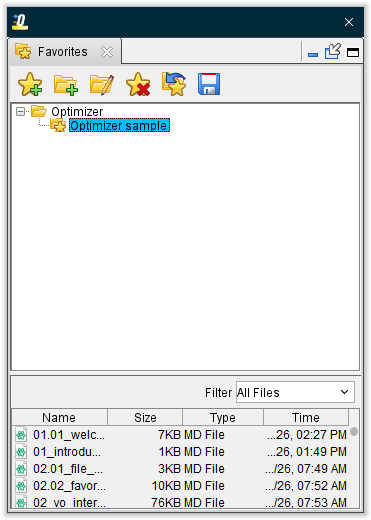

 (Add a Favorite) — Opens the Add a Favorite window enabling you to add a “favorite” folder or “favorite” file to your Favorites panel. A ”favorite” is a link to a folder of files or a link to an individual file.
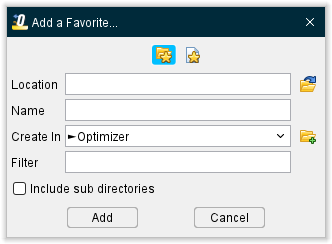
-
 (Favorite Directory) — Toggle on (depressed), to add a new “favorite” folder to your Favorites panel.
 -
 (Favorite File) — Toggle on (depressed), to add a new “favorite” file to your Favorites panel.
 -
Location — Enter the path to the “favorite” folder/file that you want to add or click on the
 (Browse) icon and use the Add a Favorite file selection window that displays to specify the path to the “favorite” folder/file.
 -
Name — Enter a name in the text box for the “favorite” folder/file that you are adding.
-
Create In — Select the desired path from the pull-down list. The list will contain all “favorite” folder/folder paths defined in your Favorites panel. The default folder path is the path of the “favorite” folder or “favorite” file that is highlighted in your Favorites panel. Click on the
 (Add a Folder) to add a folder to the end of the Create In path.
 -
Filter — Enter one or more file extensions, separated by commas, for the types of files associated with a “favorites” folder.
-
Include sub directories — When toggled on (checked), sub-directories of the selected new “favorite” folder that contain files that match the specified filter will be added to your Favorites panel. If a sub-directory does not contain any files that match the specified filter, it will not be added to your Favorites panel. This feature is only active when
 (Favorite Directory) is selected.
 -
Add — Adds the newly defined “favorite” folder/file to your Favorites panel and then closes the Add a Favorite window.
-
Cancel — Closes the Add a Favorite window without adding anything to your Favorites panel.
(Add a Folder) — Opens the Add a Folder window enabling you to add a folder to your Favorites panel. Unlike a “favorite”, a folder is not a link. Folders are used to organize the “favorite” directories and “favorite” files in your Favorites panel. Folders can be used to group similar favorites as shown with the “Tools” structure in the Favorites panel on the previous page.
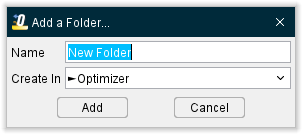
-
Name — Enter a name in the text box for the folder that you are adding.
-
Create In — Select the desired path from the pull-down list. The list will contain all “favorite” folder/folder paths defined in your Favorites panel. The default folder path is the path of the “favorite” folder or “favorite” file that is highlighted in your Favorites panel. The new folder will be added to the end of the Create In path.
-
Add — Adds the newly defined folder to your Favorites panel and then closes the Add a Folder window.
-
Cancel — Closes the Add a Folder window without adding anything to your Favorites panel.
 (Edit) — The Edit icon opens the Edit Favorite window enabling you to edit the information related to the “favorite” folder or “favorite” file that is highlighted in your Favorites panel.
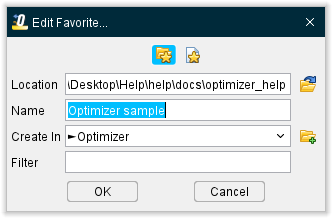
-
Name — Use the text field to modify the name of the folder.
-
Create In — Select the desired path from the pull-down list. The list will contain all “favorite” folder/folder paths defined in your Favorites panel. The default folder path is the path of the “favorite” folder or “favorite” file that is highlighted in your Favorites panel.
-
OK — Applies the modifications to the folder in your Favorites panel and then closes the Edit Folder window.
-
Cancel — Closes the Edit Folder window without adding anything to your Favorites panel.
 (Delete) — Enables you to delete the highlighted folder, “favorite” folder or “favorite” file from your Favorites panel. Note that if a folder that is part of a structure that has child entities associated with it is deleted, the child entities will also be deleted. The “Tools” structure in the Favorites panel on the previous page is an example.
 (Import Favorites from a file) — Displays the Import Favorites file selection window enabling you to select the Favorites file that you want to use. You have the option of appending to the current Favorites file or replacing the current Favorites file.
 (Save Favorites to a file) — This feature enables you to save the Favorites settings to an external file. Selecting Save Favorites to a file displays the Save Favorites to a File file selection box enabling you to specify the \path\filename for the file to be saved.
Favorites Listing Area
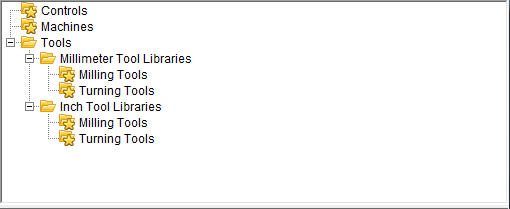
The Favorites Listing Area displays all of the “favorite” directories and “favorite” files that you have defined.
💡 Tips:
-
Hold the cursor over a “favorite” folder in the Favorites Listing Area to display the full folder path and file extensions associated with the “favorite” folder. Hold the cursor over a “favorite” file to display the full folder path to the file.
-
You can change the order of the items in the Favorites Listing Area by clicking on the item with the left mouse button and while holding the mouse button down, drag the item to the desired location and release the mouse button.
Filter

The filter shows the file extension, or extensions, that you have associated with the highlighted “favorite” folder.
For example, if the Controls “favorite” folder and the Machines “favorite” folder shown in the Favorites Listing Area above are linked to the same location (like the library folder of an Optimizer installation). When the Controls “favorite” folder is highlighted, the Filter is set to only display files with a .ctl extension in the File Information section of the Favorites panel. When the Machines “favorite” folder is highlighted, the Filter is set to only display files with a .mch extension in the File Information section of the Favorites panel.
File Information
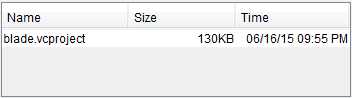
The File Information section of the Favorites panel displays the files that are associated with the highlighted “favorite” folder. It also shows the Names of the files, the Size of the files, and the Time (date and time) when the file was last modified. The picture below shows the display resulting from the Machines “favorite” folder described above in the Filter section.
💡 Tips:
-
Holding the cursor over a machine or project file in the File Information section will display a thumbnail picture of the machine described by the machine file or the machine used in the project file.
-
You can click on a file in the File Information section of the Favorites panel with the left mouse button and while holding the mouse button down, drag the file to the appropriate location in the Project Tree then release the mouse button.
- You can double-click with the left mouse button on a project (.vcproject), machine (.mch), control (.ctl) or tool library (.tls) file in the File Information section of the Favorites panel to load the file.
- Click with the right mouse button in the Favorites listing area to display the following menu:
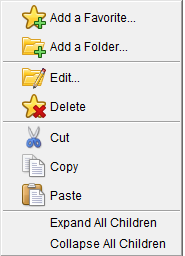
The options Add a Favorite, Add a Folder, Edit, and Delete provide the same functionality as described in the Toolbar section above.
Cut — Cuts the highlighted “favorite” folder/file from the Favorites panel and puts it in the paste buffer.
Copy — Copies the highlighted “favorite” folder/file from the Favorites panel to the paste buffer.
Paste — Adds the contents of the paste buffer after the highlighted “favorite” folder/file in the Favorites panel.
Expand All Children — Expands all branches below the highlighted folder. If no directories are highlighted, all branches in the Favorites Listing Area will be expanded.
Collapse All Children — Collapses all branches below the highlighted folder. If no directories are highlighted, all branches in the Favorites Listing Area will be collapsed.
Save As — Opens the Save As window enabling you to save your project and rename it to a new project if you wish.